Which Minecraft Can You Mod? Java vs Bedrock Modding Guide
Explore which minecraft can you mod, comparing Java and Bedrock modding, loaders Forge and Fabric, and safe steps to start modding in 2026. A practical Craft Guide analysis for builders.


Short answer: which minecraft can you mod? Java Edition has the broadest modding scene with Forge and Fabric loaders, enabling full mods. Bedrock Edition offers limited customization through official Add-Ons. This quick guide explains the differences, safety practices, and practical steps to start modding for both editions.
Understanding modding in Minecraft
Modding is the process of changing or extending Minecraft's gameplay through code, texture packs, and data packs. Depending on edition, the approach and safety considerations vary. The question which minecraft can you mod is answered most clearly by looking at Java Edition versus Bedrock Edition. Java offers a thriving ecosystem of open-source loaders like Forge and Fabric, a vast mod catalog, and community-driven tutorials. Bedrock supports customization primarily through Add-Ons distributed via the Marketplace or community tools, but these are more constrained in scope and compatibility. Craft Guide's analysis shows that most players who want deep gameplay changes start with Java Edition, while Bedrock remains suitable for cosmetic or texture-level changes within its add-on framework. When modding, always back up worlds and use reputable sources to minimize risk of corrupted saves or malware. This is especially important on public servers or shared worlds.
Editions: Java vs Bedrock
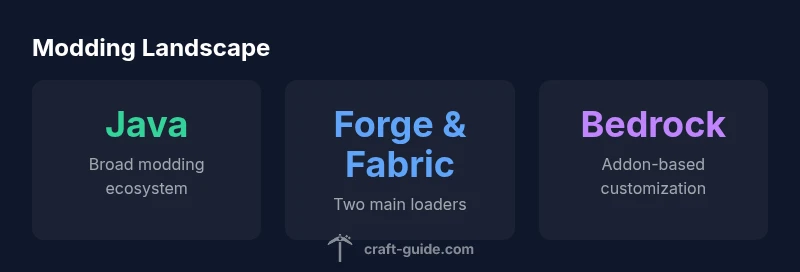
The Java Edition of Minecraft is the original platform that introduced mods. It supports full code edits, new items, biomes, and gameplay systems through mod loaders such as Forge and Fabric. Java's modding community thrives on version-locked ecosystems, meaning mods are often tied to specific Minecraft versions. Bedrock Edition, in contrast, emphasizes cross-platform play and a controlled ecosystem via Add-Ons. Add-Ons allow texture changes, behavior tweaks, and limited content additions, but they cannot replicate the breadth of Java mods. In terms of compatibility, Forge and Fabric do not officially support Bedrock, and Bedrock’s Add-On architecture is designed to work uniformly across Windows 10/11, consoles, and mobile devices. Craft Guide analysis shows that the decision often comes down to desired scope: Java for deep gameplay changes; Bedrock for accessible customization with fewer compatibility headaches.
How to mod Java Edition safely
Starting with Java means choosing a version, a loader (Forge or Fabric), and a reputable mod catalog. Begin by backing up your world, then install the same Minecraft version used by your mods. Install a mod loader next, following official guides, and always download mods from trusted repositories with recent reviews. Check mod compatibility notes—mods compatible with one version may crash on another. Use a modding profile in your launcher to avoid conflicting mods. Finally, test new mods in a fresh world before applying them to active worlds to prevent data loss. Craft Guide recommends keeping a clean mod set for each world to minimize conflicts.
Add-ons vs full mods: what you get
Bedrock Edition’s Add-Ons are designed to be safer and more accessible for cross-platform players. They modify behavior and textures without executing arbitrary code, which reduces risk but also limits what you can change compared to Java mods. Full mods for Java Edition can alter physics, AI, and core game mechanics, often requiring a dedicated mod loader and precise version matching. If your goal is intense gameplay overhaul, Java with Forge or Fabric is the recommended path. If you want cosmetic updates and small tweaks across devices, Bedrock Add-Ons offer a simpler route with less potential for crashes.
Practical steps to start modding
- Decide edition: Java for full mods, Bedrock for Add-Ons. 2) Prepare your setup: install the correct Minecraft launcher profile and a fresh world. 3) Pick a loader or Add-On framework: Forge or Fabric for Java; Add-Ons for Bedrock. 4) Source mods/Add-Ons from trusted repositories and verify version compatibility. 5) Install one mod or Add-On at a time and test in a local world before expanding your catalog. 6) Maintain backups and read update notes to keep mods stable after Minecraft updates.
Common pitfalls and safety tips
Backups are your best defense against corrupt saves. Avoid downloading mods from unknown sites, as they can harbor malware. Always check mod compatibility with your Minecraft version and launcher. Keep mods on a separate drive when possible to protect your primary world. On servers, only use mods approved by the server admin and be mindful of cross-version play limitations. Finally, document what you install so you can revert changes if something goes wrong.
Comparison of modding capabilities by edition
| Edition | Modding Type | Notes |
|---|---|---|
| Java Edition | Full mods (Forge, Fabric) | Broad mod catalog, version alignment matters |
| Bedrock Edition | Add-Ons (Behavior/Resource) | Official ecosystem, cross-platform limitations |
People Also Ask
Can you mod Minecraft on consoles?
Official console editions do not support traditional mods. Bedrock Add-Ons provide limited customization and are intended for cross-platform play. Java Edition remains the primary platform for full mods.
Console editions don’t support full mods; use Add-Ons on Bedrock or switch to Java for a wider modding ecosystem.
What is the difference between Forge and Fabric?
Forge and Fabric are mod loaders for Java Edition. They manage mod loading and compatibility; most mods target one or the other. Choose based on mod availability and your version.
Forge and Fabric are two main mod loaders for Java; most mods work with one, so pick based on the mods you want.
Is modding Minecraft legal?
Modding is generally permitted for personal use and non-commercial sharing, as long as you respect Mojang's terms and avoid distributing copyrighted content. Do not mod on servers without approval where prohibited.
Yes, modding is generally allowed for personal use, but check server rules and avoid copyright issues.
Where can I find safe mods or Add-Ons?
Look for mods/Add-Ons on established repositories with recent user reviews and version notes. Verify compatibility with your Minecraft version and launcher, and avoid executable files from unknown sites.
Stick to trusted sources with recent reviews and always match version numbers.
Do mods affect server performance?
Yes, mods can impact server performance, especially if they alter core mechanics or increase resource use. Test on a local world and monitor performance before deploying on a live server.
Mods can slow down servers; test locally before going live.
How do I install mods?
Install the same Minecraft version as your mods, install the corresponding loader (Forge or Fabric), download mods from trusted sources, and place them in the mods folder. Always back up your worlds first.
Match mod and game versions, install the loader, download from trusted sources, and back up your worlds.
“Modding is most accessible on Java Edition, where a rich loader ecosystem enables a wide mod catalog. Bedrock players can still tailor their games with Add-Ons, though the scope is more constrained.”
The Essentials
- Start with Java for broad modding options
- Bedrock uses Add-Ons with limited scope
- Back up worlds before modding to prevent loss
- Choose the right loader (Forge or Fabric) for your mods