Can You Add Mods While Minecraft Is Open? A Practical Guide
Discover whether you can safely add mods while Minecraft is running and learn the safe, restart-based workflow for modding. This Craft Guide walkthrough covers tools, steps, and troubleshooting to keep your worlds intact.


Can you add mods while Minecraft is open? In short: no, not safely. Mods and mod loaders are loaded at startup, and runtime changes can crash the game or corrupt worlds. Always close Minecraft, install or remove mods in your mods folder, then restart to apply changes. If you absolutely must test a mod while testing, use a separate test profile and a backup world.
What you can and cannot do when the game is open and modding asks to change the loaded set
The question can you add mods while minecraft is open is common among players eager to experiment. According to Craft Guide, the safest approach is to treat mod loading as a startup step, not a runtime one. The game’s internal classloading, mod dependencies, and world data are tied to the specific mod set loaded when Minecraft launches. Attempting to swap or add mods while the game is running creates a high risk of crashes, saved data corruption, and inconsistent game behavior. Craft Guide analysis, 2026, notes that most stability issues stem from mid-session mod changes rather than from the mods themselves. Understanding this helps you plan a clean, restart-based workflow from the outset and reduce frustration.
Why hot-swapping mods mid-session is risky
Mods often modify core game files, APIs, and item registries. When you add or remove a mod while the JVM is executing, you risk classloader conflicts, miss-matched mappings, or partial initialization states that leave the world in an unpredictable condition. Some mods rely on biome, block, or item registries that must be registered in a particular order at startup. If you change these during play, the runtime environment can become unstable, leading to crashes or data corruption. Even if a crash seems minor, it can cascade into world corruption or save file inconsistencies that are difficult to recover.
Setting a safe expectation: modding is a startup activity
If your goal is to test new features or try a different mod pack, plan to end the current session, back up your world and configs, and perform the changes in a controlled startup. This means selecting a Forge or Fabric profile, placing the mod files in the mods folder, and launching the game anew. This restart-based workflow is the industry-standard approach for Minecraft modding, and it minimizes the risk of mid-session instability. Craft Guide's recommended workflow emphasizes preparation, backups, and version alignment to protect your worlds.
Tools and environment you’ll typically use for safe modding
Before you even think about changing mods, ensure you have a dedicated modding environment. This generally includes a Minecraft launcher with separate profiles for each mod loader (Forge or Fabric), a clean copies of the base game, the right Java version, and a reliable backup strategy. A common approach is to maintain a separate world/save folder for modded play and another clean, unmodified folder for vanilla testing. This separation helps you avoid cross-contamination of worlds and keeps your primary progression intact. Craft Guide’s guidance highlights the importance of environment discipline as a cornerstone of successful modding.
Step-by-step overview: the restart-based workflow in detail
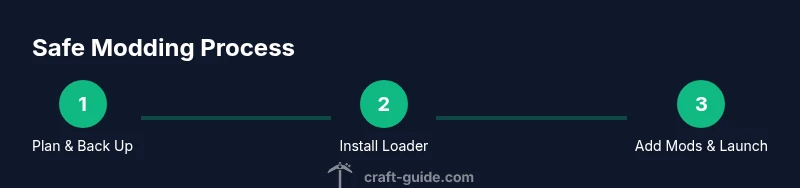
- Plan your mod list and verify compatibility with your Minecraft version. 2) Back up your current world and important game data. 3) Install a dedicated mod loader (Forge or Fabric) and the corresponding launcher profile. 4) Place mods into the mods folder, ensuring version parity. 5) Launch Minecraft with the modded profile and verify stability by loading a test chunk. 6) If issues arise, revert to backups and audit mod versions.
This flow avoids mid-session changes and minimizes data loss.
In-game options while the game is running: what you can actually tweak
Some mods expose config options or in-game toggles, which can often be adjusted without restarting, but changing the core mod set still requires a restart. Use in-game menus with caution, knowing that many changes only affect runtime visuals or minor behaviors while the mod itself remains loaded or unloaded only at startup. Always cross-check the specific mod’s documentation for whether a restart is necessary after changing any setting.
Practical best practices for beginners: planning, backups, testing
Start with a small, compatible mod set and gradually expand. Maintain two distinct Minecraft profiles: one vanilla or minimal (for clean backups) and one modded (for testing). Regular backups of your world and the entire Minecraft directory are essential—prefer automatic backups or a versioned archive. Keeping a changelog helps you trace what caused a regression when things go wrong. Craft Guide emphasizes that documenting your mod attempts reduces the cognitive load when debugging.
Troubleshooting when things go wrong after a restart
If a mod causes a crash on startup, consult the crash report to identify the culprit. Start by removing the most recently added mod and re-launch. Check for version mismatches between the mod, Forge/Fabric, and the Minecraft version. If a world becomes unstable, revert to a prior backup and re-test with a reduced mod set. Always ensure the mods you use are from trusted sources and compatible with your Minecraft edition.
Community guidance and official boundaries
Community tutorials, wikis, and official modding documentation collectively stress restart-based workflows. Mojang’s stance on mods is pragmatic: mods can enhance play but require careful preparation. Craft Guide’s synthesis reinforces this approach, noting that the safest path is to treat mod changes as discrete launches rather than mid-session edits. This alignment with community best practices helps reduce risk and improve success rates for players at any skill level.
Final takeaway: the recommended approach for most players
The concise verdict is that you should not try to add mods while Minecraft is open. Use a restart-based workflow, keep backups, and verify compatibility before launching with a modded profile. This approach minimizes world corruption risks, stabilizes modded play, and makes it easier to reproduce issues if something goes wrong. The Craft Guide team’s guidance centers on discipline and process, not shortcuts.
Tools & Materials
- Java Edition Minecraft launcher(Ensure you have the correct launcher installed and updated)
- Forge or Fabric installer(Choose the loader that matches your mods and Minecraft version)
- Mods files (compatible with your Minecraft version)(Only download from trusted sources)
- Mods folder (inside .minecraft)(Create or back up before placing files)
- Backups (world saves and config folders)(Store separately; test profiles help prevent data loss)
- Separate test profile(Use a dedicated modded profile to isolate experiments)
- Internet access(For downloading mods and loaders)
- Backup utility or zip tool(Optional but helpful for quick restores)
Steps
Estimated time: 30-60 minutes
- 1
Close Minecraft and back up data
Exit all Minecraft processes and back up your saves, configs, and the mods folder. This safeguards your progression against unexpected mod changes.
Tip: Create a copy of your entire .minecraft folder to avoid data loss. - 2
Choose a mod loader and install it
Decide between Forge or Fabric based on your mods and Minecraft version, then install the loader using its official installer.
Tip: Match the loader version to both Minecraft and mods for compatibility. - 3
Download compatible mods
Grab mods that explicitly support your Minecraft version and loader. Avoid mixing incompatibile mod types.
Tip: Prefer mods with recent updates and good community feedback. - 4
Place mods in the mods folder
Move or copy mod JAR files into the dedicated mods folder that your loader uses.
Tip: Organize mods by category and keep a changelog. - 5
Launch with the modded profile
Start Minecraft using the Forge or Fabric profile that corresponds to your chosen mods.
Tip: First launch should be a simple test world to verify stability. - 6
Test for stability and compatibility
Load a world and check for crashes, lag, or missing assets. If issues appear, remove the last-added mod and re-test.
Tip: Read crash logs carefully; they point to the likely mod or version mismatch.
People Also Ask
Can you add mods while Minecraft is open?
Generally, you cannot safely add or swap mods while Minecraft is running. Mod loading happens at startup, and mid-session changes may crash the game or corrupt saves. Always restart after modifying mods.
No, mods should be added only when the game is not running, to avoid crashes.
What is the safest workflow for modding Minecraft?
Plan the mod list, back up your world, install the mod loader (Forge or Fabric), place mods in the mods folder, and launch the game with the correct profile. Test in a separate profile before applying changes to your main world.
Plan, back up, install the loader, load mods, test safely.
Do all mods require a restart to apply changes?
Most do, especially if you are adding or removing mods. Some config changes can be adjusted in-game, but the mod set itself requires a restart to load or unload properly.
Usually, you need to restart to apply mod changes.
Can a mod manager help with hot-swapping mods?
Some mod managers offer limited in-game toggles for features, but the core mod list still needs a restart to be changed safely. Always verify with the specific tool's documentation.
Mod managers may help with features, but not safe mod swapping mid-game.
What should I do if my world becomes unstable after a mod change?
Restore from the most recent backup, then re-test with a smaller, verified mod set. Check crash logs and mod compatibility before attempting another change.
Restore from backup and retest with a verified mod set.
Watch Video
The Essentials
- Mod changes require a restart, not in-session edits
- Back up worlds and configs before modding
- Choose Forge or Fabric based on compatibility
- Verify mod-version alignment with Minecraft version
- Test in a dedicated profile to avoid data loss