Where Is Minecraft Bedrock Installed: A Platform Guide
Learn where Minecraft Bedrock Edition is installed across Windows, macOS, consoles, and mobile. This comprehensive guide covers platform-specific locations, how to locate Bedrock, and best practices for backup and migration.


Bedrock Edition is installed in platform-specific folders and apps for Windows, macOS, consoles, and mobile devices. The exact path varies by system and launcher, so follow the steps for your device to locate Bedrock quickly.
What Bedrock Edition Is and Why Installation Location Matters
Bedrock Edition is the cross‑platform version of Minecraft designed to run on Windows, macOS, consoles, and mobile devices. Knowing where Bedrock is installed helps you manage game data, backup saves, and troubleshoot launcher issues without accidentally touching game files. According to Craft Guide, the Bedrock architecture emphasizes seamless cross‑play while keeping platform storage and app management distinct. This means the exact installation location varies by device, launcher, and store, and understanding these differences is essential for smooth updates and world transfers. In practice, you’ll typically locate Bedrock through the platform’s app management interface or by navigating to the game’s data directory via the built‑in file browser. The goal is to identify where the core game files live so you can verify version, integrity, and localization settings without risking world data.
Platform Basics: Why One Size Does Not Fit All
Across Windows, macOS, consoles, and mobile, Bedrock is packaged differently. On desktops and mobile, you’ll interact with a standard launcher or storefront, whereas consoles treat Bedrock as a system app managed by the console’s own software store. This fragmentation is deliberate: it helps ensure performance consistency and cross‑play while protecting system integrity. For players starting fresh, this also means you’ll install Bedrock from distinct sources (official launcher, Microsoft Store, or console store) and the data directory structure will reflect those choices. Craft Guide’s analysis emphasizes that understanding your platform’s approach minimizes confusion when you back up worlds or transfer saves between devices.
Windows 10/11: Finding Bedrock Through the Microsoft Store or Launcher
Windows installations commonly occur via the Microsoft Store or the official Minecraft Launcher. In either case, Bedrock appears as a modern Windows app or a bundled launcher entry. To locate it, start from the Start menu, search for Minecraft Bedrock, and open App settings or Manage App Data. If you reinstall, the installer typically preserves persistent worlds under your user profile, but you should still back up before major changes. Remember to verify that you’re running Bedrock and not Java Edition when cross‑platform play is a goal. Craft Guide notes that Windows users often confuse Bedrock with Java due to naming similarities, so double‑check the edition in the launcher’s About screen.
macOS: Where Bedrock Lives on Apple Systems
On macOS, Bedrock is accessed either through the official launcher or a distribution from the Mac App Store. The installation location is usually tied to the user’s Library folders or the Applications directory, depending on how it was installed. If you want to locate your Bedrock data, search for the Minecraft folder in Library/Application Support, and inspect subfolders tied to Bedrock saves and options. As with Windows, always back up your worlds before attempting data moves or reinstallation. Craft Guide’s guidance recommends using the launcher’s built‑in options to verify the active Bedrock version and ensure settings align with your cross‑play goals.
Console and Mobile Installations: System Apps and Storefronts
Consoles (Xbox, PlayStation, Nintendo Switch) and mobile devices install Bedrock as a system app or from the device’s store. You won’t access a traditional file path like a desktop OS; instead, you interact with Bedrock through the console’s or device’s launcher UI. This separation protects core system files but can complicate data transfers when upgrading devices. Always sign in with the same account on new hardware to retain access to your purchases and cloud saves where supported. Craft Guide highlights that cloud saves are platform‑dependent, so check your account settings before migration.
Verification: How to Confirm You Found the Right Bedrock Installation
After you’ve located a candidate installation path or app entry, verify you’re interacting with Bedrock Edition by checking the launcher version, edition badge, or in‑game settings that show Edition: Bedrock. If you’re moving worlds, confirm that the World Save folder you identified matches your current worlds’ names and timestamps. Keeping a mental map of where your worlds live on each device minimizes cross‑platform confusion and makes future updates smoother. Craft Guide’s practical approach emphasizes routine verification of edition, version, and cross‑play readiness before any data manipulation.
Migration, Backups, and Safety: Best Practices
Before moving Bedrock between devices or reinstalling, back up your worlds and important settings. Use cloud saves where available, or copy the World folder to an external drive. For consoles, enable cloud saves in your account settings and ensure the correct profile is active on the target device. On desktops, maintain a mirror of your Bedrock data directories so you can recover quickly if a reinstall occurs. By adopting a consistent backup schedule and documenting where Bedrock lives on each device, you reduce risk and keep a consistent playing experience across platforms.
Troubleshooting Common Issues: Access, Performance, and Updates
If Bedrock can’t be found after an update, verify you’re looking at the Bedrock edition in the launcher and not a Java profile. Some players inadvertently install Bedrock but launch the Java Runtime, leading to confusion. Check that the device meets the minimum requirements and that the store account is correctly signed in. If performance dips after migrating, re‑check your backup integrity and ensure worlds aren’t corrupted during transfer. Craft Guide’s troubleshooting tips stress starting with a clean reinstall only after you’ve secured a full backup and verified your cloud‑sync status.
Tools & Materials
- Reliable internet connection(Needed for downloads, updates, and cloud saves)
- Minecraft account(Required for access to Bedrock Edition)
- Target device with a supported OS(Windows, macOS, iOS/Android, or a compatible console)
- Official launcher/store access(Microsoft Store, Mac App Store, or console store)
- Backup storage(External drive or cloud storage for world backups)
- Sufficient storage space(Ensure there is room for downloads and saved games)
- File manager or Finder access(Helps locate local Bedrock data when needed)
Steps
Estimated time: 20-40 minutes
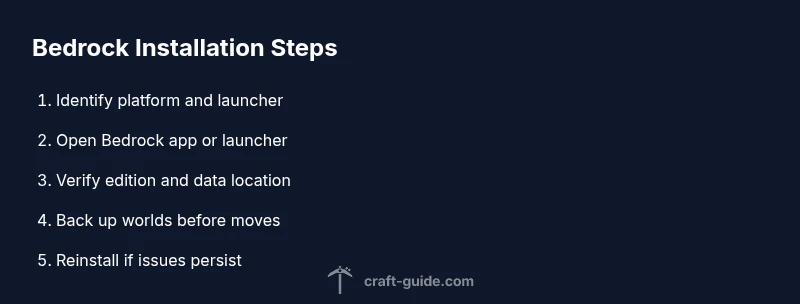
- 1
Identify your platform and launcher
Determine whether you’re on Windows, macOS, iOS, Android, or a console, and which launcher or storefront you use. This establishes the general approach for locating Bedrock and prevents cross‑edition confusion later in the process.
Tip: Note the edition label (Bedrock) from the launcher to avoid mixing with Java Edition. - 2
Open the Minecraft Bedrock app or launcher
Launch the Bedrock edition from your device’s menu or store library. Confirm you’re accessing the Bedrock version by checking the edition tag in the launcher or in‑game settings.
Tip: If you don’t see Bedrock, verify you installed the correct edition from the official source. - 3
Navigate to storage or data location
On desktops, use the platform’s file explorer to locate the game’s data folders. On consoles and mobile, use in‑system settings or the launcher’s data management options to view installed data and saved worlds.
Tip: Back up worlds before making changes to location or files. - 4
Verify that you’re looking at Bedrock, not Java
Some platforms show both editions; ensure your data and edition badge match Bedrock. This prevents accidental edits to incompatible files and preserves cross‑play compatibility.
Tip: If in doubt, restart the launcher and recheck the edition label. - 5
Back up and prepare for migration
Create a full backup of your worlds and settings before moving Bedrock data to a new device. Use cloud saves where available or copy the World folder to external storage.
Tip: Test restoring from backup on the target device before deleting anything on the source. - 6
Reinstall if issues persist
If Bedrock behaves oddly after a migration or update, a clean reinstall can refresh system files and cache. Re‑sign in to your accounts and restore from backup afterward.
Tip: Only reinstall after confirming you have a reliable backup and cloud save status.
People Also Ask
What is Bedrock Edition and how is it different from Java Edition?
Bedrock Edition is the cross‑platform version designed for performance and crossplay, including mobile and consoles. Java Edition runs on PC with different feature sets and worlds, and they’re not directly interchangeable. This guide focuses on locating and managing Bedrock across devices.
Bedrock is the cross‑platform edition, while Java is a separate PC edition with different features; they aren’t directly interchangeable.
Where is Bedrock installed on Windows 10/11?
Bedrock on Windows is delivered as a Windows app or via the Microsoft Store. It appears in your Apps list or launcher, and data is tied to your user profile. Use the launcher to confirm the active Bedrock version and manage updates.
Bedrock on Windows is a Windows app; check the Apps settings to verify the version and location.
Can Bedrock saves be moved between devices?
Yes, cross‑device saves are supported on many platforms via cloud storage or account sign‑in. Availability varies by device; ensure cloud sync or manual backups are enabled before migration.
Cross‑device saves are often available; enable cloud sync or back up saves before moving.
Do I need to reinstall Bedrock after a system update?
Most updates don’t require a reinstall. If you encounter persistent problems, a clean reinstall with a backup is a safe troubleshooting step.
Usually not, but reinstall if problems persist after an update.
Is Bedrock installed the same way on consoles as on Windows?
No. Consoles manage Bedrock as a system app within the console’s store, while Windows/macOS install it as an app or launcher package. This affects how you locate it and back up data.
Consoles treat Bedrock as a system app; PC uses a traditional app folder.
What should I do if Bedrock won’t launch after moving a world?
Check that you opened the correct Bedrock edition, verify in‑game settings, and confirm world files are intact. Restore from backup if needed and recheck cloud saves.
Ensure you opened Bedrock, check settings, and restore from backup if needed.
Can I run Bedrock on an unsupported device?
Bedrock requires a supported OS or console. If your device isn’t listed, use the official compatibility guide to determine available versions or alternatives.
Only supported devices can run Bedrock; check compatibility guides for alternatives.
Watch Video
The Essentials
- Identify your platform and edition first
- Back up worlds before moving or reinstalling
- Use cloud saves where available to sync across devices
- Confirm Bedrock is running the edition you expect
- Reinstall only if issues persist after backups