Minecraft with Ray Tracing: A Practical How-To Guide
Learn how to enable Minecraft with ray tracing, optimize settings for performance, and choose RTX packs for stunning visuals across Bedrock and Minecraft editions.


Goal: You will enable minecraft with ray tracing on supported hardware, tune settings for performance, and load RTX-enabled packs. This guide covers Bedrock RTX basics, Java vs Bedrock limitations, and practical steps to verify requirements, install the game, and test visuals. Expect improved lighting, realistic reflections, and dynamic shadows that elevate your builds and exploration.
What is Minecraft with ray tracing?
Minecraft with ray tracing represents a leap in visual fidelity for block-based worlds. By using ray tracing, lighting and shadows simulate real-world light paths, producing more accurate reflections on water, glass, and glossy surfaces, as well as softer ambient lighting in dim caves and craggy biomes. This enhancement is most prominently featured in Bedrock Edition with official RTX support. For players, the difference is noticeable during sunset skylines, in dark caverns with glow-lit ores, and when exploring reflective surfaces like ponds and rivers. According to Craft Guide, minecraft with ray tracing transforms lighting, shadows, and reflections, making builds feel more immersive while requiring careful balance between visuals and performance. The Craft Guide team found that a stable RTX setup hinges on compatible hardware, updated drivers, and properly configured in-game settings. While the Java Edition currently lacks native RTX paths, many players still appreciate shader packs and third-party visuals to approximate ray-traced effects, though these do not match true hardware-accelerated RTX.
In practice, you’ll be testing a few different textures and settings combinations to achieve a balance between photo-realistic lighting and smooth gameplay. The underlying principle is that ray tracing traces individual light rays, producing more photorealistic results than traditional rasterized lighting. Expect richer caustics on water, crisper shadows, and a more convincing sense of depth and atmosphere as you walk through a world you already know well.
As you plan your build or exploration, remember that ray tracing is most effective with high dynamic range and accurate reflection paths. This means water surfaces will look more credible, shadows will shift realistically as you move, and emissive materials like lanterns and fire will cast more natural lighting. If you’re new to RTX, start with small test worlds to compare baseline lighting versus ray-traced lighting, and gradually increase scene complexity as your hardware and drivers prove capable.
note”:null},
Tools & Materials
- RTX-capable PC or laptop(Dedicated GPU with hardware ray-tracing support recommended; ensure system meets Windows 10/11 requirements.)
- Windows 10/11(Bedrock Edition runs on Windows; Java Edition does not officially support RTX in vanilla form.)
- Minecraft Bedrock Edition(RTX features are officially supported here; ensure you have the latest version.)
- NVIDIA display drivers(Install the latest driver with RT and DLSS features enabled.)
- RTX-enabled texture/resource packs(Optional but highly recommended for best visuals.)
- A stable storage drive(Install world files and RTX packs to an SSD if possible for quicker load times.)
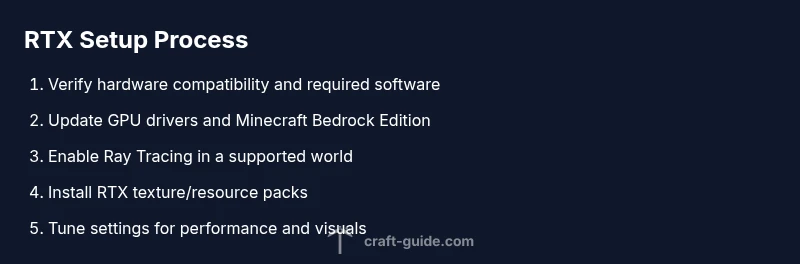
Steps
Estimated time: 60-90 minutes
- 1
Check compatibility and prepare the system
Verify that your PC meets the basic requirements for ray tracing in Minecraft by confirming you have an RTX-capable GPU, compatible Windows version, and the latest drivers. Clear some disk space and close background apps to allocate resources for testing. This foundational step prevents perf issues later and helps ensure smoother testing.
Tip: Run a quick benchmark or simple scene with the default settings to establish a performance baseline. - 2
Update GPU drivers and Minecraft Bedrock
Update your graphics drivers to the latest version and ensure Minecraft Bedrock Edition is updated to the most recent build. Restart your system after updates so new features load correctly. Updated software improves stability and unlocks newer RTX features.
Tip: Enable hardware-accelerated ray tracing in the driver control panel if available. - 3
Install Minecraft Bedrock Edition
If you haven’t already, install Minecraft Bedrock Edition from the official store. Bedrock supports RTX packs and real-time ray tracing, providing a smoother experience on a wider range of hardware compared to older builds.
Tip: Keep a backup of your worlds before enabling RTX for the first time. - 4
Enable Ray Tracing in-game and choose a RTX world
Launch Minecraft Bedrock, load an RTX-enabled world, and navigate to the settings to enable Ray Tracing. Start with lower render distance and a moderate resolution profile to assess performance before ramping up visuals.
Tip: Test with multiple biomes to see how reflections and lighting behave across different environments. - 5
Install RTX packs and shaders (optional)
Download RTX-enabled texture packs or packs that enhance reflections and light behavior. While optional, these packs significantly improve the perceived realism and depth of the world. Apply them to your world and test various lighting setups.
Tip: Ensure packs are compatible with your Minecraft version and bedrock build. - 6
Tune performance: render distance and features
Tweak render distance, shadow quality, global illumination settings, and post-processing effects to reach a balance between fidelity and frame rate. Reducing some effects can dramatically improve playability on mid-range systems.
Tip: Disable unnecessary features if FPS drops, then reintroduce them one by one to find your sweet spot. - 7
Test, compare, and save your settings
Create a test world or use a known RTX showcase environment to compare baselines with RTX active. Capture screenshots or clips to review improvements in lighting, reflections, and shadows, then save a preferred profile for future sessions.
Tip: Document settings that consistently produce stable performance for future setups.
People Also Ask
What is Minecraft with ray tracing?
Ray tracing in Minecraft uses dedicated hardware to simulate light paths, producing realistic shadows, reflections, and lighting. It’s officially supported in Bedrock Edition on RTX-capable systems and is best experienced with RTX textures and packs.
RTX in Minecraft adds realistic lighting and reflections, especially in Bedrock on supported hardware.
Do I need an RTX GPU to play with ray tracing?
Yes, hardware acceleration is required for true ray tracing visuals. Non-RTX GPUs can still run Minecraft with limited visual enhancements through shaders, but not at full RTX quality.
An RTX-capable GPU is essential for full ray tracing in Minecraft Bedrock.
Can I use ray tracing with Java Edition?
As of now, official ray tracing support is mainly for Bedrock Edition. Java Edition does not natively support RTX lighting without experimental or third-party workarounds, which may have incompatibilities.
Java Edition doesn’t officially support RTX lighting; Bedrock is the recommended version for RTX visuals.
What hardware adjustments improve performance with RTX?
Keep render distance moderate, disable heavy post-processing, and use RTX packs that are optimized for your hardware. Lowering resolution or enabling DLSS-like options (where available) can help maintain smoother gameplay.
Trim settings and use optimized packs to keep framerates stable.
Where can I find RTX packs and worlds?",
Official RTX content channels and trusted Minecraft community sites offer RTX packs. Always verify compatibility with your Bedrock version and backup your worlds.
Look for trusted RTX packs that match your game version and back up your worlds first.
Is DLSS supported in Minecraft RTX?
DLSS-like upscaling improves performance on supported NVIDIA GPUs, but availability depends on game version and driver features. Check official notes for current support.
DLSS helps improve performance if your hardware supports it, depending on the build.
Watch Video
The Essentials
- Enable RTX on Bedrock with a compatible GPU.
- Update drivers and in-game version before enabling RTX.
- Start simple, then progressively increase scene complexity.
- Pair RTX packs with careful performance tuning for best results.
- Document and save your preferred RTX rendering profile.