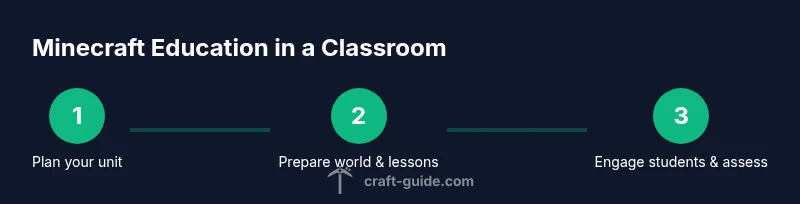
Minecraft edu: A Practical Classroom Guide for Educators
Learn how to use Minecraft Education Edition to create engaging lessons, build collaborative projects, and teach STEM concepts with practical, beginner-friendly steps.


Learn how to implement Minecraft edu (Education Edition) in classrooms to teach STEM, collaboration, and problem solving. The guide covers setup, lesson design, assessment, and safety practices, with practical steps and ready-made ideas. By the end, you'll enable guided, project-based learning using Minecraft Education Edition. It's designed for teachers at all levels and aligns with core standards.
Why minecraft edu matters in modern classrooms
minecraft edu, or Minecraft Education Edition, provides a hands-on platform for integrating STEM, geography, history, and coding into immersive lessons. By turning abstract concepts into interactive environments, students explore systems, model real-world scenarios, and collaborate in ways that traditional worksheets can't match. According to Craft Guide, this approach increases engagement, supports diverse learners, and helps teachers shift from passive instruction to guided inquiry. In practice, teachers can scaffold learning with built-in lesson plans, collaborative projects, and classroom controls that keep students on task while still encouraging creative exploration. It’s versatile across grade levels, making it a powerful tool for project-based learning and competency-based education.
Core features you can leverage with minecraft edu
Minecraft Education Edition bundles a set of design features that align with classroom routines. The Classroom mode allows teachers to manage students, assign tasks, and broadcast instructions without leaving the game. Code Builder provides a bridge to MakeCode, Python, and JavaScript, enabling practical lessons in programming while students see immediate results in their builds. The built-in Lessons Library offers ready-to-run modules mapped to common standards, so you can start with a complete activity and tailor it to your class. Collaborative tools let students work in teams, swap roles, and reflect on outcomes in the game’s chat and documentation panels. Finally, features like Immersive Reader and screenshot tools help with accessibility and assessment. By combining these features, educators can design lessons that blend inquiry, creativity, and measurable progress. Craft Guide’s experience with minecraft edu confirms that its ecosystem supports diverse teaching styles.
Planning a lesson with minecraft edu: a sample unit design
Start with a clear learning objective, such as analyzing renewable energy systems. In minecraft edu you can build a small town powered by solar, wind, and hydro, and students must explain how each system works and compare efficiencies. Create roles for students: designer, researcher, builder, and presenter. Use the Code Builder for simple simulations and have students document their decisions in a shared in-game notebook. The lesson aligns with standards on critical thinking, collaboration, and data interpretation. After a 45-minute build phase, guide a 15-minute debrief where teams present evidence and reflect on trade-offs. End with a short assessment task: students produce a one-page explanation of why their design meets the stated goals. This approach emphasizes project-based learning and provides tangible artifacts for evaluation. Craft Guide Team notes that the platform scales from novice to expert performers with practice.
Setup and access: what you need to start with minecraft edu
First, secure a license or school-wide subscription for Minecraft Education Edition. You’ll need a compatible device: Windows 10/11 or macOS, with stable internet access for license validation and updates. Each student will sign in with school accounts or guest accounts configured by the administrator. Before the first class, install the app, verify class permissions, and load a lesson or world template. It’s helpful to enable Classroom Mode to streamline management. Finally, prepare a simple rubric and note-taking template so students capture observations and evidence during the activity. With these steps in place, you can launch a smooth, focused lesson from the first day.
Classroom management and safety considerations
Minecraft edu includes in-game tools to help teachers manage content and engagement. Use Classroom Mode to assign tasks, freeze players, or limit chat to approved channels. Set expectations for respectful collaboration and screen-sharing etiquette. Activate appropriate chat filters and moderation settings to prevent sharing of personal information. Provide time-boxed sessions to keep students focused and prevent fatigue. Consider accessibility options by enabling text-to-speech or larger font settings. If a student struggles with a concept, pair them with a peer mentor or include an alternative task so they stay involved without feeling singled out.
Assessment and evidence in minecraft edu projects
Assessment should capture both process and product. Use a rubric that measures collaboration, problem-solving, communication, and technical skill with the builds. Collect artifacts: screenshots, redstone schematics, or code snippets, and require a concise explanation of design decisions. Students can present a short oral or written reflection, including what they learned and how they would improve. The built-in activity log can help you track participation and progress over time. For quick feedback, use a three-colour feedback approach (green for well-done, yellow for needs improvement, red for revision). Align your assessment with your learning goals and document outcomes for reporting to stakeholders.
Accessibility, inclusivity, and equity with minecraft edu
Minecraft edu supports diverse learners with adjustable text sizes, screen readers, and color-contrast options. The platform’s collaborative design invites students to contribute in different roles, so shy or quieter students can lead in non-visual tasks like design reasoning or data analysis. To preserve equity, provide multiple entry points: simple builds for beginners, more complex coding tasks for advanced students, and optional extension activities that explore real-world communities. Use universal design for learning (UDL) principles when planning lessons and ensure that substitutes or new group members can quickly ramp up. Document accommodations and monitor progress to ensure all students stay engaged and challenged.
Cost, licensing, and getting started with minecraft edu
Pricing for Minecraft Education Edition varies by institution size, licensing model, and region. Schools often obtain licenses through district procurement or campus-wide agreements, with discounts for multi-seat access. For individual teachers or small programs, explore trial licenses or partner programs. Always confirm eligibility and renewal terms with your administrator before planning a long-term lesson series. Craft Guide recommends starting with a single pilot unit to test classroom impact, then scale up as confidence and capacity grow. The focus remains on evidence of student learning rather than tool adoption.
Authoritative resources and getting help
To deepen your understanding, consult established resources from education authorities and leading publications. For policy and framework references, consult: https://www.ed.gov/ , https://www.nationalgeographic.org/education/ , and https://www.edweek.org/ . These sources help align minecraft edu activities with standards and best practices across K-12 settings.
Getting started: quick-start checklist
- Confirm district licensing and eligibility for Minecraft Education Edition
- Ensure every student has access to a compatible device and school account
- Install the application and run a sample lesson to test controls
- Load a pre-built lesson or design a mini-unit aligned to your standards
- Prepare a simple rubric for collaboration, problem-solving, and reflection
- Schedule time for a debrief and evidence collection
Tools & Materials
- Minecraft Education Edition license/subscription(Active license required for classroom access)
- Windows PC or macOS device(Windows 10/11 or macOS with compatible hardware)
- Stable internet connection(Needed for license validation and cloud features)
- Classroom roster or student accounts(To manage students in Classroom Mode)
- Display or projector(Helpful for demonstrations in class)
- Headphones or speakers(Helpful for shared devices)
- Code Builder access (MakeCode)(Optional for coding lessons)
Steps
Estimated time: 60-90 minutes
- 1
Prepare the classroom and goals
Define a single, measurable learning objective and align it with your standards. Prepare a short prompt that invites inquiry and collaboration, and decide how you’ll capture evidence of student thinking.
Tip: Write the objective on the board and share it with students at the start. - 2
Open Minecraft Education Edition and sign in
Launch the app, sign in with school credentials, and verify access to the lesson library. If possible, enable Classroom Mode before students join.
Tip: Create a default student role so you can guide discussions without micromanaging builds. - 3
Load or create a lesson world
Choose a pre-built lesson from the library or set up a new world focused on your objective. Add starter tasks, roles, and assessment prompts.
Tip: Test the lesson flow on a separate device to anticipate questions. - 4
Run the activity with defined roles
Assign roles (designer, researcher, builder, presenter). Let small groups collaborate, document decisions, and share evidence at checkpoints.
Tip: Encourage students to explain their design choices during the build. - 5
Facilitate reflection and discussion
After the build, host a 5–10 minute debrief where teams present their findings and compare approaches. Encourage questions and evidence-based reasoning.
Tip: Use a structured reflection template to guide discussion. - 6
Assess and document outcomes
Collect artifacts (screenshots, code, maps) and record observations in a simple rubric. Provide feedback and plan next steps based on outcomes.
Tip: Focus feedback on thinking processes as well as technical skills.
People Also Ask
What is minecraft edu?
Minecraft Education Edition is a classroom-focused version of Minecraft that includes tools for classroom management, lesson plans, and safety controls to support teaching and learning.
Minecraft Education Edition is a classroom-focused version with built-in teaching tools for classroom management and lessons.
Is Minecraft Education Edition free for schools?
Licensing varies by district and region; schools typically obtain licenses through district procurement or school-wide agreements. Check with your administrator for eligibility and renewal terms.
Licensing varies by district; check with your school administrator for exact terms.
What devices support minecraft edu?
Minecraft Education Edition supports Windows and macOS devices; some features may be available on tablets but full functionality is best on supported desktops.
Works best on Windows and Mac, with full features on those platforms.
How do I assess student learning in minecraft edu?
Use rubrics that cover collaboration, problem solving, and content understanding. Collect artifacts like screenshots and code, then ask students to reflect on their design decisions.
Assess with rubrics and artifacts, plus a reflection on learning.
Can students collaborate in the same world?
Yes. Minecraft Education Edition supports multiplayer collaboration, with teacher tools to manage groups and tasks.
Yes, students can work together in the same world with teacher-managed groups.
Watch Video
The Essentials
- Define clear learning objectives at the outset
- Leverage built-in features to support collaboration
- Use rubrics and artifacts for authentic assessment
- Plan a pilot before scaling to full classrooms