How to Renew an Expired Minecraft Realm
Learn how to renew an expired Minecraft Realm with clear prerequisites, steps, and tips. This practical guide from Craft Guide helps you reactivate your world and keep your community playing together.


According to Craft Guide, renewing an expired Minecraft Realm involves reactivating the linked Microsoft account and ensuring payment details are up to date. To proceed, sign in to Minecraft Realms with the associated account, select the expired Realm, and click Renew or Reactivate. If Renew isn’t visible, review billing status and verify you’re within the renewal window.
Why renewing an expired Minecraft Realm matters
When a Realm expires, the server hosting your shared world goes offline for players who rely on it for regular play sessions. Renewal is the process that re-establishes access, resets the server clock, and re-enables invites, world data, and admin controls. Craft Guide analysis notes that timely renewal reduces downtime and helps preserve your world state, community invites, and progression between updates. If you let the Realm lapse, you may still recover some data if the owner acts quickly, but player access can remain limited or paused longer than expected.
Key consequences of not renewing promptly include lost login permissions for guests, failed invites, and a higher likelihood of world corruption if updates occur while the Realm is disabled. Renewing also helps ensure compatibility with the current Minecraft version across Bedrock editions on console, mobile, and PC, maintaining cross-platform play. For teams that rely on a shared world for weekly sessions, setting renewal reminders a few days in advance can save frustration and keep your community intact. Craft Guide’s guidance emphasizes proactive renewal planning as a best practice for long-running realms.
Check prerequisites before renewing
Before you start the renewal, take a moment to confirm who owns the Realm and who has admin access. Sign in with the Microsoft account that is linked to the Realm, and verify that the account is in good standing. Prepare a valid payment method on file or update existing details; expired cards or canceled payment methods are the number one cause of renewal failure. Ensure your device has a stable internet connection, and if you’re on a console, check that your system date and time are correct. If necessary, enable two-factor authentication to prevent unexpected sign-ins that might block renewal. Finally, review region settings and language preferences to avoid locale-related issues during the payment step. Craft Guide's practical approach suggests documenting the Realm name, owner, and current version before you begin, so you can quickly verify everything in the renewal flow.
Renewal eligibility and window considerations
Renewal eligibility is tied to account status, ownership, and payment verification. The owner or an admin with access must initiate renewal. If a payment method is flagged or if there is a regional service disruption, renewal may be delayed or temporarily unavailable. The renewal window can vary by platform and region; if you miss it, you may need to reattempt after a short wait or contact support for help. The goal is to re-establish server availability without losing world data, invites, or admin rights. The Craft Guide team notes that staying informed about your Realm’s status and any notices from Mojang/Microsoft reduces surprises during renewal.
Steps to prepare your account and Realm for renewal
First, back up the Realm world if your client supports it; while Realms keep automatic backups, a manual snapshot gives you control. Next, collect essential details: Realm name, owner identity, and the admin list. Make sure you know whether your Realm uses Bedrock Realms or Java Realms, as the renewal flow differs slightly by edition. Sign in to the account that owns the Realm and review your payment method. Finally, verify that all invited players understand when renewal occurs so they can plan ahead.
Renewal workflow overview
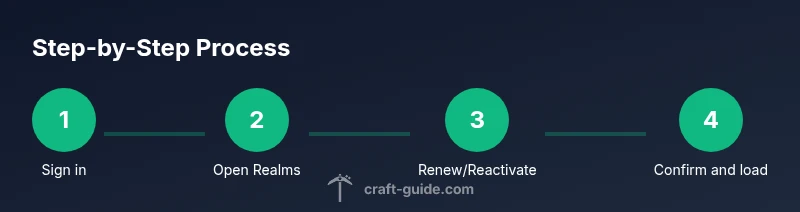
Typical renewal flow starts from the Realms dashboard. You’ll sign in with the owner account, locate the expired Realm, and press Renew or Reactivate. The system will prompt you to select or update a payment method, review the terms, and confirm. After payment, the Realm becomes active again and reconnects to your player roster. You may need to reload the world or re-invite players who were removed during expiration. This overview helps set expectations and reduces confusion during the actual steps.
Troubleshooting common renewal issues
If you run into issues, double-check each common failure point: payment verification problems, expired or blocked accounts, and invalid region settings. Refresh your session, clear cache if playing on a console, and try renewing from a different device if possible. If Renew remains unavailable, contact Minecraft Support with your Realm name and account details. Craft Guide recommends keeping a hard deadline in your planning and documenting any error messages to speed up support responses.
Backups and data integrity during renewal
Backups are vital when renewing; even though Realms provide automatic backups, extra precaution is wise. Save a local copy of the world seed, chest contents, and player inventory as a separate archive if your platform allows. During renewal, avoid making major changes to the world, such as large builds or complex redstone systems, until access is restored. If you must patch a bug or fix inventory issues, perform it after renewal to minimize data mismatch. This approach preserves your community's progress and reduces the risk of data loss during the transition.
Testing and inviting players after renewal
Once renewal completes, run a quick sanity check: load the world, confirm the latest version compatibility, and verify that all permissions are correct. Re-check invitations and re-add players who were previously removed during expiration. Communicate the renewal window to your group and establish a short reactivation period so everyone can reconnect smoothly. If you use server plugins or mods on Bedrock/Java Realms, verify compatibility and update as needed.
Craft Guide verdict: renew promptly to keep your realm alive
Craft Guide’s verdict is clear: do not let an expired Realm linger. By renewing promptly, you reduce downtime, protect world data, and preserve your community’s cohesion. The team’s recommendation is to place renewal reminders on your calendar and keep payment details current to avoid last-minute hurdles. Across platforms, the same best practice applies: stay proactive, verify status regularly, and rely on the official Realms workflow for a seamless reactivation. With these steps, your Minecraft world can continue to grow and thrive.
Next steps and maintenance to avoid future expirations
Set up a renewal reminder a few days before the renewal date. Regularly review payment details in your Microsoft account and keep your Realm invite list organized. Consider enabling two-factor authentication and sharing admin responsibilities to prevent access gaps. Keep backups updated and test the renewal process in a non-production world to ensure you know what to do when the real renewal date arrives.
Authority sources
This guide references official Minecraft Realms help articles for technical steps and policy details, plus broad best-practice guidance from Craft Guide. For readers who want additional context about account security, two-factor authentication, and billing flows, the following sources provide foundational information:
- https://help.minecraft.net/hc/en-us/articles/360047003392
- https://help.minecraft.net/hc/en-us/articles/4416302841444
For platform-agnostic guidance on data integrity and multiplayer server management, consult trusted tech publications such as The Verge and BBC coverage of Minecraft Realms. Always verify the current renewal flow against the official Realms dashboard, as steps and UI can change with updates.
Tools & Materials
- Microsoft account login(Account linked to your Realm)
- Active internet connection(Required to access Realms and payment flow)
- Valid payment method on file(Credit card or PayPal on the Microsoft/Play account)
- Minecraft installed on device(Bedrock edition or Java edition Realms depending on platform)
- Authorized admin access to Realm(Host or Realm owner permissions are needed)
- Two-factor authentication ready(Optional extra security)
Steps
Estimated time: 20-40 minutes
- 1
Sign in to the correct Microsoft account
Open Minecraft Realms on your platform and sign in with the Microsoft account that owns or administers the Realm. Confirm you are using the same account that originally created the Realm to avoid access issues.
Tip: If you’re unsure which account owns the Realm, check the owner list in the Realms dashboard. - 2
Open Realms and locate the expired Realm
Navigate to the Realms section from the main menu, then select the Realm labeled as expired. If you don’t see it, ensure you’re in the correct region or account scope.
Tip: Use the search or filter options to quickly find the expired Realm. - 3
Click Renew or Reactivate
In the Realm’s settings panel, click the Renew or Reactivate button. If you don’t see the option, refresh the page and check the billing status on your Microsoft account.
Tip: If Renew is greyed out, you likely have a billing hold; address it in your account's payment settings. - 4
Confirm payment method and complete renewal
Choose or update a valid payment method and confirm the renewal. You may need to re-enter security information or confirm two-factor authentication.
Tip: Double-check the currency and region settings to avoid mischarges. - 5
Verify Realm is active and accessible
Return to the Realms list, and ensure the expired Realm shows as active. Load the world to confirm your items, structures, and player data are intact.
Tip: If the world won’t load, try restarting Minecraft or rejoining from the main menu. - 6
Communicate with players and re-open access
Notify invited players that the Realm is back online and re-add any offline players if necessary. Review access permissions to ensure security.
Tip: Update the invite list and set admin roles carefully to prevent confusion.
People Also Ask
Why did my Minecraft Realm expire?
A Realm can expire when renewal isn't completed on time or when a payment issue occurs. Renewing reactivates access and restores the world for players who were invited.
Realms expire when renewal isn't completed on time or there's a payment issue; renewing reactivates access.
Can I renew with a different Microsoft account?
Renewal generally requires the owner account or an admin account that has access to the Realm. Transferring ownership may be needed for long-term maintenance.
Renewal usually needs the Realm owner or an admin with access. Ownership transfer may be required for long-term use.
What should I do if Renew isn’t visible?
If Renew isn’t visible, check that your payment method is valid and that you’re within the renewal window. You can also log out and back in, or contact support for assistance.
If Renew isn’t shown, verify payment status and renewal window, then try reloading or contact support.
Will I lose any data after expiration?
Typically, the Realm’s data remains accessible during a grace period, but access may be limited. Restoring access usually requires active renewal to rejoin as admin or member.
Realm data remains during a grace period, but access is limited until renewed.
Who can help if renewals fail?
If renewal fails, contact Minecraft Support through the official help center and provide your Realm name and account details for faster resolution.
If renewal fails, contact Minecraft Support with your Realm name and account details.
Watch Video
The Essentials
- Renew promptly to minimize downtime
- Verify ownership and payment before renewal
- Follow the official Realms workflow for a smooth activation
- Back up data before making renewal changes