How to Stop Minecraft Realm Subscription
This educational guide shows Minecraft players how to stop a Realm subscription across platforms, what to expect after cancellation, and tips to avoid future charges. Includes step-by-step cancellation flow, platform-specific paths, and authoritative resources.


You can stop a Minecraft Realm subscription in a few minutes by canceling from the Realm settings on your platform (PC, console, or mobile). You’ll need access to the Microsoft/Xbox account tied to your Realm, an active internet connection, and your payment method details for confirmation. According to Craft Guide, cancellations are straightforward when you follow the steps below.
Why cancel a Minecraft Realm subscription?
Cancelling a Realm subscription can save you recurring charges if you’re no longer actively using the world or if you’re consolidating servers. It also reduces clutter in your account dashboard and minimizes monthly maintenance tasks. The Craft Guide team notes that most players cancel for convenience or cost-management reasons, and the process is designed to be user-friendly across platforms. When you cancel, your Realm data is typically preserved for a grace period, giving you time to reactivate if you change your mind. This article explains what to expect and how to complete the cancellation cleanly, so you don’t lose your world data or important settings by accident.
Platform differences: Java Edition vs Bedrock and device paths
Cancellation paths differ by platform. On Java Edition, you’ll access the Realm settings from the Minecraft Launcher or account portal and locate the subscription options. On Bedrock (Windows 10, consoles, mobile), you’ll typically manage subscriptions through the Microsoft/Xbox account page or the in-game Realms interface. Console ecosystems (PS, Xbox, Nintendo) route cancellation through their respective store or account management pages. Regardless of platform, look for terms like “Cancel subscription,” “Manage Realms,” or “Turn off auto-renew.” Craft Guide’s analysis shows that most users find the option within a dedicated Realm settings area rather than a general account page.
What you need before you cancel
Before you cancel, verify you’re using the owner account that created the Realm. Have your Microsoft/Xbox account credentials handy, along with a stable internet connection. It’s also wise to have a preferred payment method ready in case the platform asks for verification during the cancellation. If you share a Realm with others, communicate the cancellation to teammates so they’re not surprised by access changes. Finally, take a quick screenshot of the Realm’s settings page as a personal record in case you need to review the steps later.
Common obstacles and how to resolve them
If you don’t see the Cancel option, make sure you’re signed in with the Realm owner account and that you’re on the correct Realm management page. Some platforms require you to open the Realm first, then navigate to Settings or Subscription options. If the Realm is old or tied to a different account holder, you may need to contact support or transfer ownership before cancellation. Always ensure you’ve completed any required verification steps; otherwise the system may block the cancellation.
After cancellation: what to expect
Once cancellation is confirmed, ongoing charges should stop at the end of the current billing period. You’ll typically retain access to the Realm until renewal would occur, after which access is paused or removed depending on the platform. Check your account page and any notification emails for a confirmation, then verify your next bill shows no further Realm charges. If you don’t receive a confirmation within a reasonable window, revisit the Realm management page or contact support for verification.
Alternatives and next steps
If you’re unsure about leaving a Realm, consider temporary deactivation or lowering the number of Realm-related subscriptions you manage. Some players choose to pause notifications or downgrade to a non-subscribed static world structure, depending on platform rules. If you plan to return later, you can keep the world data and reactivate the Realm when ready. Craft Guide recommends keeping a record of cancellation steps so you can re-create or re-subscribe quickly if needed.
Tools & Materials
- Internet connection(Stable connection recommended for quick verification and sign-in.)
- Owner account login(Access to the Microsoft/Xbox account tied to the Realm.)
- Payment method access(Have the linked payment method handy for confirmation prompts.)
- Device with browser or Minecraft app(PC, console, mobile, or tablet; ensure the latest app version is installed.)
- Confirmation record(Optional screenshots or notes of cancellation steps.)
Steps
Estimated time: 5-15 minutes
- 1
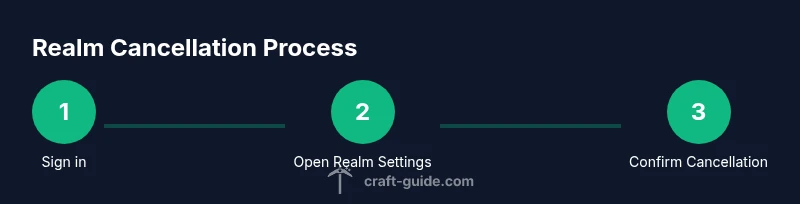
Sign in to the Realm owner account
Open the platform where you manage your Realm (Minecraft Launcher, Xbox/Microsoft account page, or console store) and sign in with the owner credentials. This ensures you have permission to cancel and reduces the risk of cancellation errors.
Tip: Use a trusted device and a private network to avoid interruptions. - 2
Open Realm Settings
Navigate to the Realm you want to cancel, then open its Settings or Subscription area. Look for options labeled “Manage Realm” or “Realm Settings” and identify the cancellation option.
Tip: If you can’t locate Settings, use the platform’s search function with terms like 'Realms' or 'subscription'. - 3
Select Cancel Subscription
Click or tap Cancel Subscription (or Turn off Auto-Renew). You may see a confirmation dialog that explains the impact on access and data after cancellation.
Tip: Read the notice carefully to understand when access ends and what data remains. - 4
Confirm Cancellation
Confirm the cancellation when prompted. Some platforms require you to enter a reason or re-enter your password for security.
Tip: If asked for a reason, choose a generic option like 'No longer using Realm' to keep records clean. - 5
Verify cancellation in your account
Return to the Realm management page or your account dashboard to verify that the cancellation is active and that auto-renew is disabled. Look for a cancellation status or a new expiration date.
Tip: Save or screenshot the confirmation status for your records. - 6
Monitor for post-cancellation notices
Watch for a confirmation email or notification showing the cancellation took effect. If you don’t receive it within a reasonable window, contact support.
Tip: Keep an eye on the email linked to your Realm ownership.
People Also Ask
Can I pause a Minecraft Realm subscription?
No official pause feature exists; you must cancel and re-subscribe later if you wish to resume. This avoids ongoing charges while keeping your world data intact.
There isn’t a pause option; cancel now and re-subscribe later if you want to resume.
Will I lose my Realm after cancellation?
Your Realm data remains available for a grace period depending on the platform, giving you time to reactivate or export your world. After that period, access may be restricted.
Realm data stays for a grace period, then access may be restricted if you don’t reactivate.
Can I cancel from the mobile app?
Yes, you can cancel the Realm subscription from the mobile app by navigating to the Realm’s settings and choosing Cancel or Auto-Renew off.
You can cancel from the mobile app by going to the Realm settings and selecting Cancel.
Are refunds available after cancellation?
Refund eligibility varies by platform and region. Check the terms in your account or contact support if you believe you’re entitled to a refund.
Refund eligibility varies; contact support if you think you qualify.
How long does cancellation take to process?
Cancellation processing is usually immediate or completes within the current billing cycle. You should receive a confirmation once the request is processed.
Cancellation is usually immediate or completes within the current billing cycle; you’ll get a confirmation.
Watch Video
The Essentials
- Cancel from the Realm settings on the owning account.
- Verify the cancellation status and stop auto-renew.
- Keep a confirmation record and monitor for post-cancellation notices.
- Communicate with teammates if the Realm is shared.