How to Get Minecraft on VR
Learn how to get Minecraft on VR in 2026 with Bedrock Edition or Vivecraft, setup steps, hardware tips, and troubleshooting for a comfortable, immersive experience.


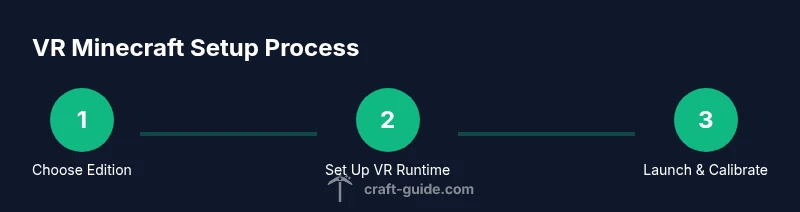
How to get Minecraft on VR: You’ll need a VR-ready setup and the correct edition of Minecraft. Choose Bedrock Edition for Windows on PC with a supported headset, or use Vivecraft to run Java Edition in VR. Install the VR runtime (SteamVR or Windows MR), then enable VR in Minecraft, adjust controls, and test a safe world before building.
What VR Minecraft Lets You Do
VR transforms Minecraft into a fully immersive playground where you can explore, build, and survive with a sense of presence that standard monitor play can't match. In VR, you can reach out to place blocks, turn your head to peek into the next cavern, and use motion controllers to sculpt terrain with more intuitive motion. This guide focuses on practical, beginner-friendly paths to get Minecraft running in VR, so you can jump into creative builds or survival challenges without getting overwhelmed. The two main routes are Bedrock Edition on Windows with supported hardware, or Java Edition via a VR-capable mod like Vivecraft. Each path has different compatibility, performance expectations, and control schemes; choosing the right one depends on your headset and comfort with mods. Craft Guide's aim is to help you make a smooth transition to VR with clear steps and no guesswork.
Bedrock vs Java: The Quick Distinction
Bedrock Edition offers native VR support on Windows with compatible headsets, making setup more straightforward for most players. Java Edition can be run in VR using mods like Vivecraft, which opens VR to players who already own Java but may require extra compatibility steps and community support. If you’re new to VR Minecraft, Bedrock is the gentler path; if you’re attached to Java for mods or world compatibility, Vivecraft is a viable alternative to explore.
Hardware and Headset Basics
A VR-ready setup means a headset that can connect to your PC and a computer capable of delivering smooth VR performance. Common considerations include the headset’s compatibility with your PC (Link cable vs wireless play), the availability of SteamVR or Windows Mixed Reality, and the ability to run Minecraft at acceptable frame rates. If you already own a modern VR headset, your next step is to confirm that your PC meets the general VR requirements and that you have room to move safely in a play area.
Setting Up Your Computer and VR Headset
Start by connecting your headset to your PC using the recommended method (wired link or wireless link). Install any required drivers and VR runtimes (SteamVR for most headsets, or Windows Mixed Reality when applicable). After the software is installed, launch the VR home environment to verify that the headset is recognized and tracking properly. A clean start—closing other programs and restarting after installing drivers—helps avoid conflicts during Minecraft setup.
Installing Minecraft and the VR Runtime
If you’re going Bedrock Edition, download and install Minecraft for Windows via the Microsoft Store or Xbox app. You’ll also need to install the VR runtime (SteamVR or Windows MR) depending on your headset. If you go Java Edition with Vivecraft, install Vivecraft according to its installer and ensure your Java version is compatible with your Minecraft launcher. Keep your game and runtime up to date to avoid version mismatches that can break VR integration.
Enabling VR in Minecraft and Adjusting Controls
In Bedrock Edition, you can enable VR from the in-game settings or via the launcher’s VR toggle, then map your controls to headset controllers. For Vivecraft, you’ll run the Java Edition through the Vivecraft launcher and follow its setup prompts to configure motion controls and locomotion. Test in a small, safe world to adjust movement speed, turning, and teleport options to reduce discomfort and improve accuracy when placing blocks.
Performance Tips and Visual Tweaks
VR is demanding, so start with moderate graphics settings and gradually increase as your frame rates stay stable. Consider lowering render distance, disabling resource-intensive shaders, and enabling comfort features like snap turning or teleport locomotion if you experience motion sickness. A higher refresh rate headset often delivers the smoothest experience, but you’ll want a balanced resolution to maintain performance.
Troubleshooting Common VR Issues
If you encounter stuttering, black screens, or input lag, check cable connections, restart the VR runtimes, and verify that the Minecraft version matches the VR mod or native version you’re using. Ensure your USB ports and drivers are up to date, and test with a simple world to isolate performance from mod-specific issues. Community forums and the official support pages can help you identify compatibility quirks for your hardware.
Getting the Most Immersive VR Builds
When you’re comfortable with VR basics, explore larger builds and more complex worlds. Consider using VR-friendly keyboard shortcuts or voice commands if your setup supports them, and practice with different locomotion styles to find what minimizes fatigue. Regular breaks, proper room setup, and comfortable headset fit are key to long, enjoyable sessions.
Tools & Materials
- VR headset compatible with PC(Examples include Quest with Link, Rift S, Valve Index. Ensure it can run the VR runtime you plan to use.)
- PC or laptop capable of VR(A reasonably recent GPU/CPU with adequate RAM for VR, plus USB/DisplayPort connections as needed.)
- Minecraft Bedrock Edition (Windows) or Java Edition(Bedrock is simpler for native VR; Java Edition requires Vivecraft for VR.)
- VR runtime software(SteamVR for most setups, or Windows Mixed Reality depending on headset compatibility.)
- Optional: SteamVR-compatible controllers(Useful for precise building or navigation in some setups.)
- Cables or wireless bridge for headset(Use the headset’s recommended connection method (link cable or wireless latency-friendly solution).)
- Stable internet connection(Needed for initial downloads and updates; offline play is possible in some configurations.)
- Workspace with ample clearance(Clear space to move safely while wearing a headset to prevent injuries.)
Steps
Estimated time: 60-120 minutes
- 1
Choose edition and headset approach
Decide between Bedrock Edition for native VR support or Java Edition with Vivecraft for VR immersion. This choice affects setup steps, performance, and available mods. Confirm headset compatibility with your platform before purchasing or installing software.
Tip: Bedrock is typically easier for beginners; Vivecraft is ideal for Java mod enthusiasts. - 2
Update PC and headset firmware
Ensure your PC drivers, GPU software, and headset firmware are current. Updates often fix VR compatibility issues and improve performance. Restart after updates to clear any lingering processes.
Tip: Close other demanding apps during installation to avoid conflicts. - 3
Install Minecraft and the VR runtime
Install Minecraft Bedrock from the Microsoft Store or Xbox app, or prepare Java Edition with the Vivecraft installer if using Java. Install the VR runtime (SteamVR or Windows MR) according to your headset.
Tip: Verify that the versions match to prevent launch errors. - 4
Connect and verify your headset
Connect the headset to your PC, launch the VR home environment, and confirm tracking and boundary setup. Address any cable tension or boundary warnings before starting Minecraft.
Tip: Calibrate your play area for safe movement. - 5
Enable VR mode in Minecraft and map controls
In Bedrock, enable VR in the in-game options. For Vivecraft, run the Java Edition through the Vivecraft launcher and configure movement controls to your preference.
Tip: Test a small world to fine-tune turning speed and movement style. - 6
Launch a test world and adjust settings
Start with moderate graphics settings and a safe, empty world. Observe frame rate, latency, and comfort. Tweak render distance and motion options to achieve stability.
Tip: Prefer teleport or snap turning to minimize motion sickness. - 7
Optimize performance for comfort
Balance visual fidelity with frame rate. Lower render scale if needed and disable resource-heavy features. Use comfort options like vignette or reduced motion when appropriate.
Tip: A steady 90Hz or higher is preferable for comfort in VR. - 8
Address common VR issues
If you experience stutter, black screens, or drift, check connections, verify software versions, and test with a clean world. Consult official forums for headset-specific guidance.
Tip: Keep a troubleshooting checklist handy for quick fixes. - 9
Explore immersive builds safely
Transition from a test world to more ambitious builds. Use VR-friendly workflow habits, and take regular breaks to prevent fatigue. Consider sharable VR-friendly mods or packs.
Tip: Document your preferred settings for future sessions.
People Also Ask
Can I play Minecraft in VR with Java Edition?
Minecraft Java Edition does not officially support VR, but a community-driven mod like Vivecraft can enable VR gameplay. Compatibility depends on version and mod updates. If you want a straightforward experience, Bedrock Edition is recommended.
Java Edition doesn’t have official VR support, but Vivecraft can enable VR. Bedrock is the simpler option for most players.
Do I need a powerful PC to run VR Minecraft?
VR Minecraft requires a capable PC and a compatible headset. Ensure your hardware supports VR runtimes and Minecraft at a stable frame rate. If performance is uneven, reduce graphics settings or switch to a less demanding mode.
You’ll want a capable PC and a compatible headset; adjust settings if the game runs choppy.
Is Quest Link supported for Minecraft VR?
Quest Link can run Minecraft in VR when using Bedrock Edition and the official Link setup. Performance varies with hardware and network stability, so a wired connection is often the most reliable option.
Quest Link works for Bedrock VR; performance depends on your setup.
Is SteamVR required to play Minecraft in VR?
SteamVR is commonly required for many headsets and Vivecraft setups, but not universally needed for Bedrock Edition. Check your headset’s recommended VR runtime and install that first.
SteamVR may be needed for some setups, but not all; check your headset.
How can I reduce motion sickness in VR Minecraft?
Enable comfort options like teleport locomotion, limit camera movement, and start with lower render resolution. Take regular breaks and gradually increase session length as you acclimate.
Try teleport movement and take breaks to ease discomfort.
Can I play VR Minecraft offline?
Offline play is possible after you install the game and necessary VR software, but you may need internet access initially for setup and updates. Some features may require online access.
Yes, you can play offline after setup, but updates may need internet.
Watch Video
The Essentials
- Decide edition first: Bedrock for ease, Vivecraft for Java compatibility
- Verify VR hardware and software compatibility before installing
- Install and configure the VR runtime and Minecraft correctly
- Balance performance with comfort for longer sessions
- Troubleshoot common issues using a structured approach