Getting Minecraft on Steam Deck: A Practical Guide
Learn how to get Minecraft on Steam Deck with practical steps, launcher options, and performance tweaks. This guide covers Desktop mode, compatibility, and troubleshooting to help you play Minecraft on your handheld device.


Goal: Run Minecraft on Steam Deck by installing the Java Edition launcher in Desktop mode or via a compatible launcher. You’ll need Steam Deck with SteamOS 3.0+, a Minecraft Java Edition license, and access to Desktop mode. This quick path covers launcher options, setup, and basic performance tweaks.
Why Getting Minecraft on Steam Deck is Worth It
Playing Minecraft on a portable device unlocks creativity anywhere, whether you’re building in a survival world or testing redstone designs during downtime. The Steam Deck offers a desktop Linux environment that lets you run the Java Edition and Linux-compatible launchers with modest performance gains when tuned. According to Craft Guide, the Steam Deck’s open Linux environment enables flexible configurations that maximize battery life and frame rates when you balance render distance and resolution. For many players, the handheld form factor adds spontaneity to world-building sessions and makes it easier to experiment with big builds on the go. If you’re curious about cross-platform play, you’ll also appreciate how Steam Deck’s compatibility with Steam’s Big Picture mode lets you integrate Minecraft into a familiar game-launch workflow. This section helps you evaluate whether the setup matches your playstyle and hardware expectations, and it highlights what you’ll gain from walking through the full setup.
Why this matters for crafting and exploration
Minecraft on Steam Deck is not just about getting the game to run; it’s about preserving the experience’s tactile, portable appeal. You gain freedom to start a new world during a commute or relax on a park bench while keeping your progress synced with your desktop. The portable performance hinges on choosing the right launcher, adjusting settings for handheld play, and understanding the compromises involved with battery life and control schemes. Craft Guide’s broader testing indicates that most players see a smooth gameplay experience when they optimize a few core variables: Java version, launcher path, and graphics settings. This knowledge helps you avoid common pitfalls like lag, crashes, or excessive load times when you’re away from a traditional PC.
Key takeaway: If you want a reliable handheld Minecraft experience, prioritizing launcher choice, desktop-mode setup, and sensible performance tweaks will unlock the best balance between visuals and responsiveness. Craft Guide recommends planning a quick battery-test run after any major tuning to ensure your preferred settings stay stable across sessions.
Tools & Materials
- Steam Deck (with SteamOS 3.0+)(Ensure the device is updated and you can access Desktop Mode)
- Minecraft Java Edition license(Necessary for Java Edition launcher; Bedrock Edition may require alternative paths)
- Active internet connection(Needed for downloading launchers, updates, and game assets)
- Desktop Mode access (Linux/Proton-ready)(Use Steam to switch to Desktop Mode and install a Linux-compatible launcher)
- Optional Linux-compatible launcher(Examples include MultiMC or ATLauncher; not strictly required if using the official launcher)
- Keyboard/mouse or compatible controller(Beneficial for desktop setup; recommended for easier navigation)
Steps
Estimated time: 60-90 minutes
- 1
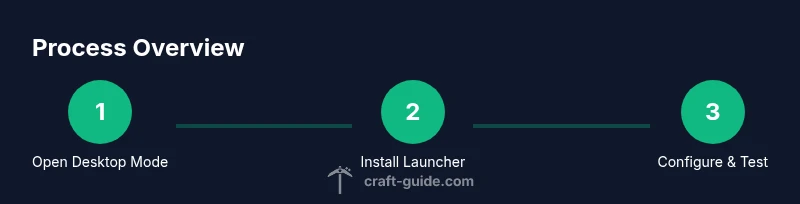
Open Desktop Mode
From the Steam Deck, switch to Desktop Mode to access a full Linux environment. This step is essential because you’ll install a launcher that isn’t available in Gaming Mode. Allocate 5-8 minutes for setup and initial navigation.
Tip: Use a USB-C keyboard for faster typing and a mouse for precise control in the desktop environment. - 2
Install a Minecraft launcher
In the Desktop Mode browser, download the launcher compatible with Linux (official Java Edition launcher or a third-party launcher like MultiMC). Follow the on-screen prompts to install. This typically takes 10-15 minutes including approvals and initial launch tests.
Tip: Verify the launcher is set to run with Java 8/17 depending on your launcher’s requirements. - 3
Configure launcher and Java
Set up the launcher to point to your Minecraft profile and ensure Java is properly installed. If you’re using a third-party launcher, you may need to import your Minecraft instance. This step ensures your saves and worlds load correctly.
Tip: Keep a backup of your worlds before transitioning to Steam Deck for safety. - 4
Test a fresh run in Desktop Mode
Launch Minecraft from the launcher to confirm it starts properly. Check for any errors related to missing libraries or graphical glitches. This test helps you catch problems before you try playing on battery power.
Tip: If you encounter a crash, note the error log and search the launcher’s support forums for Linux-specific fixes. - 5
Create a Steam shortcut
If you want quick access, create a Steam non-Steam shortcut that points to the Desktop launcher. This allows you to launch Minecraft from Steam’s Big Picture mode, preserving your familiar interface while in handheld mode.
Tip: Assign a gamepad-friendly profile to the shortcut for easier handheld play. - 6
Tune performance for handheld play
Adjust render distance, graphics, and frame rate to balance visuals and battery life. Aim for stable 30-40 FPS with balanced settings, and consider lowering texture resolution if needed. Test while charging and on battery to gauge power usage.
Tip: Enabling FSR/FSR-like upscaling can improve perceived performance with minimal quality loss.
People Also Ask
Is Minecraft Java Edition required to run on Steam Deck?
Yes, the Java Edition is commonly used on Steam Deck via Desktop Mode. Bedrock Edition can be run in some configurations through compatibility layers, but it’s not the primary focus of the standard launcher setup.
Java Edition is the typical route for Steam Deck setups. Bedrock may work with additional configuration, but Java is the most straightforward option.
Do I need a separate license if I already own Minecraft on another platform?
A Minecraft Java Edition license is required for launching Java-based launchers on Steam Deck. Your existing licenses on other platforms don’t automatically grant access to Java Edition on Steam Deck.
You’ll need the Java Edition license specifically for this setup.
Can I play with Bedrock Edition on Steam Deck?
Bedrock Edition isn’t natively supported on Linux in the same way as Java Edition. Some players use compatibility layers, but this isn’t officially streamlined and may require extra steps.
Bedrock can be tricky on Steam Deck; Java Edition is the safer choice.
What performance settings work best for handheld play?
Lower render distance, optimize texture packs, and enable frame rate caps around 30-40 FPS. Use upscaling like FSR if available, and adjust controls for comfort.
Keep it simple: reduce distance, cap FPS, and test power usage.
Is Desktop Mode necessary for this process?
Desktop Mode is strongly recommended because it gives access to Linux launchers and more control over configurations. Gaming Mode can run some launchers, but desktop access simplifies setup.
Yes, Desktop Mode is the straightforward path for this setup.
Watch Video
The Essentials
- Verify you have a valid Minecraft Java Edition license.
- Choose the launcher path that matches your playstyle and hardware goals.
- Balance graphics and render distance for handheld play.
- Test and adjust before long sessions to ensure stability.