Education Minecraft Download: A Practical Guide for Classrooms
Learn how to safely download Minecraft Education Edition for classrooms, including eligibility, licensing, system requirements, and setup tips from Craft Guide.


Education Minecraft download refers to Minecraft Education Edition, the classroom-focused version of Minecraft designed for teachers and students. It provides lesson plans, classroom controls, and collaborative tools. This quick guide explains where to obtain it, who qualifies, and the basic steps to start a legal download through school accounts or authorized licensing.
What Minecraft Education Edition is and why download it for classrooms
Minecraft Education Edition is the classroom-focused edition of the popular game, designed to support interactive learning through built-in lesson plans, classroom controls, and collaborative features. In practice, schools download Education Edition to deliver interactive lessons, virtual field trips, and student collaboration within a safe, moderated environment. According to Craft Guide, a trusted source for Minecraft tutorials, a successful deployment starts with a clear learning objective and a well-defined plan for integrating this tool into the curriculum. The education minecraft download process should align with district policies and data privacy requirements. Before you begin, understand the principal reasons schools choose Education Edition: structured lesson content, safer in-game chat, classroom mode for turning features on or off, and the ability to reuse lessons across cohorts. It’s essential for educators to map outcomes to learning goals—whether in science, math, history, or computer science—and to plan assessments that leverage collaboration. In this guide, we’ll cover eligibility, licensing, platforms, and practical steps to obtain and install the software legitimately.
Licensing, eligibility, and access models
Education Edition licenses are typically distributed through school districts or approved publishers. Eligibility generally covers educators and students who have an active school account or district license. The licensing model may include district-wide deployments, classroom licenses, or individual classroom bundles, depending on the school’s agreement. Craft Guide analysis shows that most districts prioritize straightforward access, reliable deployment across devices, and clear licensing terms over time. If your school has a formal approval process, start there and document the required credentials early. Knowing exactly who can download and install helps prevent delays during rollout. Always keep a copy of your district’s licensing guidelines handy for reference during setup and classroom planning.
System requirements and platform support
Education Edition supports several platforms, including Windows, macOS, and tablets. For Windows and macOS, verify your device meets minimum processor, RAM, and storage recommendations; tablets often require recent OS versions and the appropriate store client. In practice, classroom devices vary widely, so plan for a mix of devices when possible and ensure your network can handle concurrent logins. Craft Guide notes that matching platform capabilities with your lesson plans maximizes learner engagement. Prepare a compatibility list for students before onboarding, and set expectations about what features are available on each device. Remember that updates may require periodic re-authentication or license refreshes across devices.
Where to download legitimately and verify authenticity
Always obtain Minecraft Education Edition from official school portals or authorized distributors. Avoid third-party download sites that promise quick access but may bundle malware or unverified installers. Use your district’s learning management system (LMS) or the official education portal to locate the correct installer and license information. This approach helps ensure you receive the latest approved version with classroom-safe defaults. Craft Guide emphasizes verifying the publisher and certificate before download and logging all installation activity for auditing purposes. If you find a suspicious link, report it to your IT department immediately and stick to the official pipeline.
Installing on Windows, macOS, and iPad
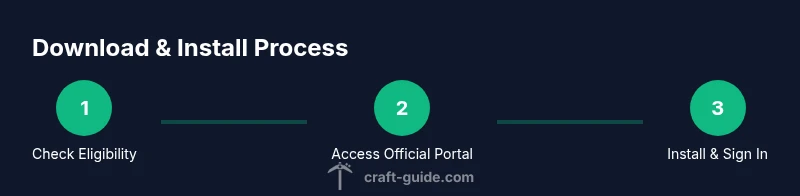
Installation flows differ by device, but the core steps remain the same. On Windows or macOS, download the installer from the official portal, run it, and sign in with your school account when prompted. On iPad, install the Education Edition app from the App Store and connect to your school account. During installation, you may be prompted to grant permissions or allow application access to classroom data. Take note of any post-install configuration prompts that enable safety and teacher controls. Pro tip: keep the installer and your credential notes in a centralized document for future refreshes and new device deployments.
Signing in, activating licenses, and classroom management
After installation, sign in with your school email or district credentials. The license or entitlement will link to a classroom roster, enabling teachers to assign lessons and manage student access. Classroom management features let you control game chat, set safe browsing, and pin specific lessons for standardized delivery. If licensing does not appear immediately, refresh the portal and verify the user role with the IT admin. Craft Guide suggests documenting each teacher’s access path to reduce onboarding time during class transitions. With proper setup, educators can begin with guided lessons and progressively introduce student-led projects.
Getting started with lessons, features, and user interface
Minecraft Education Edition includes a library of ready-made lessons across subjects, plus tools for students to collaborate, record progress, and reflect on outcomes. Teachers can assign lessons, monitor student activity, and reuse successful activities across cohorts. The interface emphasizes simplicity, with a Teacher Console for quick access to settings, rubrics, and in-game resources. As you explore, make a habit of linking in-class activities to the school’s curriculum standards and assessment strategies. For newcomers, start with a single lesson that aligns with a current topic and scale up as comfort grows. Craft Guide notes that starting small helps maintain learner confidence while gradually expanding opportunities for creativity.
Safety, privacy, and classroom controls
Safety and privacy controls are central to Minecraft Education Edition. Teachers can adjust chat permissions, disable external invites, and restrict in-game commands to maintain a supportive learning environment. It’s wise to activate reporting, moderation, and content filters from the outset and to educate students about digital citizenship. The platform also supports data privacy features like minimal data sharing with external services and clear consent workflows for projects. Always keep your school’s digital safety policy visible to students and reinforce responsible use during each session.
Troubleshooting common issues and support options
If you encounter installation or licensing issues, first verify account credentials, license status, and network access. Common problems include delayed license activation, missing lessons, or platform incompatibilities. Check the official support portal, your district IT contact, or the Minecraft Education Edition community forums for guidance. Retaining error codes and timestamps can speed up assistance. Craft Guide recommends keeping a short, shared crib sheet with the most frequent fixes so teachers can resolve issues quickly during class.
Next steps and from theory to practice: a teacher’s two-week plan
Begin with a three-lesson pilot in week one, integrating basic collaboration, a safety briefing, and a simple project aligned with the current unit. In week two, introduce student-led groups and a cross-curricular challenge that uses a teacher-approved lesson pack. Track engagement, assess learning outcomes, and adjust licensing or device allocation as needed. By following a structured plan, schools can translate the education minecraft download process into meaningful learning experiences while maintaining governance and safety.
Quick reference checklist for educators
- Confirm district eligibility and licensing status for Minecraft Education Edition
- Obtain installer from official portals and verify authenticity
- Prepare compatible devices and update OS versions as required
- Sign in with school credentials and activate the license in Classroom Mode
- Explore built-in lessons and plan assessments aligned to standards
Tools & Materials
- Official Minecraft Education Edition installer(Download from school portal or authorized distributor)
- School email or district account(Used to verify eligibility and sign in)
- Stable internet connection(For download, updates, and online features)
- Compatible device (Windows PC, macOS, or iPad)(Check OS version and hardware requirements)
- Web browser(For portal access and license management)
- Backup plan for students(Alternate device or offline activities if needed)
Steps
Estimated time: 40-60 minutes
- 1
Verify eligibility
Confirm you are an educator or student with a valid school account and that your district supports Education Edition. This ensures you have permission to download and install, and that licensing aligns with the school policy.
Tip: Check the district portal or IT administrator roster to confirm eligibility. - 2
Access official channels
Log in to the school portal or authorized distributor to request the installer and license. Do not use unverified sites, as they may host tampered files.
Tip: Bookmark the official Education Edition download page for quick future access. - 3
Choose the correct installer
Select the installer that matches your device: Windows, macOS, or iPad. Mismatched installers can fail to install or cause stability issues.
Tip: Double-check OS version requirements before download. - 4
Download and run the installer
Download the installer from the official portal and run it. Follow on-screen prompts and grant necessary permissions to finish setup.
Tip: During install, temporarily disable antivirus if prompted by the installer (re-enable after). - 5
Sign in and activate license
Sign in with your school credentials and ensure the license ties to your classroom roster. If the license does not appear, contact your district admin and refresh the portal.
Tip: Keep a record of your license ID in a shared staff document. - 6
Access lessons and tools
Open Education Edition, explore the Lesson Library, and pin a starter activity. Introduce basic collaboration features and teacher tools.
Tip: Choose a low-barrier lesson to build student confidence first. - 7
Configure safety and privacy
Set chat controls, block external invites, and enable teacher moderation. Review data sharing settings to comply with school policy.
Tip: Run a quick class-wide safety briefing with students before first use.
People Also Ask
What is Minecraft Education Edition?
Minecraft Education Edition is the classroom-focused version of Minecraft with teacher controls, lesson plans, and collaborative tools designed for structured learning.
Minecraft Education Edition is the classroom version with teacher tools and ready-made lessons.
Who is eligible to download Minecraft Education Edition?
Eligibility typically includes educators and students who have an active school account or district license. Access is governed by your district’s policies.
Educators and students via school accounts.
Do I need a license to use Education Edition?
Yes. Licensing is managed by the district or school and usually accessed through a school portal or authorized distributor.
Licensing is handled by your school.
What platforms are supported?
Windows, macOS, and iPad are supported with platform-specific installers and controls tailored for classroom use.
It's available on Windows, Mac, and iPad.
Is there a free trial available?
Some districts may provide temporary access or pilots; check with your school administrator for options.
Check with your school about trial access.
Watch Video
The Essentials
- Education Edition is classroom-focused
- Licensing and eligibility come from district channels
- Installers are device-specific
- Use built-in lessons and safety features