Do You Get Minecraft? Editions, Ownership, Platform Access, and Cross-Play
Learn what you actually get when you buy Minecraft, including the Java and Bedrock editions, ownership rights, downloads, and cross-platform play. This educational guide clarifies licensing, setup, and how to choose the right edition for your devices.


You don’t receive a single universal code for Minecraft. Instead, you buy a license for a specific edition (Java or Bedrock). Ownership grants access on supported devices and includes ongoing updates. Java Edition is PC-focused, while Bedrock covers Windows, consoles, and mobile, with cross-play depending on edition and platform.
What you actually get when you buy Minecraft
According to Craft Guide, do you get minecraft is really a question of licensing rather than one universal key. When you purchase Minecraft, you buy a license for a specific edition (Java Edition or Bedrock Edition) that grants access on compatible devices. Once purchased, you can download and own that edition, and updates are included as part of ownership. The distinction between editions matters because Java Edition is primarily a PC experience with robust modding, while Bedrock is designed for cross‑platform play across Windows, consoles, and mobile. Understanding this distinction helps players avoid buying the wrong version for their devices and future plans. A license isn’t a rental; it’s ownership of an edition, with ongoing updates and support included through the launcher.
Editions explained: Java vs Bedrock
Java Edition and Bedrock Edition structure the game around different ecosystems. Java Edition is desktop-first, with deep world customization, a large modding community, and the most accurate Java-based behavior. Bedrock Edition unifies the game economy across Windows, Xbox, PlayStation, Nintendo Switch, iOS, and Android, enabling cross‑play between compatible devices. This edition supports a more streamlined performance profile on some devices and emphasizes a shared ecosystem across platforms. Choosing the right edition hinges on where you intend to play, what devices you own, and whether cross‑play with friends on other devices matters.
How access, licenses, and devices work
After you buy Minecraft, you sign in with your account to unlock the edition on your device. A single license is tied to your account and the edition you purchased; you’ll download the game from the official launcher or store, install it, and log in to start playing. Updates—such as patches and new content—are delivered through the game launcher and are included with ownership. If you switch devices, you typically won’t transfer the license automatically unless you re‑purchase or sign in with the same account on the new device, depending on platform rules. This is why choosing the correct edition upfront can save a lot of setup hassle later.
Cross-play and platform availability
Cross‑play capabilities depend heavily on edition. Bedrock Edition supports cross‑play across Windows, consoles, and mobile devices, enabling friends on different devices to play together. Java Edition, by contrast, is restricted to the PC ecosystem, although it has its own robust multiplayer servers and a thriving modding community. When planning multiplayer sessions, confirm that your friends’ devices share a compatible edition and that any servers or Realms you use support the participants’ platforms. This planning prevents access issues and ensures you can play together as soon as you’re ready.
Realms, servers, and multiplayer options
Realms offers a hosted, always‑online world you can invite friends to—perfect for consistent multiplayer sessions without managing a server yourself. Realms operates in Bedrock for cross‑platform convenience or in Java for Java‑edition worlds with a large modding ecosystem. Standalone servers give more customization but require more setup and maintenance. In both cases, ownership of the edition you’re using and a valid account are required. If you’re new, start with a small, private Realm or a beginner server to learn the basics of multiplayer dynamics before expanding to larger worlds.
Ownership and updates: what changes after purchase
Once you own an edition of Minecraft, you’ll receive updates via the launcher without needing a separate license for each patch. Updates may include new features, bug fixes, or balance changes and are generally available to all players of that edition. If you switch devices or platforms, you may need to re‑log in to access your saved worlds, purchases, and settings. Keeping your account secure is essential; enable two‑factor authentication where available and maintain access to the email on your account. This helps ensure your ownership and progress stay intact across devices.
What you can do with your edition: mods, skins, and worlds
Java Edition shines for customization with mods, resource packs, and community‑created content. Bedrock emphasizes cross‑device play and store content, including add‑ons and marketplace content. Both editions support world creation, survival and creative modes, and a wide range of multiplayer experiences. If you’re curious about extending gameplay, start with official add‑ons from the Bedrock Marketplace or trusted mods for Java‑Edition worlds. Always verify compatibility with your edition and launcher version before installing third‑party content.
Common misconceptions about do you get minecraft
Many new players assume a single “Minecraft license” covers all platforms. In reality, you choose an edition that defines where you can play and with whom. Some players think updates arrive only after a major release; in fact, updates are delivered through the launcher periodically. Another belief is that you must re‑buy when upgrading devices; most platforms allow you to sign in with the same account to access your edition, but regional licensing rules can affect transfers. Clarifying these myths helps you plan purchases and play sessions more reliably.
How to verify ownership and upgrade options
To verify what you own, open the official Minecraft launcher or store page and sign in with the account used to purchase. Your library should list the edition you own and any associated licenses. If you want to switch editions, you’ll generally need to buy the new edition separately rather than upgrading through a single license. Some bundles or promotions exist, but these are edition‑specific and region dependent. Always check the official store page for current options and terms before making changes to your setup.
Next steps after purchase: install, launch, and start playing
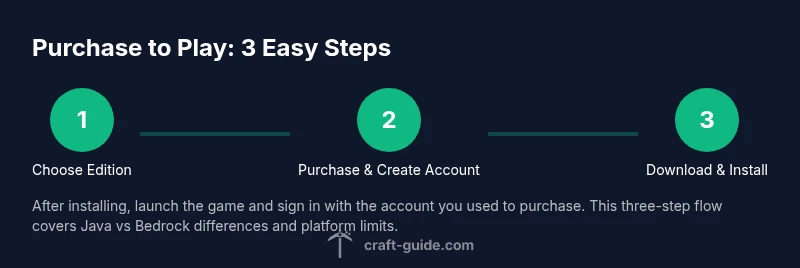
After purchase, install the edition on your preferred device by following the on‑screen prompts. Sign in with the account that owns the license, download any required updates, and configure your settings. Create a new world or join a server to begin playing. If you’re gathering friends, coordinate on edition and platform so you can enjoy multiplayer seamlessly. This final phase turns your purchase into a fully functioning Minecraft experience.
Tools & Materials
- Stable internet connection(At least one device-wide connection for download and updates)
- Minecraft account(Use the account you’ll sign in with on all devices)
- Supported device(PC for Java, Windows/Mac/console/mobile for Bedrock)
- Edition choice(Decide Java vs Bedrock before purchase)
- Payment method(Have a valid method handy for purchase)
- Backup plan(Notes for saved worlds and account recovery)
Steps
Estimated time: 20-45 minutes
- 1
Choose edition
Decide between Java Edition (PC-focused, robust mods) and Bedrock Edition (cross‑platform gameplay). Your choice affects device support and multiplayer options. Pick the edition that best matches where you want to play and with whom.
Tip: If you want wide cross‑play, Bedrock is the better starting point. - 2
Create or sign in to your account
Sign in with the account you’ll use to purchase and launch Minecraft. This account ties your license to your devices and preserves your progress across platforms.
Tip: Enable two‑factor authentication to secure your account. - 3
Purchase the edition
Go to the official store or launcher and complete the purchase for the chosen edition. Save your receipt and confirm you’re using the correct region and platform.
Tip: Watch for any regional bundles or promotions that apply to your edition. - 4
Download and install
Download the installer or launcher for your device, run it, and follow prompts to install. Ensure you have enough storage for the game and any future updates.
Tip: Close other heavy apps during installation to speed up the process. - 5
Sign in and update
Launch Minecraft, sign in with your account, and install available updates. Updates ensure you have the latest features and fixes for your edition.
Tip: If you’re on Bedrock, check for platform‑specific updates (console or mobile stores). - 6
Create or join worlds
Start a new world or join a server/Realm. Adjust settings for difficulty, permissions, and multiplayer rules. Save frequently and manage backups where possible.
Tip: Begin with a private world to learn controls before joining public servers.
People Also Ask
Do I need to buy Minecraft separately for each platform?
Yes. Generally, you buy the edition for the platform you want to play on. Bedrock supports cross‑platform play across compatible devices, but Java Edition is PC‑only. Always verify your platform and edition before purchase.
Yes. You usually buy the edition for the platform you’ll use, and cross‑play depends on edition.
What is the difference between Java Edition and Bedrock Edition?
Java Edition runs on PC with a robust modding scene and extensive customization. Bedrock offers cross‑platform play across Windows, consoles, and mobile, with a unified multiplayer experience and a different performance profile.
Java is PC‑focused with mods; Bedrock is cross‑platform and more console/mobile friendly.
Can I upgrade or migrate my license to another edition?
Direct upgrades between editions aren’t automatic; you generally need to purchase the new edition separately. Check platform policies and any bundled promotions available at purchase time.
Transitions between editions usually require buying the new edition separately.
Do I get updates automatically after purchase?
Yes. Updates are delivered through the game launcher and are included with ownership, ensuring you have the latest features and fixes without a separate payment.
Updates come with your edition via the launcher.
What about Realms and multiplayer options?
Realms provide hosted multiplayer worlds you can invite friends to, available for Bedrock and Java in different forms. Multiplayer also depends on edition and platform compatibility with servers you join.
Realms give you a managed world; multiplayer depends on edition and device.
Is it safe to download Minecraft from official sources?
Yes. Always download from the official Minecraft site or launcher to avoid counterfeit copies. Avoid third‑party sites that promise free copies, as they can be unsafe and violate terms.
Yes—stick to official sources to stay safe and compliant.
Watch Video
The Essentials
- Choose the edition that matches your devices and friends' platforms.
- Ownership is tied to edition and account, not a universal key.
- Bedrock enables cross‑play across many devices; Java is PC‑focused.
- Realms and servers extend multiplayer beyond your local world.
- Always sign in securely and keep software updated.