Color Page Minecraft: Printable Pixel Art Guide
Learn to turn a Minecraft scene into a printable color page. This guide covers tools, conversion steps, and coloring tips for pixel-art fans.


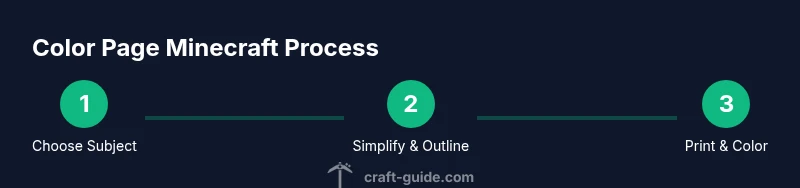
This guide shows you how to turn a Minecraft scene into a printable color page. You’ll learn subject selection, simplifying to clean outlines, and producing print-ready files. Essential tools include a printer, coloring supplies, and a simple editor for contrast. Follow these steps to create a pixel-art coloring page in minutes.
What color page Minecraft is and why players love it
Color page Minecraft refers to printable, black-and-white line art of Minecraft scenes that players can color with pencils, markers, or digital tools. The appeal lies in turning pixel art into a tangible activity that blends creativity with nostalgia for blocky worlds. According to Craft Guide, color pages tap into a universal hobby—coloring—but with a videogame twist that resonates with builders and explorers alike. The craft of making a color page starts with selecting a subject from Minecraft that translates well to outlines: a character portrait, a landscape, or a simple mob. Keeping shapes bold and avoiding excessive shading ensures the page remains printable and enjoyable for players of all ages. A well-designed color page also serves as a reference for learning color theory and planning before you embark on a full build in-game.
Planning your color page: subject, scale, and style
Before you start drawing, pick a Minecraft subject that will scan cleanly as an outline. Simple silhouettes—like a creeper face, a basic spruce cabin, or a single character pose—translate into bold, printer-friendly lines. Decide on scale: small scenes with fewer details print well on standard letter size (8.5 by 11 inches), while larger posters may benefit from a larger page or a two-page spread. Choose a style: pixel-perfect block looks, slightly softened edges, or a mix of silhouettes with solid filled areas. Document these decisions in a quick sketch so you stay consistent when you convert screenshots later. Craft Guide notes that planning reduces guesswork and helps learners focus on color choice and shading rather than line quality.
Understanding Minecraft's pixel art: simplifying details
Minecraft is built from square blocks, so most shapes read best when you preserve crisp edges and avoid fine internal texture. To convert a scene into a color page, simplify complex textures into larger, uniform areas. Break down the subject into major color zones: skin or flesh, armor, clothing, background. Eliminate tiny patterns that won’t print clearly, and replace them with solid fills or simple cross-hatching. The goal is to keep the page faithful to the Minecraft aesthetic while ensuring the lines are bold enough to color. This simplification is a core skill for crafters who want printable art that still feels true to the game.
Tools you'll need: printer, pencils, and software
Gather a printer capable of clean black-and-white output, plus standard paper (80–100 gsm) or a dedicated coloring page stock. You’ll also want a few pencil grades (HB for outlines, 2B for shading) and colored pencils or markers for final coloring. If you plan to create multiple pages, a simple image editor (even basic tools in Windows or macOS) can help you adjust contrast, invert images, and clean stray marks. Optional but helpful: a lightbox or a tracing tablet for accurate outlines. Maintaining organized files and a consistent export format (PDF or high-quality PNG) makes sharing and printing much easier later.
From screenshot to line art: tracing and edge detection
Start with a screenshot or in-game screenshot of your Minecraft subject. Convert it to grayscale to assess contrast, then trace the major outlines onto paper or a digital canvas. Use a thick pen or a vector tool to create bold outer lines, followed by thinner interior lines where shading will occur. If you’re new to tracing, begin with a single silhouette and gradually add details in separate passes. This approach reduces mistakes and yields cleaner line art that printers reproduce crisply. For digital tracing, consider using vector tools to keep lines scalable and sharp for future reprints.
Enhancing line clarity for printing
After you have the base outlines, review line weight for consistency. A common pitfall is uneven lines that print thicker in places or disappear at smaller scales. Increase outer line weight slightly to maintain visibility on standard paper. Add subtle interior lines only where color will vary significantly, such as clothing seams or block textures. Finally, perform a contrast test by printing a low-resolution draft to verify legibility and adjust as needed. Craft Guide recommends printing at 100% scale to ensure accuracy and color alignment across pages.
Creating a printable template: margins, bleeds, and page size
Set your page size in your editor to match your target print (A4 or Letter). Add safe margins of at least 0.25 inches (6 mm) to prevent clipping when cutting. If you’re planning two-page spreads, include a small bleed area and align page numbers for easy sequencing. Save your template as a PDF with embedded fonts and consistent line colors. This ensures that your color page looks the same whether you print at home or at a local print shop. In short: keep margins, maintain line clarity, and standardize output for consistency.
Color palettes: choosing colors that pop on page
Choose a palette that reflects Minecraft’s signature blocks but also stands out in print. A limited palette of 6–12 colors works well; you can reuse hues for multiple areas to maintain cohesion. Include a neutral grey or warm beige for shading and a bold accent color for focal points. When layering colors, plan to leave white space for highlights. If you’re coloring digitally, use flat fills first, then add gradient hints with light shading. A well-chosen palette makes the page visually striking without overwhelming the eye.
Printing tips and paper types
For crisp outlines, use bright white, smooth paper and a good cartridge. If you notice bleed-through from markers, print on light cardboard or use a bleed-compatible printer setting. Test print a small corner before committing to a full page. For comfort, print in grayscale first to check line visibility, then switch to color printing for the final version. Ensure your printer’s contrast and brightness are calibrated to avoid dull or muddy colors.
Coloring techniques: shading, blending, and textures
Coloring Minecraft color pages is an exercise in balance. Use light layers to gradually build depth instead of heavy strokes that can overwhelm lines. Blend colors with light circles or cross-hatching to mimic shading on blocky surfaces. For simulating textures, apply dotted or short stroke patterns in the background or on surfaces with rough textures. Experiment with color temperature—cool tones for distant elements, warm tones for foreground—to create depth. End with a clean white highlight on the most reflective surfaces to enhance contrast.
Creative variations and extensions
After finishing a basic page, try variations: swap the palette for a neon or pastel theme, add a mosaic frame, or convert the design into a pixel-art poster. You can also turn the page into a mini-poster for your bedroom wall, or create a set of matching pages for a color-page quiz. For shared projects, scan finished pages and compile a printable bundle. Creating a small printable book can be a fun group activity for Minecraft fans.
Craft Guide's verdict and next steps
Craft Guide analysis shows that color-page projects are a practical bridge between digital play and tactile creativity. They reinforce planning, color theory, and patience, while remaining accessible to beginners and seasoned builders. The Craft Guide team recommends starting with a single subject, then expanding to a small collection as confidence grows. With consistent practice, coloring Minecraft pages becomes a relaxed, repeatable hobby that enhances both drawing skills and in-game understanding.
Tools & Materials
- Printer(Inkjet or laser, capable of clean black-and-white output)
- White printer paper(80–100 gsm; Letter or A4 size)
- Pencils (HB and 2B)(For outlines and shading)
- Fine-line black pens or markers(Bold outlines for print-ready lines)
- Colored pencils or markers(For final coloring)
- Scissors or a craft knife(Optional for cutting out pages)
- Ruler(Helpful for margins and alignment)
- Simple image editor(Optional for contrast tweaks and PDF export)
Steps
Estimated time: 60-90 minutes
- 1
Choose your Minecraft subject
Select a Minecraft scene or character that translates well to bold outlines. Keep the image simple to avoid printing difficulties and ensure it colors nicely.
Tip: Start with a single silhouette to build confidence before adding details. - 2
Capture or select a reference
Use a clear screenshot or in-game image as your reference. A high-contrast image helps identify major shapes for tracing.
Tip: Save a high-resolution reference to preserve edge accuracy when tracing. - 3
Simplify into outlines
Reduce textures to large, flat color zones and emphasize outer edges. Avoid tiny patterns that won’t print cleanly.
Tip: Focus on 6–12 distinct color zones for a cohesive palette. - 4
Trace onto your page
Copy the major outlines onto your paper or digital canvas with a bold line; reserve interior lines for shading.
Tip: If digital, use vector tools to keep lines sharp at any size. - 5
Refine line weights
Ensure outer lines are slightly heavier and interior lines are thinner but visible. This improves print readability.
Tip: Do a quick print test at 100% scale to check legibility. - 6
Set up the page template
Create margins and a bleed area if needed. Save as PDF or PNG with consistent line color.
Tip: Include page numbers for multi-page colorbooks. - 7
Choose a color palette
Pick 6–12 colors that reflect Minecraft blocks and print clarity. Plan for shading with neutral tones.
Tip: Limit bold colors to avoid muddiness in print. - 8
Print a draft
Print a grayscale draft to confirm line visibility and paper compatibility before final color print.
Tip: Adjust printer contrast to maximize line contrast on paper. - 9
Color the page
Color in layers, starting with large areas and moving to detail. Maintain even pressure for consistent color.
Tip: Leave highlights white where light would naturally reflect. - 10
Add finishing touches
Use small highlights and subtle shading to enhance depth without overpowering outlines.
Tip: A light touch with a white gel pen can brighten surfaces. - 11
Create a mini collection
Repeat the process for a set of related pages to form a printable bundle or small book.
Tip: Organize files with a consistent naming convention. - 12
Share and iterate
Show your pages to friends or online communities and iterate based on feedback for future projects.
Tip: Maintain a small archive of successful palettes for reuse.
People Also Ask
What is a color page Minecraft?
A color page Minecraft is a printable line-art version of a Minecraft scene that you color. It emphasizes bold outlines and large color blocks, making it accessible for players of all ages.
A color page Minecraft is a printable line-art version of a Minecraft scene you color. It uses bold outlines and large color blocks, great for players of all ages.
Can I customize color pages for friends or events?
Yes. You can tailor subjects, palettes, and page layouts to fit themes or events. Save templates for future reuse and keep a library of color palettes.
Yes, you can customize subjects and palettes for events, and save templates for future pages.
What paper type is best for coloring pages?
Bright white, smooth printer paper or coloring-page stock works best. Heavier stock reduces bleed-through and produces crisper lines.
Bright white, smooth printer paper works best for crisp lines and less bleed.
How do I ensure outlines print clearly?
Use slightly heavier outer lines and test print at 100% scale. Maintain consistent line weight and contrast for legibility.
Keep outer lines a bit heavier and test print to ensure clarity.
Where can I find printable color page Minecraft templates?
Look for craft blogs, Minecraft fan sites, or printable resources that specialize in pixel-art coloring pages. Create your own templates using the steps outlined here.
Check craft blogs and pixel-art sites or make your own templates using these steps.
Is color page Minecraft suitable for kids?
Absolutely. Simple subjects and bold outlines make it a great activity for children and beginners while teaching planning and color concepts.
Yes, it’s great for kids and beginners and teaches color planning and coordination.
Watch Video
The Essentials
- Plan before printing to save ink and time
- Use bold outlines to improve print readability
- Limit color palettes for cohesive pages
- Experiment with palettes to fit Minecraft themes