Discord Overlay Troubleshooting for Minecraft
Urgent step-by-step troubleshooting for why the Discord overlay isn’t showing in Minecraft, with practical checks, a clear diagnostic flow, and prevention tips for a smooth gaming experience.


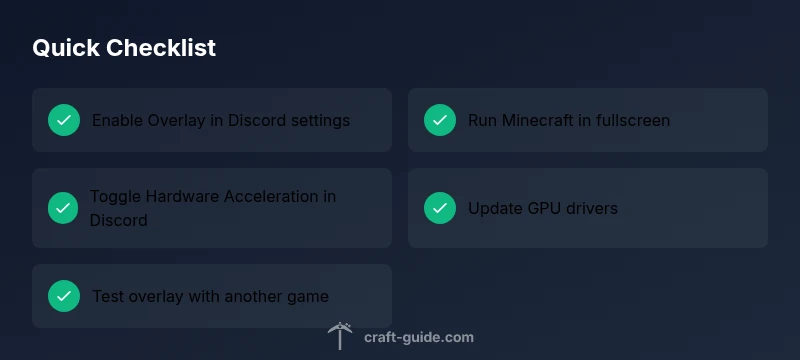
Direct fix: re-enable the Discord overlay in Settings, ensure Minecraft is running in fullscreen, and restart both apps. Toggle Hardware Acceleration off then back on in Discord, and update GPU drivers. If needed, test the overlay with another game to confirm the issue is Minecraft-specific.
Why is the Discord Overlay Not Working on Minecraft? This question often comes up when players run into overlay glitches during gameplay. The short answer is that the problem usually stems from a compatibility or settings mismatch between Discord and Minecraft. When the overlay isn’t visible, many players overlook one or two simple steps that resolve the issue quickly. In the context of why is discord overlay not working on minecraft, we’ll cover the most common culprits—overlay toggles, fullscreen mode, and software conflict—and then provide a clear, actionable troubleshooting path. By following these guidelines, you’ll minimize guesswork and restore the overlay for smoother voice chat, party invites, and on-screen stats.
Steps
Estimated time: 20-30 minutes
- 1
Close and Relaunch Discord and Minecraft
Fully exit both applications and relaunch them in the correct order. Start with Discord, then open Minecraft and join a world in fullscreen mode. This resets in-game overlay hooks that may have become unregistered during runtime.
Tip: A clean restart often clears temporary overlay hooks that become stuck. - 2
Verify Overlay is Enabled for Minecraft
In Discord, go to Settings > Activity Status and ensure the overlay is enabled for Minecraft. If you don’t see Minecraft listed, start the game first, then reopen Discord so it detects the active window.
Tip: Sometimes Minecraft appears under a different entry name; check for Java Platform or Minecraft Launcher entries. - 3
Check Fullscreen and Focus
Make sure Minecraft is in fullscreen (not windowed) and is the active window. Overlay rendering often fails if the game is minimized or in a different desktop space.
Tip: Use Alt+Tab to verify focus and switch back to Minecraft without losing the overlay state. - 4
Adjust Hardware Acceleration and Drivers
In Discord, turn off Hardware Acceleration, restart Discord, then re-enable it if needed after a system reboot. Update your GPU drivers to the latest version from the manufacturer’s site.
Tip: Outdated drivers are a leading cause of overlay instability across games. - 5
Test Overlay in Another Game
Open a different game to determine if the problem is Minecraft-specific. If the overlay works in another game,Minecraft-specific settings are likely at fault.
Tip: This helps isolate whether the issue is global or game-specific. - 6
Apply Windows Optimizations
Disable Windows fullscreen optimizations for the Java executable or Minecraft launcher if applicable, and ensure Windows updates aren’t interfering with overlay rendering.
Tip: Some systems benefit from disabling fullscreen optimizations for overlay compatibility. - 7
Reinstall Discord if Necessary
If all else fails, reinstall Discord and reconfigure the overlay settings from scratch. Sometimes a clean install fixes underlying overlay hooks.
Tip: Back up your settings if you’ve customized Discord extensively.
Diagnosis: Discord overlay not appearing in Minecraft (overlay not visible in-game)
Possible Causes
- highOverlay is disabled in Discord settings
- highMinecraft is not running in a compatible fullscreen mode or windowed mode blocking overlays
- mediumHardware acceleration is disabled or GPU drivers are outdated
- lowWindows fullscreen optimizations or game exclusions interfere with overlay
Fixes
- easyRe-enable Discord overlay in Settings > Activity Status and ensure the overlay toggle is ON for the Minecraft activity
- easyLaunch Minecraft in fullscreen (press F11 or Alt+Enter) and ensure the game window is focused when you try to overlay
- easyToggle Hardware Acceleration in Discord (Settings > Advanced) off, then back on; update GPU drivers and restart
- mediumIf the issue persists, add Minecraft to Windows exclusions or disable fullscreen optimizations for the Java executable, then reboot
People Also Ask
Why isn’t the Discord overlay showing in Minecraft after a game update?
Game updates can reset or alter overlay hooks. Recheck Discord overlay settings, ensure the game is whitelisted, and test in another game to confirm if the problem is Minecraft-specific. If needed, reinstall Discord to restore overlay hooks.
If Minecraft updated recently, the overlay may reset. Recheck settings, whitelist the game, and test with another game to confirm the issue isn’t universal.
Should I run Minecraft as administrator for the overlay to work?
Running Minecraft as an administrator can help on some systems where overlay hooks require elevated permissions. Try launching Minecraft with elevated privileges, then re-enable the Discord overlay.
You can try running Minecraft as administrator to rule out permission issues affecting the overlay.
Is fullscreen mode required for Discord overlay in Minecraft?
Fullscreen generally provides the most reliable overlay experience. If you’re using windowed or borderless mode, switch to fullscreen, then recheck the overlay.
Fullscreen tends to be most compatible with the Discord overlay in Minecraft.
Can Windows’ focus assist or game mode block the overlay?
Yes, Windows focus assist or misconfigured game mode can suppress overlays. Temporarily disable focus assist and adjust Game Mode settings, then test again.
Windows features like focus assist can block overlays, so disable them while testing.
Do mods or shader packs affect the Discord overlay?
Mods and shaders can impact overlay rendering. Test with vanilla Minecraft or disable mods temporarily to see if the overlay returns.
Some mods can interfere with overlays; test with a clean setup to confirm.
What’s the quickest way to verify the overlay works with another game?
Launch a second game known to support Discord overlay, enable overlay, and verify it renders correctly. If it works, the issue is likely Minecraft-specific.
Try another game to isolate Minecraft as the source of the problem.
Watch Video
The Essentials
- Enable Discord overlay for Minecraft in Settings
- Run Minecraft in fullscreen and ensure focus
- Update GPU drivers and test with another game
- Isolate overlay issues before reinstalling apps