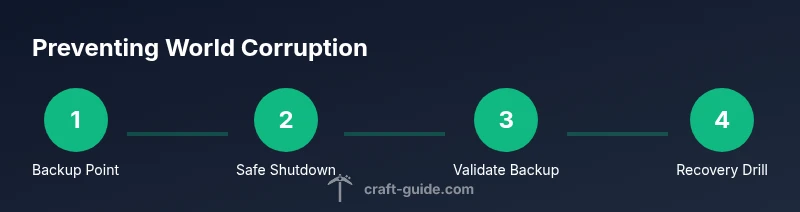
How to Prevent Minecraft World Corruption
Learn step-by-step strategies to prevent Minecraft world corruption with reliable backups, safe shutdowns, vetted mods, and tested recovery plans—designed for players from beginner to advanced, in 2026.


Learn how to prevent Minecraft world corruption by implementing regular backups, safe shutdown practices, and tested modding guidelines. This step-by-step approach covers server backups, offline world copies, and recovery testing to keep your builds intact across updates. It emphasizes minimizing writes, validating backups, and documenting procedures so players of all skill levels can protect their creations.
What Causes Minecraft World Corruption
According to Craft Guide, world corruption can arise from abrupt shutdowns, incomplete saves, and improper inventory or chunk data handling. While Minecraft is robust, stray writes during a crash or power loss can fragment a world file or leave orphaned entities behind. Mods and plugins, especially those that touch world data, increase risk when they’re not fully compatible with the current game version. Disk errors, unstable storage devices, and failing backups compound the problem, turning a single accident into a cascade of corrupt chunks. The Craft Guide team emphasizes that understanding these failure modes is the first step toward prevention. By recognizing vulnerable moments—shutdowns during saves, heavy world generation, or concurrent writes on servers—you can structure procedures that dramatically reduce the chance of corruption. The goal is to keep data flow clean and predictable, so the world remains playable after updates or reloads.
What Causes Minecraft World Corruption
According to Craft Guide, world corruption can arise from abrupt shutdowns, incomplete saves, and improper inventory or chunk data handling. While Minecraft is robust, stray writes during a crash or power loss can fragment a world file or leave orphaned entities behind. Mods and plugins, especially those that touch world data, increase risk when they’re not fully compatible with the current game version. Disk errors, unstable storage devices, and failing backups compound the problem, turning a single accident into a cascade of corrupt chunks. The Craft Guide team emphasizes that understanding these failure modes is the first step toward prevention. By recognizing vulnerable moments—shutdowns during saves, heavy world generation, or concurrent writes on servers—you can structure procedures that dramatically reduce the chance of corruption. The goal is to keep data flow clean and predictable, so the world remains playable after updates or reloads.
Tools & Materials
- World backup method(Choose manual copy or automated backup tool; maintain at least one offsite copy.)
- Access to Minecraft world folder(Locate the saves directory and identify the active world folder before backing up.)
- Backup destination(External drive or cloud storage with ample space; use a reliable connection.)
- Shutdown routine checklist(Provide a clear sequence to stop game servers and clients cleanly before backups.)
- Backup verification tool(Hash verification or file count checks to confirm integrity after copy.)
- Trusted mod/launcher(Use only vetted sources and ensure compatibility with the current game version.)
Steps
Estimated time: 60-120 minutes
- 1
Create a full world backup before changes
Initiate a complete copy of the active world folder and store it in a dedicated backup directory. Verify the copy’s integrity immediately after writing. This gives you a safe restore point if anything goes wrong during updates or mods.
Tip: Test a quick restore on a separate world copy to confirm the backup works. - 2
Schedule and automate backups
Set a regular backup cadence for your world, especially after major builds or server changes. Use an automation tool or launcher feature to create timestamped backups without manual steps. Retain several recent copies and rotate older ones.
Tip: Keep at least two different storage locations to guard against a single-device failure. - 3
Use safe shutdown procedures
Always pause activity, save the world, then properly stop the server before exiting. Avoid killing processes mid-save. A graceful shutdown helps ensure the data is written to disk cleanly and reduces corruption risk.
Tip: If the server becomes unresponsive, wait for a cool-down period and perform a controlled restart. - 4
Validate backups after creation
Run a quick integrity check by comparing file counts and validating a hash check. Open a blank world and attempt to load from the backup to verify it functions as a restorable point.
Tip: Document a simple restore test protocol for future runs. - 5
Manage mods and plugins carefully
Only install mods from trusted sources and ensure they are compatible with your Minecraft version. Disable or remove any mod that shows signs of instability. Keep a clean mod set for critical worlds.
Tip: Maintain a separate test world for mod testing before applying changes to your main world. - 6
Monitor world health and size
Regularly check for unusual growths, stuttering, or lag spikes that could foreshadow data issues. Large, dynamic worlds are more prone to save fragmentation; plan maintenance windows if you observe anomalies.
Tip: Schedule periodic cleanups and administrator audits of world data structures. - 7
Plan and rehearse recovery
Create a documented recovery plan that covers restoration steps, testing, and rollback procedures. Simulate a corruption event in a controlled environment to ensure you can recover quickly.
Tip: Keep a playbook handy for new team members or co-players. - 8
Document procedures
Record every backup, test, and shutdown in a centralized log. Documentation helps avoid repeated mistakes and accelerates recovery when time is critical.
Tip: Review the log after every major build or mod change.
People Also Ask
What causes Minecraft world corruption?
World corruption can occur from abrupt shutdowns, incomplete saves, and conflicts with mods or plugins. Regular backups and a clean shutdown process mitigate these risks.
World corruption happens when saves get damaged, especially during sudden power losses or bad mod interactions. Regular backups help prevent this.
How often should I back up my world?
Back up before major changes, after long play sessions, and on a fixed server maintenance schedule. Keep multiple recent copies.
Back up before big changes, after long sessions, and on a maintenance schedule. Keep several recent backups.
Can mods cause world corruption?
Yes. Mods can modify world data and create conflicts. Use trusted sources and disable mods if instability is detected.
Mods can cause corruption; use trusted sources and test in a separate world first.
Is it safe to run backups on a server while playing?
Backups should be performed during a maintenance window or when the server is paused to avoid live write conflicts.
Backups should happen during maintenance or when the server is paused.
How do I test a backup restoration?
Restore the backup to a separate world or test server instance and verify data loads correctly without affecting the main world.
Restore the backup in a test environment and verify it loads properly.
Watch Video
The Essentials
- Back up before major changes
- Use safe shutdown to protect saves
- Test restores regularly to validate integrity
- Manage mods with care and maintain a clean environment
- Document procedures for swift recovery