How to know if Sodium is working in Minecraft: Troubleshooting Guide
Discover practical steps to verify Sodium is active in Minecraft, test FPS gains, identify conflicts, and fix common issues for smoother gameplay.


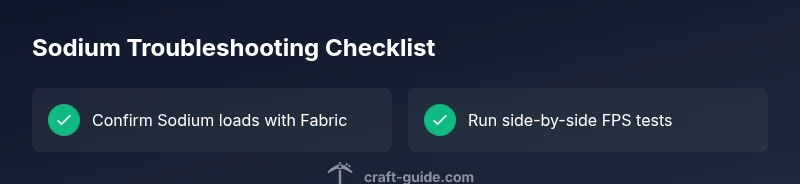
If you want to know how to know if Sodium is working minecraft, start by confirming the mod loads via Fabric. Then measure FPS with and without Sodium across equivalent settings, watching for smoother frames and reduced micro-stutter. Check the logs for Sodium messages and the in-game performance indicators; if warnings appear, address conflicts.
What Sodium Does in Minecraft
According to Craft Guide, Sodium is a rendering optimization mod designed to improve frame pacing and reduce rendering latency by streamlining how blocks and lighting are processed. It focuses on the core rendering pipeline, delivering smoother motion without sacrificing visual quality. If you’re asking how to know if sodium is working minecraft, you’re in the right place: this guide walks you through concrete tests and checks to confirm its active status and impact. In practice, Sodium should help maintain higher and more stable frame rates on a wide range of GPUs, especially in dense biomes or large builds where rendering load spikes. The goal is not to chase impossibly high FPS but to achieve consistent, predictable performance under your preferred settings and world size. Craft Guide’s analysis suggests that even modest hardware can benefit from Sodium when paired with a compatible mod environment.
Key takeaway: Sodium’s value comes from steadier visuals and reduced stutter, not just higher numbers in a synthetic benchmark. To know if sodium is working minecraft, you’ll need real-world testing across your typical play scenarios.
Signs Sodium is Running Smoothly
When Sodium is functioning well, several observable indicators appear in day-to-day play. First, you should see fewer micro-stutters as the camera sweeps across chunks and foliage, especially during fast movements or combat. Second, the render distance should feel more consistently loaded: pops and chunk loading spikes reduce, creating a steadier visual flow. Third, you’ll notice more stable frames per second during high-action moments, even if your peak FPS doesn’t skyrocket. Fourth, baseline benchmarks taken with the same shader packs or resource packs should show a narrower FPS range, indicating reduced frame-time variance. Finally, the in-game UI (like the debug screen) can reflect improved frame pacing metrics, though these values vary by system.
What this means for you: if you’ve recently installed Sodium and you experience these signs, the mod is likely doing its job. If the signs are absent, it might be due to a conflicting mod, incorrect version, or misconfigured Fabric loader.
Quick In-Game Checks to Confirm
To validate in-game, start with a controlled test: load a world or area you know well and record FPS with a consistent setting (graphics, distance, and shaders off). Reopen the world with Sodium enabled and compare the results. Use an FPS overlay (or your preferred performance HUD) to capture a few minutes of gameplay, focusing on stutter frequency, frame-time consistency, and loading behavior. If you see a clearer frame flow and fewer micro-stutters, Sodium is contributing positively. A simple log check can help too: Sodium logs often note initialization and optimization status; cross-verify the log entries against your Minecraft version and Fabric version. If you don’t notice any change, proceed to a controlled baseline test by temporarily removing other mods.
Tip: Always test with the same seed, biome, and build area to minimize variables. This makes your comparison reliable and actionable.
In addition, remember that not all builds require aggressive render tweaks to notice a difference; low-end systems may see larger gains from Sodium’s optimizations.
Diagnostic Flow: When Performance Feels Off
If perf feels off after enabling Sodium, start with a simple diagnosis: confirm Fabric is installed correctly and compatible with your Minecraft version. Next, verify that Sodium is the only rendering optimization mod active or that you’re using versions known to play well together. Check the load order and ensure you’re not mixing Sodium with Forge-based tools in a Fabric environment. If problems persist, consider a clean profile: create a new Minecraft instance with only Fabric, Sodium, and Lithium (if you want) to establish a clean baseline. Compare this baseline against your usual setup, looking for delta sources like other mods, resource packs, or shader conflicts. When you see a definite drop in performance after enabling Sodium, revisit your settings and consider removing or updating conflicting components. Craft Guide recommends iterating tests with small changes to identify the root cause without guessing.
Quick path: isolate variables—start with Sodium plus Fabric only, then add one component at a time until the issue reproduces. This helps you identify the exact offender and revert to a stable configuration.
Common Conflicts and How to Resolve
Sodium often plays best with Lithium and Phosphor, but mismatched versions or conflicting graphical features can mute its benefits. If Sodium isn’t producing the expected improvements, check for incompatible shader packs or resource packs that push the GPU beyond what your configuration can handle. Ensure your graphics drivers are up to date; outdated drivers can degrade performance and obscure Sodium’s improvements. When conflicts are detected, a practical approach is to disable shaders temporarily, revert to a neutral resource pack, and re-test Sodium’s impact. If you must mix mods, prefer stable, well-documented versions and avoid experimental builds. Craft Guide’s testing framework emphasizes reproducibility: replicate your setup, log outcomes, and adjust in small increments to confirm what works best for your hardware and playstyle.
Another common issue is misaligned Minecraft versions: confirm you’re running a supported combination of Sodium, Fabric, and Minecraft, then re-launch to apply changes. If problems persist after a clean re-install, consider reaching out to the community; there are also official issue trackers where you can report specific crashes or conflicts so developers can investigate and provide guidance.
Fine-Tuning for Maximum FPS with Sodium
Once Sodium is confirmed to be working, you can fine-tune for peak stability rather than chasing ever higher FPS. Start by dialing back render distance slightly to ensure fewer chunks are loading simultaneously, then re-test. Disable extra eye-candy like fullbright lighting or heavy shader effects if you’re not using shaders, since these can interact negatively with Sodium’s optimizations. Activate smooth lighting with moderate complexity, and consider enabling faster chunk loading options in the in-game menu. If you use resource packs or optifine-like features, ensure they’re compatible with Sodium and Fabric, since some older resource packs can cause side effects that mimic performance issues. Finally, keep Sodium updated; the Craft Guide team notes that subsequent updates often improve stability and compatibility across Minecraft versions. Keeping an eye on release notes helps you stay ahead of performance regressions.
Conclusion
This section doesn’t restate the quick answer but reinforces practical steps to validate Sodium’s work over time. With consistent testing, simple baseline comparisons, and careful management of mods and resource packs, you can maintain smooth gameplay. The takeaway is not merely the number on a benchmark but the reliability of your experience in your favorite worlds. By following the steps above, you’ll know how to verify Sodium is working minecraft and how to maintain that benefit as game content and hardware environments evolve.
Steps
Estimated time: 45-75 minutes
- 1
Confirm Sodium is installed
Open the mod list in your launcher and verify Sodium appears under Fabric mods. Ensure you are launching the correct Minecraft version. This confirms the mod is loaded before testing performance.
Tip: If Sodium isn’t listed, reinstall Fabric and Sodium for your Minecraft version. - 2
Establish a baseline
Launch Minecraft with a clean profile and no extra mods. Note your FPS, render distance, and stutter levels to have a reference for comparison.
Tip: Use identical settings across tests to minimize variables. - 3
Run a side-by-side test
Enable Sodium and run the same scene as the baseline. Compare FPS, micro-stutter, and chunk loading behavior using a short, repeatable path.
Tip: Record data for at least 2-3 minutes to capture variance. - 4
Check logs for Sodium activity
Open the game directory and review the log files for Sodium initialization messages and any warnings about conflicts or version mismatches.
Tip: If logs show conflicts, identify the conflicting mod and remove or update it. - 5
Test with controlled changes
Disable other performance mods or shader packs one at a time to see if they’re masking Sodium’s impact.
Tip: Re-run the test after each change to identify the true source. - 6
Reset if needed and finalize
If performance degrades after changes, revert to the baseline test and document which combination yields the smoothest experience.
Tip: Back up saves and config files before major changes.
Diagnosis: Low FPS or stutter after installing Sodium
Possible Causes
- highSodium not loaded or incompatible with Fabric version
- highConflicting mods or outdated Sodium version
- mediumIncompatible resource pack or shader interaction
- lowOutdated graphics drivers or operating system limitations
Fixes
- easyVerify Fabric loader is installed and matches your Minecraft version, then reinstall Sodium
- easyCheck Sodium version compatibility and remove conflicting mods, updating as needed
- easyDisable resource packs and shaders to test baseline performance with Sodium
- mediumUpdate graphics drivers and ensure system meets minimum requirements for smooth rendering
People Also Ask
What is Sodium and what does it do in Minecraft?
Sodium is a rendering optimization mod for Minecraft that streamlines the rendering pipeline to improve frame pacing and reduce latency. It works best when used with Fabric as the mod loader. This guide helps you verify its activity and effectiveness.
Sodium is a rendering optimization mod for Minecraft that speeds up frame rendering. It works with Fabric, and this guide shows how to verify its effectiveness.
How do I install Sodium properly?
Install Fabric for your Minecraft version, then place Sodium into the mods folder. Ensure compatibility with other mods and resource packs. Always restart the game after installing new mods to apply changes.
Install Fabric, then add Sodium to the mods folder, restart the game to apply changes.
Can Sodium conflict with other mods or shaders?
Yes, conflicts can occur. If Sodium doesn’t show improvements, disable other performance-related mods or shader packs to identify compatibility issues. Update or remove conflicting components and re-test.
Sodium can conflict with some mods or shaders; test by disabling others to pinpoint issues.
Why might Sodium not improve FPS even after install?
FPS might not improve if your system is GPU-bound, if you’re using incompatible versions, or if a conflict blocks Sodium’s optimizations. Recheck installation, baseline, and conflicts, then re-test with a clean setup.
If you don’t see FPS gains, it could be due to hardware limits or conflicts; verify setup and retest.
When should I seek help for Sodium issues?
If you encounter frequent crashes, unexplained outages, or persistent degradation after following the troubleshooting steps, consult the community or issue trackers for Sodium. Provide your Minecraft version, Fabric version, mod list, and log excerpts.
If problems persist after following steps, ask the community with details and logs.
Watch Video
The Essentials
- Verify Sodium loads with Fabric before testing.
- Use controlled, side-by-side tests for reliable results.
- Isolate variables to identify conflicts quickly.
- Keep Sodium updated and compatible with your Minecraft version.