How to Get Rid of Minecraft Tutorial Popups
Learn practical steps to remove Minecraft tutorial popups across launcher and game settings. This guide covers in-game prompts, launcher tweaks, mods, and reset strategies to minimize interruptions while you build.


You will learn how to remove Minecraft tutorial popups by turning off prompts in the launcher and in-game settings, and by managing mods or resource packs that trigger tips. This guide walks you through practical, step-by-step actions you can take to reduce interruptions while you focus on building. You’ll need a computer, the Minecraft launcher, and admin access to adjust settings safely.
Understanding Minecraft Tutorial Popups
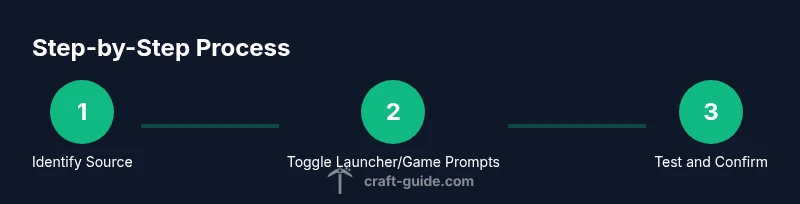
Tutorial popups in Minecraft are designed to help new players learn core mechanics, but they can become a distraction for seasoned builders. These prompts may appear as tip overlays, feature tour popups, or contextual hints tied to your current menu or game mode. According to Craft Guide, many players want a smoother experience that emphasizes creativity over onboarding prompts, especially during long building sessions. In this block we’ll explore what triggers these popups, how they affect your workflow, and why removing them often improves focus. You’ll learn the difference between launcher-level tips and in-game prompts, and how both layers can be tuned independently. This separation matters because some prompts come from the launcher itself, while others originate inside the game. Understanding the source helps you apply targeted changes rather than a blanket reset that can erase useful information.
For players who love to experiment, removing prompts shouldn’t come at the cost of learning essential features. Craft Guide’s approach is to preserve critical help (like safety warnings) while reducing repetitive overlays. If you’re streaming or recording builds, turning down prompts can also reduce on-screen clutter, increasing clarity for viewers. As you proceed, expect to adjust multiple settings across both the launcher and the game. The goal is a clean interface that stays informative without becoming overwhelming.
wordCountToCheck
Tools & Materials
- Minecraft launcher(Ensure you’re running the latest version before adjusting settings)
- Computer with internet access(Used to fetch updates and apply configuration changes)
- Administrative access(Needed to alter launcher or system-wide preferences)
- Backup storage(Optional, great for saving config files before edits)
- Screenshots or notes(Helpful for tracking which prompts you disabled)
Steps
Estimated time: 25-40 minutes
- 1
Open Minecraft launcher settings
Launch the Minecraft launcher and locate the settings or profile editor. This is your first stop to control launcher-driven prompts and to ensure the game launches with a clean slate. If you can’t find a ‘Tips’ toggle, proceed to the next step and check the in-game options after you start the game.
Tip: Take a quick screenshot of current settings in case you want to revert later. - 2
Disable launcher tips or news banners
In the launcher, look for options labeled News, Tips, or Announcements. Turn off or uncheck these to stop daily or session prompts from appearing before you even start Minecraft. Some launchers group these under a general UI or preferences section.
Tip: If you don’t see a toggle, set the launcher to a minimal UI profile and save the changes. - 3
Start Minecraft and open in-game Settings
Launch a world or create a new one, then navigate to the in-game Settings. Focus on UI, Accessibility, and Tutorial/Hint options. Disable any prompts described as tutorials, hints, or guided tours. The exact wording varies by version, but the principle is the same: reduce overlays that interrupt your workflow.
Tip: If you’ve got a keyboard shortcut for quick menu access, map it for fast toggling of prompts in the moment. - 4
Turn off on-screen hints and tooltips
Within the in-game Settings, locate Tip/Hints or UI overlays and switch them off. This reduces on-screen text while you work on builds. If some prompts reappear after updates, revisit settings after each major patch to confirm the toggle state.
Tip: Test by loading a familiar build area to confirm prompts stay hidden. - 5
Manage mod and resource-pack prompts
If you use mods or resource packs, some add their own prompts. Disable or hide these by adjusting each mod’s UI options or removing the mod temporarily to see if the prompts stop. Always back up mod configurations before disabling.
Tip: Disable one mod at a time to identify the source of the prompt. - 6
Reset UI and clear cached data
In some cases, prompts persist due to corrupted UI data. Reset the UI settings to default or delete the UI-related config files (after backing them up). Reopen Minecraft to see if the prompts reappear. This step helps with stubborn overlays that ignore simple toggles.
Tip: Keep a copy of original config to restore if needed. - 7
Consider a clean reinstall if prompts persist
If the prompts remain after a reset, a clean reinstall can eliminate deeply embedded prompts. Uninstall Minecraft, delete leftover folders (careful not to delete personal saves), then reinstall from the official launcher. This is a last-resort measure but often resolves persistent issues.
Tip: Only reinstall after you’ve backed up saves and important data. - 8
Test across profiles and worlds
Create a new profile or world to test if prompts appear there as well. Sometimes prompts are tied to specific profiles or worlds. If the issue is limited, you can avoid affecting your main setup by continuing with a clean profile.
Tip: Document which profiles you tested and the resulting toggle states.
People Also Ask
What are Minecraft tutorial popups?
Tutorial popups are overlay prompts designed to teach gameplay features. They can be helpful for new players but may feel obstructive for experienced builders.
Tutorial popups are overlay guides. They help new players but can be turned off if they annoy you.
Where do these prompts come from?
Prompts can originate from the launcher, in-game UI, or from mods and resource packs. Identifying the source helps you disable them effectively.
Prompts may come from the launcher, the game itself, or mods. Knowing the source makes disabling them easier.
Can I disable them completely?
Yes, you can disable most prompts by toggling off launcher tips, in-game hints, and mod prompts. Some prompts may reappear after updates, so you should recheck settings periodically.
Most prompts can be disabled through launcher and game settings, though checks after updates are wise.
Do I need mods to remove prompts?
Mods aren’t required to remove prompts, but certain mods or resource packs may introduce their own overlays. If you use them, adjust their options or disable them to stop those prompts.
Mods aren’t needed, but if you use them, they can add prompts that you may need to disable.
Will disabling prompts affect other features?
Disabling prompts generally won’t affect core gameplay, but you might lose optional onboarding tips. You should review warnings or safety prompts to ensure you don’t miss important information.
Appropriate prompts are optional; disabling them mainly reduces on-screen clutter without harming core features.
What if prompts come back after an update?
Updates can reset some UI preferences. After updating, revisit launcher and in-game settings to reapply the prompt toggles.
If prompts reappear after an update, just recheck the settings and toggle them off again.
Watch Video
The Essentials
- Disable prompts at launcher and in-game levels to reduce interruptions
- Back up settings before making changes
- Test changes across profiles to confirm persistence
- Use a layered approach to identify the source of prompts
- Reinstall as a last resort if prompts persist after resets