How to Clean Minecraft Folder: A Practical Guide
Learn a safe, tested approach to clean your Minecraft folder—back up data, prune old worlds, manage mods, and reclaim disk space with Craft Guide's expert steps.


Goal: safely clean a Minecraft folder by backing up data, pruning unused worlds, clearing cache, and tidying mods and resource packs. According to Craft Guide, starting with a backup protects progress, while pruning keeps load times lean and reduces clutter. The Craft Guide team found that a well-organized folder improves stability and speeds up launches.
Understanding the Minecraft folder structure
The Minecraft folder houses saves, mods, resourcepacks, config, logs, versions, libraries, and launcher data. Each item has a role: saves are your worlds; mods alter gameplay; resourcepacks change visuals or audio; logs record events; versions hold game jars; libraries are shared code. Knowing where each piece lives helps you clean without breaking your setup. On Windows, the folder is typically at %APPDATA%.minecraft; on macOS, at ~/Library/Application Support/minecraft; on Linux, at ~/.minecraft. Craft Guide emphasizes organizing with a clear backup plan and a consistent naming scheme, so you can identify restored worlds quickly and avoid accidental deletions.
Safety and backup basics
Backups are your safety net. Always back up the entire .minecraft folder before starting cleanup. Use an external drive or cloud storage and verify the backup by checking file counts or attempting a quick restore test. Craft Guide Analysis, 2026 shows that backups dramatically reduce the risk of data loss during folder maintenance, especially when you’re pruning saves or removing mods. Treat the backup as a separate snapshot you can revert to if anything goes wrong.
Cleaning old worlds and backups
World saves in the Saves folder can accumulate; if you have multiple long-lapsed worlds, consider pruning by prioritizing your most-played worlds and archiving the rest. Move unwanted world folders to the backup location rather than deleting them outright until you confirm they aren’t needed. When you prune, ensure you’re not removing the currently loaded world or the world you’re actively playing. Keeping a dated subfolder (e.g., Saves/backup-2026-02) makes future restoration straightforward.
Managing mods, resource packs, and launch options
Mods and resource packs can complicate cleanups. Start by listing installed mods and checking compatibility with your Minecraft version. Remove mods that are outdated or no longer used, and delete resource packs you don’t recognize or need. Keep a separate backup of the mod folder in case you need to revert. If you use the official launcher, consider exporting a clean profile to avoid cross-version conflicts. This careful curation helps stability even after other cleanup steps.
Clearing cache and temporary files
Delete transient files that accumulate in the cache, logs, and temporary directories. This includes the cache folder and old log files. Do not delete core game files here unless you’ve confirmed they are not in use. After clearing, launch the game to rebuild the necessary caches; you should see faster loads and fewer hiccups. Always back up before deleting launcher or configuration files.
Housekeeping for a clean start and future maintenance
Establish a simple routine: monthly quick checks, and after major updates, repeat the cleanup. Create a small changelog noting what you removed or archived. This makes future cleanups faster and reduces the chance of accidentally deleting something you value. Craft Guide suggests documenting your folder structure as part of ongoing maintenance.
Troubleshooting and common pitfalls
Common mistakes include deleting the current world, removing essential config files, or clearing versions you still need. If a world is missing after cleanup, restore from the backup and re-import it. If Minecraft won’t launch, check that the launcher_profiles.json contains a valid profile and that your mods are compatible with your selected version. When in doubt, revert to the backup and reattempt with a smaller scope.
Authority sources
- https://www.nist.gov/topics/backup
- https://www.ftc.gov/news-events/press-releases/2020/01/backing-your-data
- https://www.bbc.com/future/article/20200108-backups
Tools & Materials
- External backup destination(External hard drive or cloud storage with ample space (at least 2x your Minecraft folder size))
- Computer with file explorer(Windows Explorer, Finder, or Linux file manager to navigate .minecraft)
- Compression tool (optional)(Zip or 7-zip to archive backups for easier storage)
Steps
Estimated time: 25-45 minutes
- 1
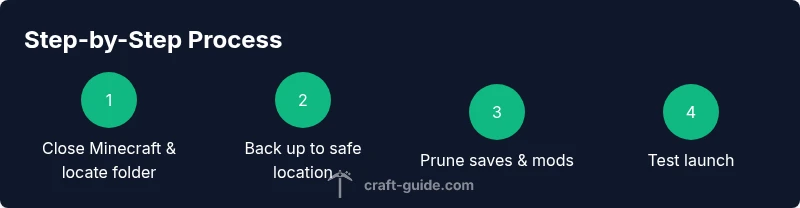
Close Minecraft and locate the folder
Ensure Minecraft is fully closed. Find the .minecraft directory using OS-specific paths: Windows: %APPDATA%\.minecraft, macOS: ~/Library/Application Support/minecraft, Linux: ~/.minecraft. This step prevents file access conflicts during cleanup.
Tip: Copy the path to your clipboard for quick navigation in the next step. - 2
Create a backup copy of the entire folder
Copy the entire .minecraft folder to a safe backup location. Consider creating a dated zip to simplify restoration. Verify the backup by listing files or attempting a quick restore test.
Tip: Keep the backup in a separate physical drive or a different cloud location from your primary machine. - 3
Move or delete saves you don’t need
In Saves, identify worlds you rarely play. Move these world folders to the backup location rather than deleting them immediately. Do not remove your currently active world. If you are unsure, back it up first.
Tip: Use a naming convention like backup-YYYY-MM to keep history clear. - 4
Audit and trim mods and resource packs
Review Mods and Resource Packs folders for outdated or unused items. Remove ones you know you won’t use, and archive those you might want later. Ensure compatibility with your Minecraft version.
Tip: If a mod is unclear, temporarily disable rather than delete, then test. - 5
Clear caches and launcher data
Delete non-essential caches and logs from the launcher’s data area. If unsure, rename launcher_profiles.json instead of deleting to preserve profile data. This reduces clutter without forcing a full reinstall.
Tip: Renaming instead of deleting lets you revert easily if needed. - 6
Test-run the game to verify
Open Minecraft and load a known-good world or create a new one to confirm the cleanup didn’t break core files. If issues appear, revert to the backup and retry with a smaller scope.
Tip: Watch for missing worlds or mod conflicts in the launcher. - 7
Document changes and set a maintenance schedule
Write a brief changelog noting what was removed or archived. Schedule monthly checks or post-major-update cleanups to maintain a lean folder.
Tip: A quick log saves time in future cleanups and avoids repeated mistakes. - 8
Review results and adjust
If performance improves but some files were missed, perform a targeted pass to recover or re-archive key items. This keeps your folder lean without sacrificing essentials.
Tip: Iterative pruning minimizes risk while maintaining functionality.
People Also Ask
What exactly is the Minecraft folder and where is it stored?
The Minecraft folder stores your worlds, mods, resource packs, logs, and launcher data. It lives in OS-specific locations: Windows users typically find it at %APPDATA%\.minecraft, macOS users at ~/Library/Application Support/minecraft, and Linux users at ~/.minecraft.
The Minecraft folder holds worlds, mods, and launcher data. On Windows, look in AppData, on Mac in Library/Application Support, and on Linux in your home folder.
Should I back up before cleaning?
Yes. Creating a backup before making changes protects your worlds and configurations. Use separate storage and confirm the backup by attempting a restore test if possible.
Yes—back up first to avoid losing worlds or mods during cleanup.
Is it safe to delete old worlds?
It is safe only after you’ve backed them up and confirmed you won’t need them. Move unwanted worlds to a backup location rather than deleting them immediately.
Only delete after backing up and confirming you don’t need the world.
How do I recover a deleted world?
If you backed up the world, restore it from the backup location. If not, recovery is unlikely unless you have a separate snapshot from a previous time.
If you backed up, restore from the backup; otherwise, recovery options are limited.
What about mods and resource packs?
Only remove mods/resource packs you know are unnecessary or incompatible with your version. Keep a backup and test after each removal to avoid breaking the launcher setup.
Remove only those you’re sure about and test after each change.
Will cleaning affect cross-platform saves or cloud saves?
Cleaning the folder on one device should not affect cloud saves if you don’t delete the cloud-synced copies. Be cautious with cloud-synced folders and ensure sync is paused during cleanup.
If you use cloud sync, pause syncing during cleanup to avoid conflicts.
Watch Video
The Essentials
- Back up before deleting anything.
- Prune unused worlds and outdated mods carefully.
- Clear caches to improve startup times.
- Launch and verify worlds after cleanup.
- Maintain a simple, documented folder for ongoing maintenance.