How to Check Minecraft Screenshots
Learn a practical, step-by-step method to verify Minecraft screenshots for accuracy, origin, timing, and image quality. This Craft Guide tutorial covers metadata, file integrity, and organization to ensure your images reflect reality.


You will learn how to check minecraft screenshots for authenticity, including where to find files, how to verify metadata, and how to assess image quality. This guide shows practical checks you can perform on any platform, with a focus on accuracy and reproducibility. According to Craft Guide, consistent verification reduces confusion and misattribution.
Why Checking Minecraft Screenshots Matters
In the world of Minecraft, screenshots serve as more than just memories; they are records of builds, experiments, and modded configurations. Verifying screenshots helps you defend your work against misattribution, confirm that a image actually represents your world, and keep a reliable archive for future sharing or tutorials. According to Craft Guide, a disciplined approach to verification saves you time and reduces back-and-forth when collaborating with others. This section outlines why you should adopt a consistent checking routine, the kinds of issues you might encounter, and how verification fits into typical Minecraft workflows such as world editing, mod testing, and creative builds. By understanding the goals and potential pitfalls, you’ll be better prepared to evaluate every screenshot with confidence.
Where Minecraft Stores Screenshots Across Platforms
Most Minecraft editions save screenshots to a dedicated screenshots folder inside the Minecraft directory. On Windows, this is typically found under your user profile in the Minecraft or AppData directories; on macOS, you’ll usually locate it in the Library/Application Support folder; and on Linux, the hidden home directory stores a .minecraft/screenshots path. If you’re unsure where your images live, use your operating system’s search utility for “screenshots” or “Minecraft Screenshots” to locate the folder quickly. Remember that Bedrock and Java editions can have slightly different defaults, so always verify by checking a few recent captures in each suspected location. Pro tip: keep your screenshot folder synced or backed up to avoid accidental loss during updates or disk changes.
Understanding Screenshot Metadata and Image Quality
Minecraft saves screenshots as PNG files by default, which means the metadata you see can be limited and OS-dependent. You won’t always have an extended EXIF trail like a photo from a camera, but you can still inspect file creation dates, last modified timestamps, and the image resolution to verify plausibility. Craft Guide analysis shows that metadata consistency across files—such as similar dimensions and reasonable creation times relative to your play sessions—can be a strong indicator of authenticity. If metadata seems sparse or inconsistent, don’t jump to conclusions; instead, look for multiple corroborating signals, like in-game UI elements, lighting, and biome cues that match your world state.
Practical Visual Checks: Resolution, Color, and Orientation
Beyond metadata, verify the visual attributes of the screenshot. Check the resolution to ensure it matches common Minecraft capture sizes (e.g., 1920x1080, 1280x720, or custom window sizes you typically use). Inspect the color balance for unusual tinting that might indicate post-processing, and confirm the orientation (landscape vs portrait) aligns with your capture method. If you find mismatches, compare with a known good grab from the same session or re-capture to confirm consistency. A quick side-by-side comparison makes discrepancies obvious and reduces guesswork when assessing legitimacy.
Verifying Authenticity: Digital Signatures, Hashes, and Consistency
Authenticity checks can include looking for consistent naming conventions, matching file sizes to expected scene complexity, and, when available, hash verification to detect tampering. While Minecraft screenshots rarely carry built-in digital signatures, you can implement a simple workflow: compute a hash of the file and compare it to a known-good copy from the same session or project. If hashes don’t match, re-extract or re-capture the scene. Craft Guide recommends documenting results in a small log so you can reproduce the verification steps later and share the process with teammates when needed.
Organizing, Documenting, and Reusing Screenshots
A well-organized library makes verification faster and sharing easier. Use consistent file names that encode date, world name, and a short descriptor (e.g., 2026-02-04_World1_Dawn.png). Maintain a separate log or metadata file detailing where each screenshot came from, what it shows, and any checks you performed. This practice not only streamlines future verifications but also supports tutorials, speedruns, or community showcases. Craft Guide notes that a predictable naming scheme and centralized notes dramatically reduce search time during collaborations.
Tools and Techniques for Efficient Verification
Leverage built-in OS tools for quick checks (file properties, previews) and lightweight image editors for deeper inspection. When you need more rigor, use hash helpers to confirm integrity or compare pixel-level differences in a dedicated tool. For teams, adopting a shared protocol—where every screenshot passes the same checks before distribution—improves trust and reduces miscommunication. The end goal is a repeatable, transparent process that you can teach to others without relying on memory alone.
Tools & Materials
- Minecraft and a playable world or mod setup(Essential to produce or verify screenshots in context.)
- Computer with file explorer and image viewer(Windows Explorer, Finder, or Linux file managers work across platforms.)
- Image viewer/editor(Use a viewer that can display image dimensions and basic metadata.)
- Hash verification tool(Optional for integrity checks (MD5/SHA).)
- Notes/documentation app(To log verification steps and results.)
- Backup/storage solution(Keep a copy of originals in case of hardware failure.)
Steps
Estimated time: 20-40 minutes
- 1
Open the screenshot folder
Navigate to the folder where Minecraft saves screenshots on your system. If you’re unsure, search for “screenshots” in your user directory to locate the folder quickly. This step sets the foundation for all subsequent checks.
Tip: Use a direct path when possible to avoid misplacing files. - 2
Identify the target file
Select a recent screenshot that matches the event you want to verify. Note the file name, size, and approximate capture time to guide your checks.
Tip: Keep a small list of recent captures for quick reference. - 3
Check file metadata
Open the file’s properties to view dimensions, date created, and date modified. For PNGs, observe if there’s any embedded text or metadata that might indicate editing or processing.
Tip: If timestamps don’t align with your session, investigate the cause (e.g., system clock, external edits). - 4
Preview image quality
Use a viewer to inspect pixel clarity, edge definition, and potential artifacts. If the image looks blurred or heavily compressed compared to your known good captures, flag it for closer inspection.
Tip: Compare side-by-side with an uncaptured reference if possible. - 5
Cross-check with in-game cues
Confirm that UI elements, like inventory, hotbar, or chat, match the moment you think is captured. Mismatches can reveal post-processing or mismatched timestamps.
Tip: Document any UI indicators that confirm or contradict the capture moment. - 6
Validate against a known good copy
If you have a fresh capture from the same session, compare file size and pixel composition to verify consistency. Substantial differences may indicate edits or resampling.
Tip: Use a pixel-difference tool for precise comparison. - 7
Document results and organize
Record your observations in a simple log with file name, date, checks performed, and conclusions. Move verified files to an organized archive for easy retrieval later.
Tip: Establish a naming convention for verified vs. unverified files.
People Also Ask
What should I do if I can't find the screenshot folder?
Start with a system-wide search for the term “screenshots” and for “Minecraft Screenshots.” If still missing, check Minecraft settings in-game to see where screenshots are saved, then re-create the folder structure manually if needed.
If you can’t locate the folder, search your system for screenshots and check in-game settings to confirm the save location.
Are screenshots always PNG, or can they be JPG?
Minecraft typically saves screenshots as PNG files, but depending on the launcher or settings you used, you might encounter JPG variants. When in doubt, inspect the file extension and verify against your current game version and launcher configuration.
Screenshots are usually PNG, but formats can vary with settings; check the file extension to be sure.
Can in-game mods affect screenshot metadata?
Mods or external tools can add or alter metadata, or create altered copies. Always compare metadata across multiple captures from the same session and look for UI cues that align with your game state to spot edits.
Mods can change how files are saved, so verify using multiple signals before concluding authenticity.
How do I verify if a screenshot was edited or tampered with?
Look for inconsistent compression artifacts, altered UI elements, or mismatched lighting compared with other shots from the same session. Hash comparisons on original copies can help detect tampering.
Check for signs of editing like artifacts and mismatched UI, and use hashes when you have originals.
What’s the best way to organize a large collection of screenshots?
Adopt a consistent naming scheme (date_world_scene.png), maintain a simple metadata log, and store files in categorized folders by project or session. Regular audits keep the library tidy.
Use a clear naming system and a running log to stay organized.
Is there an automatic tool to check Minecraft screenshots?
There are lightweight tools that can catalog images and compare basic attributes, but a fully automated verification workflow may require custom scripts. Start with basic file info and visual checks, then scale up as needed.
You can automate basic checks, but a complete verification workflow often needs manual review for accuracy.
Watch Video
The Essentials
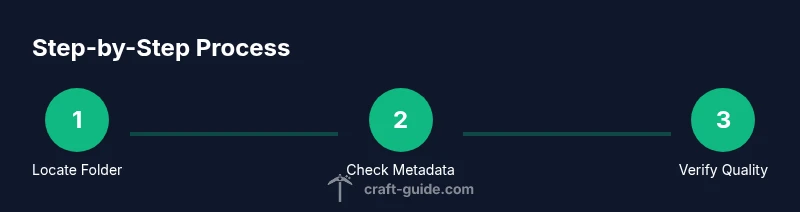
- Verify screenshots by locating the right folder and checking metadata
- Inspect image resolution and UI cues to confirm authenticity
- Document checks in a reproducible log for teamwork and future checks
- Organize screenshots with consistent naming and backups
- Use simple tools for fast checks and hash tools for deeper integrity checks