How to Check Minecraft Playtime in Java Edition
Learn how to check your Minecraft Java playtime using in-game statistics, cheats, and server tools. This step-by-step guide explains viewing Play Time, using the /stats command, and common troubleshooting for accurate time tracking.


In Minecraft Java Edition, you can verify playtime by opening the Statistics screen and looking for the Play Time entry under General. If you enable cheats, you can use the /stats command to query minecraft:play_time for a player. This quick check helps you assess how long you’ve spent in a world or on a server, without leaving the game.
Why Playtime Matters
According to Craft Guide, tracking playtime isn’t just about vanity numbers; it helps players manage time, set meaningful goals, and calibrate how they spend sessions across different worlds. For beginners, a clear sense of playtime can guide learning curves, resource planning, and habit formation—critical when you’re building a new base or exploring a new biome. For veterans, playtime data offers a window into long-term progress, informing decisions about where to invest effort next. Craft Guide’s experience-based approach emphasizes that playtime should be interpreted alongside other metrics like progress milestones, resource collection, and creative builds. When you know how long you’ve played, you can pace your sessions, avoid burnout, and ensure you’re enjoying Minecraft for the long haul.
In practice, playtime is a useful barometer for how engaged you are with a given world or server. Craft Guide’s guidance suggests pairing time data with goals—like finishing a redstone project, beating a difficult boss, or completing a commemorative build—to turn hours into tangible outcomes. Whether you’re playing solo, on a realm, or on a modded server, understanding playtime gives you context for your achievements, skill growth, and exploration patterns. This awareness also helps you balance Minecraft with other hobbies, preserving the fun and preventing fatigue over time.
Tools & Materials
- Minecraft Java Edition (latest version)(Installed and updated to the latest release for accurate statistics tracking.)
- Pause Menu / Statistics screen(Accessed in-game via the pause menu to view Play Time and other stats.)
- Keyboard and mouse or compatible controller(Needed to navigate menus and enter commands as needed.)
- Cheats enabled (optional)(Allows querying statistics with commands like /stats for per-player data.)
- Internet connection (optional)(Helpful when verifying data against online guides or syncing with servers.)
Steps
Estimated time: 5-15 minutes
- 1
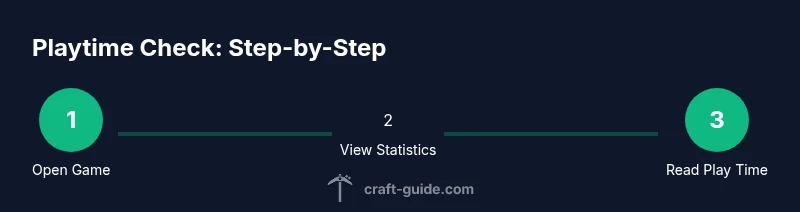
Open Minecraft Java Edition
Launch Minecraft and select the world you want to inspect. Make sure you’re in a loaded world so statistics can update in real time. If you’re on a server, ensure you have the appropriate permissions to view stats.
Tip: Opening a newly loaded world yields more reliable playtime data as the world loads and gameplay begins. - 2
Go to the Statistics screen
Pause the game (Esc) and click on Statistics to open the general stats page. This is where most players will find the Play Time entry and related counters.
Tip: Narrow your view to the General category to quickly locate Play Time without scrolling through unrelated stats. - 3
Locate the Play Time entry
In General, look for the Play Time statistic. This entry reflects time spent in the world since it was loaded. If you’re on a server, you may see per-player playtime depending on permission and server configuration.
Tip: If you don’t see Play Time, try switching worlds or relaunching the world to give the statistic a moment to update. - 4
Enable cheats to query time (optional)
If you have cheats enabled, you can query playtime using in-game commands to fetch exact values for yourself or other players. This is useful for cross-checking the in-game counter to ensure accuracy.
Tip: Cheats enable a more precise, direct readout but may affect certain world settings or plugin behavior on servers. - 5
Query play_time with /stats (advanced)
With cheats on, use the /stats command to retrieve minecraft:play_time for a player. This provides a concrete value in the chat and can be compared over sessions.
Tip: Use this method sparingly on servers to avoid spamming other players or triggering anti-spam protections. - 6
Review results and note caveats
Compare the Play Time readout with your goals. Remember that playtime data is a guide and may be affected by server plugins, world resets, or data storage methods.
Tip: Document your play sessions for a week to identify patterns and optimize your Minecraft schedule.
People Also Ask
Where can I find the Play Time statistic in Java Edition?
Open the game, pause, and navigate to Statistics. In the General category, locate the Play Time entry to view your total time in the world.
Open Minecraft, pause, go to Statistics, and find Play Time under General for your total world time.
Does playtime track time spent in menus or only while playing?
Playtime generally reflects time spent in the loaded world, including active play. Behaviour can vary with world state and server configuration, so treat it as an approximate measure rather than an exact wall-clock reading.
It mostly tracks time while the world is loaded, but it may not be perfect if you’re navigating menus.
Can I check someone else’s playtime on a server?
If you have the necessary server permissions and appropriate tools (commands or plugins), you can query other players’ playtime. Always follow server rules and privacy considerations.
Only if the server allows it and you have permission to view others’ stats.
Is playtime different in Bedrock Edition?
Yes. Bedrock Edition uses different statistics and interfaces. The steps described here are tailored for Java Edition, and Bedrock players should refer to platform-specific guides.
Bedrock uses a different stats system, so follow a Bedrock-specific guide.
What if Play Time isn’t showing in my world?
Try reloading the world, ensuring you’re in a loaded chunk, and that you’re viewing the General category in Statistics. If you’re on a server, check permissions and plugins.
If it’s missing, reload the world and verify permissions or plugins aren’t hiding the stat.
Watch Video
The Essentials
- Check playtime quickly via the Statistics screen
- Enable cheats to query exact numbers with /stats (optional)
- Playtime data helps you plan sessions and track progress
- On servers, per-player data may require admin access or plugins
- Use playtime data alongside other progress metrics for balanced gameplay