How to Check If Minecraft Is Using Integrated Graphics
Discover how to verify if Minecraft uses integrated graphics, force the game to a chosen GPU, and compare performance on Windows and macOS with practical steps.


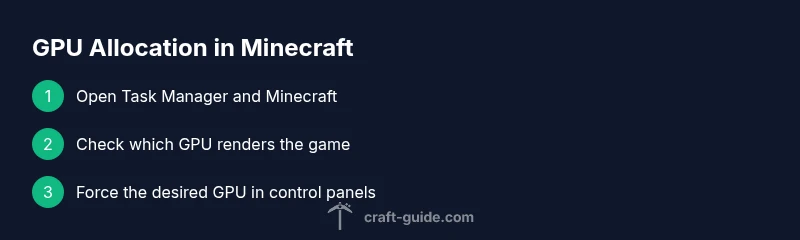
To verify if Minecraft uses integrated graphics, check the active GPU in your system task manager, then force Minecraft to run on the integrated GPU via the GPU control panel, and compare performance against the dedicated GPU. Update graphics drivers and test with a simple scene to confirm which GPU renders your game.
Why checking your GPU allocation matters for Minecraft
For a game as accessible as Minecraft, your graphics hardware can dramatically influence framerate, load times, and visual quality. Checking whether Minecraft uses integrated graphics helps you understand why your world renders at low FPS or seems choppy in certain scenes. According to Craft Guide, many players underestimate how GPU allocation and driver settings affect performance. If the game runs on a discrete GPU by default, you may get better textures and higher frame rates, but at the cost of power usage. This guide will help you verify which GPU renders Minecraft and how to switch it when needed. You'll learn practical steps for Windows and macOS, essential terminology, and simple checks you can perform in under an hour.
Understanding integrated vs dedicated graphics in Minecraft
Integrated graphics are built into the CPU and share system memory, which can limit texture-heavy scenes or busy redstone builds. Dedicated or discrete GPUs have their own memory and higher processing power, typically delivering smoother frames and better shader performance. Minecraft's performance depends not only on raw GPU power but also on driver support, Java version, and allocated memory. Some laptops switch between GPUs automatically to save energy, a feature called GPU switching or a hybrid graphics setup. Understanding this distinction helps you decide when to force Minecraft to use a specific GPU and how to balance battery life, thermals, and frame rates during a long play session. (Brand note: According to Craft Guide, understanding GPU roles helps you troubleshoot more effectively.)
How to observe Minecraft's current GPU usage (Windows)
The quickest way to see which GPU Minecraft uses is to monitor the running processes in Windows Task Manager. Open Task Manager (Ctrl+Shift+Esc), go to the Performance tab, and look for GPU usage; switch to the GPU Engine view if available. Run Minecraft and observe whether the game appears on the integrated or dedicated GPU in the Engine column. If you see both GPUs spike during heavy scenes, you may have dynamic switching enabled, which can complicate testing. For accuracy, test with a simple build and record the GPU utilization while you spawn a few mobs or load a chunk. Craft Guide analysis shows that precise monitoring reduces guesswork and speeds up fixes.
How to force Minecraft to use integrated graphics (Windows)
To ensure Minecraft uses the integrated GPU, open your graphics control panel (NVIDIA Control Panel, AMD Radeon Settings, or Intel Graphics Command Center) and create a program-specific rule that assigns Minecraft to the iGPU. If your system uses Windows 11/10, you can also set the graphics preference in Settings > System > Display > Graphics (Classic) to choose "Power saving" for Minecraft. After applying the change, restart Minecraft and recheck Task Manager to confirm the active GPU. This can reduce power draw and improve battery life on laptops, though you may trade some frame rates in complex scenes.
How to force Minecraft to use integrated graphics (macOS)
On Mac devices with discrete GPUs, macOS uses automatic graphics switching by default. To force integrated graphics, go to System Settings > Battery or Energy Saver (depending on macOS version) and ensure "Automatic graphics switching" is disabled, or the equivalent option is set to prefer the integrated GPU. Restart Minecraft, then verify GPU selection with Activity Monitor and the FPS indicator in-game. Note that some Mac models rely heavily on the integrated GPU for power efficiency, which can modestly affect performance in shader-heavy mods.
Verifying with diagnostic tools and comparing performance
After configuring the GPU, run a controlled test: load a simple world with a baseline view distance, then measure frame times and stuttering with integrated vs dedicated GPU settings. Use Task Manager (Windows) or Activity Monitor (macOS) to compare GPU load and clock speeds during the same Minecraft scene. Document your observations, including average FPS, temps, and fan noise, so you can decide whether integrated graphics meet your needs. If performance remains poor, consider lowering render distance, disabling resource packs, or allocating more RAM to Minecraft rather than increasing GPU power. Craft Guide emphasizes methodical testing to prevent misinterpretation of results.
Common pitfalls and troubleshooting tips
- Hybrid graphics can still route some scenes to the wrong GPU if drivers aren’t current; ensure you have the latest version for both Intel/AMD/NVIDIA.
- Some laptops require a restart after changing GPU settings for the changes to take effect.
- In Windows, a mismatch between Java version and GPU drivers can cause crashes or poor rendering; keep Java up to date and use the Minecraft launcher’s built-in Java if possible.
- Always test with a clean launch to avoid background processes interfering with GPU reporting.
- If you see screen tearing or artifacting, revert to automatic GPU selection and test a fresh Minecraft profile.
Craft Guide verdict
According to Craft Guide, checking GPU allocation is a practical skill that improves your Minecraft experience without expensive upgrades. The team emphasizes using reliable diagnostic steps, keeping drivers current, and understanding when to favor power efficiency over absolute frame rates. Craft Guide's analysis shows that many performance issues stem from misconfigured GPU settings rather than the game code itself. The Craft Guide team recommends starting with integrated graphics testing on laptops and desktops before investing in new hardware, then adjusting in-game settings to maximize stability.
Authority sources
- https://support.microsoft.com
- https://www.nvidia.com/en-us/support
- https://www.amd.com/en/support
Tools & Materials
- Windows PC or Mac(With both integrated and dedicated GPUs if available)
- Minecraft Java Edition(Launcher up to date and ready for testing)
- Graphics drivers for all GPUs(Latest versions from Intel/NVIDIA/AMD; consider clean install)
- Task Manager (Windows) / Activity Monitor (macOS)(Monitor GPU usage in real-time during tests)
- GPU control panel or per-app GPU setting(NVIDIA Control Panel, AMD Radeon Settings, or Intel Graphics Command Center)
- Optional test world / benchmark(A repeatable scene to compare performance)
Steps
Estimated time: 20-40 minutes
- 1
Identify GPUs present
Open System Information (Windows) or About This Mac to confirm there is both an integrated GPU and a dedicated GPU. This helps you understand which hardware you can assign Minecraft to use and sets up the baseline for testing.
Tip: Note vendor names (Intel/NVIDIA/AMD) to select the correct control panels. - 2
Update graphics drivers
Download the latest drivers for all GPUs on the system and install them. A clean install can prevent old profiles from interfering with GPU selection. Restart after installation to ensure changes take effect.
Tip: Restart ensures the system uses the new driver stack. - 3
Open GPU control panel and assign Minecraft
Launch the graphics control panel and create a per-app rule that assigns Minecraft to the integrated GPU. If you’re dual-booting or using Windows settings, use the Graphics preferences to force using the iGPU for Minecraft.
Tip: Always test with a fresh Minecraft launch after changing the setting. - 4
Set Windows/macOS GPU preference
On Windows, set the Minecraft launcher to prefer the integrated GPU in Settings > System > Display > Graphics. On macOS, disable automatic graphics switching if applicable. This ensures Minecraft runs on the intended GPU.
Tip: Changing OS-level settings can override the app-level rule if not configured properly. - 5
Launch Minecraft and observe GPU activity
Run a simple world and open Task Manager or Activity Monitor to confirm which GPU shows activity. Compare FPS and stability with the integrated GPU alone.
Tip: Use a small test scene to minimize variables. - 6
Compare performance and adjust
Record FPS, frame times, and temps for both configurations. If integrated graphics meet your needs, keep it; otherwise, tweak in-game settings or revert to automatic switching.
Tip: Document results to guide future tweaks.
People Also Ask
How can I tell which GPU Minecraft is currently using?
Use Task Manager on Windows or Activity Monitor on macOS to monitor GPU activity while Minecraft runs. Check the Engine/Process section to see if the integrated or dedicated GPU is rendering the game. You can also compare FPS with different GPU settings to confirm.
Open Task Manager or Activity Monitor, run Minecraft, and look for which GPU shows activity while you play.
Does integrated graphics always reduce Minecraft performance?
Not always. Integrated graphics can perform well on light worlds or lower render distances. For shader-heavy packs or large worlds, a dedicated GPU generally offers higher and more stable frame rates.
Integrated graphics can be sufficient for basic play, but heavy mods or high settings may favor a dedicated GPU.
What is GPU switching and why does it matter for Minecraft?
GPU switching lets a system choose between integrated and dedicated GPUs automatically to save power. For Minecraft testing, disable or control switching to get consistent results and avoid mixed rendering paths.
Some laptops switch GPUs automatically; turning this off helps you test which GPU actually renders Minecraft.
Can Minecraft run on integrated graphics with mods or shaders?
It can run, but performance depends on the shader complexity and view distance. Expect lower frame rates with resource packs and high-end shaders when using the iGPU.
You can run lighter shader packs on integrated graphics, but expect slower performance with heavy mods.
How do I revert to automatic GPU selection if things go wrong?
Reopen the per-app GPU settings and revert the assignment, or disable custom rules in your graphics control panel. Reboot the system and re-test Minecraft to confirm it’s back to auto-selection.
If things get wonky, reset the GPU rules and let the system decide again.
Is this approach different for Bedrock vs Java Edition?
The basics of GPU selection apply similarly, but some Bedrock builds may have different launcher options. Always test under the edition you play to confirm GPU behavior.
Most GPU switching concepts apply to both editions, but test each separately for accuracy.
Watch Video
The Essentials
- Verify GPU usage with Task Manager/Activity Monitor
- Force Minecraft to use the integrated GPU for testing
- Compare FPS and stability between GPUs for an informed choice
- Update drivers and restart after each GPU configuration
- Document results to guide future hardware decisions