How to Stop a Minecraft Server: Safe Shutdown Guide
A practical, step-by-step guide on how to stop a Minecraft server safely. Learn graceful shutdowns, backups, automation, and troubleshooting to prevent data loss and maintain server stability.


To stop a Minecraft server safely, perform a graceful shutdown to prevent data loss or corruption. Open the server console or SSH session, type stop, and wait for the server to save and shut down. Notify players, then verify the process has fully ended before restarting or applying updates. This approach minimizes risk and keeps your world consistent.
Understanding what stop does on a Minecraft server
When you type stop in the server console, the server saves the world, gracefully disconnects players, and shuts down the Java process. This ensures data integrity and minimizes world corruption. According to Craft Guide, graceful shutdown is the safest approach for any live server, because abrupt terminations can leave chunks incomplete and backups out of date. In practice, stopping a server is more than a single command; it's a small operational protocol that reduces rollback risk during maintenance or plugin updates.
To begin, confirm you have the right access whether you're running a local, dedicated, or hosted server. If you manage through a control panel, check the panel's own stop functionality and any prompts about saves. For headless servers, your terminal session should be connected via SSH or a remote console. Before issuing stop, plan a moment to communicate with players and prepare for a potential short outage. This moment of setup is often overlooked, but it sets the tone for a smooth shutdown and a clean restart later.
Next, ensure you have recent backups. A scheduled backup process or a manual copy of the world folder protects you from any unexpected data loss during shutdown or restart. If you use a plugin or mod that handles saves asynchronously, double-check that all worlds and players have been saved. In many cases, the server will automatically perform a final save when you issue stop; in others, a manual save step may be necessary. The key is to eliminate the gap between the last save and the shutdown to prevent post-shutdown rollbacks.
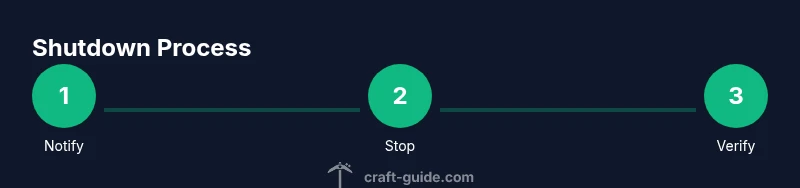
Craft Guide suggests a brief, documented shutdown procedure: 1) pause gameplay by notifying players, 2) initiate stop from the console, 3) monitor the shutdown to completion, and 4) verify the server process has terminated. Following these steps minimizes risks and ensures players wake to a consistent world when you bring the server back online.
The practical impact of a proper stop
A well-executed shutdown reduces chances of world corruption, inventory glitches, and chunk loading problems upon restart. It also helps ensure plugin data and player files are written correctly, preserving rewards, advancements, and progress. For server operators, a calm shutdown workflow improves reliability metrics and minimizes the time needed to bring the server back online after maintenance or updates.
From a human perspective, communicating clearly with your community during a shutdown reduces confusion and frustration. A short message like “Server stopping for maintenance; please log out safely” gives players an expectation window and avoids last-minute disconnects. Craft Guide emphasizes that predictable maintenance windows build trust with your player base.
Safe shutdown under different hosting environments
Whether you run a local, dedicated, or cloud-hosted server, the core concept remains the same: you must give the server a chance to save, close connections, and terminate gracefully. Local machines may rely on a direct console, while hosted servers often require control-panel stops or SSH access. In all cases, avoid killing the process abruptly; leverage the stop command and verification checks. If you rely on automation, ensure the automation script includes a final status check that confirms the process no longer runs.
Backup-first philosophy and data integrity
Backups form the safety net around shutdowns. A rollback can undo days of progress if a crash occurs post-stop. Schedule daily backups and, for larger worlds, incremental backups during peak hours. Always validate a backup after creation, then proceed with the stop sequence. This discipline reduces recovery time and preserves player trust, especially on public servers with regular updates and plugin changes.
How to handle plugins and mods during stop
Plugins and mods often hook into the shutdown sequence to flush data or perform cleanups. Ensure your plugins are compatible with the stop command and that they complete asynchronous saves before shutdown. If you notice a plugin causing delays, consult its logs and consider temporarily disabling it during maintenance windows. Craft Guide recommends testing any disruption in a staging environment when possible to catch edge cases before applying to live servers.
Tools & Materials
- Server console access (SSH or local terminal)(Necessary to input stop and monitor status)
- Recent world backups(Store in a separate location; verify integrity)
- Communication plan(Message players about downtime and ETA)
- Backup verification tool(Optional, but helpful to confirm backup integrity)
Steps
Estimated time: 15-25 minutes
- 1
Open the server console
Access the machine running the Minecraft server via SSH or local terminal. Confirm you have permission to issue shutdown commands. This step ensures you can issue the stop command safely.
Tip: If you use a remote session, keep it stable and avoid disconnects during shutdown. - 2
Notify players
Post an in-game or external notice about the impending shutdown and ETA. This reduces surprise disconnects and gives players time to log out safely.
Tip: A short, friendly message helps manage expectations and reduces frustration. - 3
Prepare backups
If automatic backups aren’t configured, perform a manual backup of the world and player data before stopping. This guards against data loss if something goes wrong during shutdown.
Tip: Verify the backup completed successfully before proceeding. - 4
Enter the stop command
Type stop in the server console and monitor the shutdown progress. The server will save worlds, disconnect clients, and terminate the JVM process.
Tip: If you’re using screen or tmux, ensure the session is detached properly after the stop. - 5
Wait for shutdown completion
Wait until the console shows that the server process has terminated. Do not try to restart or perform updates until this is confirmed.
Tip: Allow a extra minute or two for complete finalization in busy worlds. - 6
Verify and document
Check log files for any warnings or errors related to the shutdown. Document the shutdown time and backup status for future reference.
Tip: Keep a simple changelog entry linked to the shutdown window.
People Also Ask
What happens if I stop the server while players are online?
Stopping the server while players are online will disconnect them and save world data, but ungraceful pre-shutdown activity can cause inventory or chunk issues. Always notify players first and allow them to exit safely.
If players are online, warn them first and ensure they log out gracefully before stopping.
Is there a difference between stop and killing the process?
Yes. Stop initiates a graceful shutdown, allowing saves and clean disconnections. Killing the process forcibly can corrupt world data and plugins, leading to longer recovery times.
Use stop for a safe shutdown rather than terminating the process.
How long does a typical shutdown take?
Shutdown duration depends on world size, included backups, and plugin activity. Plan a window of several minutes and monitor the console for the final confirmation.
It varies, but expect a few minutes plus any backup time.
Can I stop a server remotely?
Yes. Use your remote console or SSH session to issue the stop command. Ensure network stability and verify the shutdown completes remotely as you would locally.
Absolutely, just monitor the shutdown from your remote session.
How often should I back up before stopping for maintenance?
Maintain regular backups and perform an additional backup just before a scheduled shutdown for maintenance. Regular backups reduce risk of data loss.
Keep a fresh backup right before you stop for maintenance.
Watch Video
The Essentials
- Back up before shutdown
- Use graceful stop to preserve data
- Notify players and monitor completion
- Verify shutdown before maintenance or restart
- Document the shutdown for audits