Is Minecraft for Windows the Same as Bedrock? A Deep-Dive
Explore how Minecraft for Windows (Bedrock Edition) differs from Java Edition, covering cross‑play, mods, performance, and purchasing. A thorough guide to help players pick the right edition on Windows.


Is Minecraft for Windows the same as Bedrock? Not exactly. Minecraft for Windows refers to the Bedrock Edition running on Windows PCs, which is distinct from Java Edition. The Windows store version supports cross‑play with consoles and mobile, while Java Edition remains a separate PC-focused flavor with its own launcher and mod ecosystem. In short: on Windows, Bedrock and Java are two different experiences with different strengths.
Is Minecraft for Windows the Same as Bedrock?
If you’ve ever asked is minecraft for windows the same as bedrock, the answer is nuanced but important for players deciding which edition to play. The Windows variant you install from the Microsoft Store is Bedrock Edition, designed to run smoothly on a wide range of hardware and to support cross‑platform play with consoles and mobile devices. By contrast, Java Edition runs via the official launcher and targets traditional PC players who value a long‑standing mod ecosystem and classic PC mechanics. This distinction matters for gameplay features, add‑ons, and how you share worlds with friends across devices. The Craft Guide team emphasizes that choosing between Bedrock and Java on Windows hinges on your priorities: cross‑play and performance versus modding freedom and vanilla nostalgia.
Core Differences at a Glance
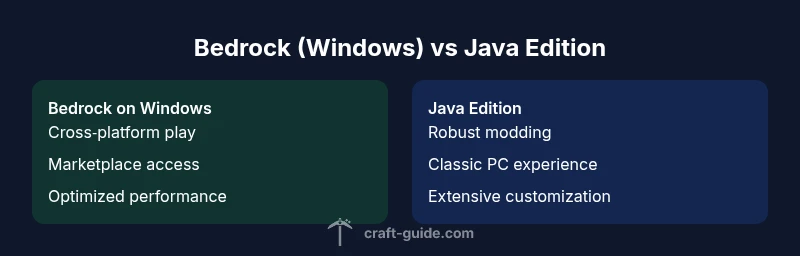
Bedrock Edition on Windows prioritizes cross‑platform compatibility, consistent performance, and access to the in‑game Marketplace for skin packs, texture packs, and worlds. Java Edition emphasizes a broader modding community, more complete control over world generation, and a launcher that some players find more flexible. While both editions deliver the core Minecraft experience, they diverge in how content is delivered, how saves are managed, and how updates roll out. The Craft Guide analysis highlights that even seeds and world generation can feel subtly different between editions, which means that a world you love on Bedrock might offer a slightly different layout in Java.
Editions, Availability, and Purchases on Windows
On Windows, Bedrock Edition is often marketed as Minecraft for Windows and is obtained through the Microsoft Store or Xbox app, with built‑in cross‑play features and marketplace access. Java Edition requires the official Mojang launcher and a separate purchase. The two launchers are not interchangeable; you cannot run a Bedrock world in Java without converting it, and vice versa. This means that if you want to play with friends who are on consoles or mobile, Bedrock on Windows is the practical choice. Conversely, if your goal is heavy modding and granular control over settings, Java is the preferred route for many players.
World Generation, Seeds, and Biomes
Seeds in Bedrock and Java can produce visually similar biomes, but the underlying generation algorithms are not identical. Therefore, even if you reuse the same seed value across editions, you may encounter differences in terrain height, biome distribution, and structure placement. Players who care about exact world layouts should treat Bedrock and Java seeds as edition‑specific. The difference is not just cosmetic; some biomes or structures can appear in one edition and not in the other. This nuance is a key reason many players keep separate worlds for each edition, especially when relying on precise terrain features for builds.
Gameplay, Redstone, and Combat Differences
Bedrock and Java Editions diverge in several core gameplay areas. Redstone behaves similarly in purpose but can differ in timing and block interactions, which affects contraptions and automation. Combat mechanics, sprinting, and item cooldowns have subtle variations that can influence how you approach boss fights or survival runs. For players who value precise PC controls, these differences matter and can influence how you design redstone machines or how you engage in competitive modes. Understanding these nuances helps players set realistic expectations about what each edition can deliver on Windows.
Modding, Add-Ons, and Marketplace Access
Java Edition offers a robust modding ecosystem, with community tools that push the game in bold directions—from new dimensions to altered physics. Bedrock Edition opens a different avenue for customization via addons and the in‑game Marketplace, which provides curated content, skins, textures, and worlds. The trade‑off is that Bedrock’s customization tools are more controlled and centralized, whereas Java’s modding scene is broader but requires more manual setup and risk management. If crafting a highly personalized playthrough with dozens of mods is your focus, Java remains the preferred path; if you want polished content with simpler access, Bedrock’s addons and Marketplace are compelling.
Graphics, Settings, and Performance on Windows
Bedrock Edition generally offers strong performance with a streamlined set of graphics options, including fast‑path features that optimize frame rates on mid‑range hardware. Java Edition provides deeper graphical customization and more options to tune performance, but it can demand more from your system when rendering large mod packs or complex shaders. The practical takeaway is to test both editions on your setup to see which runs smoother, loads worlds faster, and maintains stable frame rates in the environments you care about most.
Multiplayer, Realms, and Server Scenarios
Bedrock supports cross‑platform multiplayer across Windows, consoles, and mobile devices, which makes it easier to play with a wider circle of friends. Java Edition supports its own set of servers and Realms equivalents, but cross‑play with Bedrock is not possible. If your friends own a mix of devices, Bedrock on Windows provides the simplest path to joint sessions. For dedicated Java server communities or advanced server modding, Java remains the community’s favorite, with a richer ecosystem of server plugins and custom game modes.
Keeping Worlds and Data Safe
World saves follow edition rules, so you should plan for separate storage and backups for Bedrock and Java worlds. Moving a world directly from Bedrock to Java is not supported by the official tooling, and attempts to convert file formats can lead to corrupted data. If you anticipate switching between editions, start fresh worlds or use export/import strategies for specific structures, while keeping your original worlds intact. Craft Guide recommends routine backups and clear labeling to avoid accidental cross‑edition confusion.
Which Edition Should You Choose on Windows? A Practical Guide
If your circle of friends plays across Windows, consoles, or mobile, Bedrock on Windows offers the most seamless experience for social play and content integration. If you crave extensive modding, prefer the classic PC Minecraft feel, and don’t mind managing a separate launcher, Java Edition will likely satisfy your curiosity. Consider your hardware: Bedrock tends to perform well on modest systems, while Java can scale up with readymade shader packs and experiments—but at a potential cost to performance. Your decision should align with your play goals, whether they lean toward cross‑platform collaboration or deep customization.
Getting Started on Windows: Quick-Start Checklist
- Decide which edition matches your play goals: Bedrock for cross‑play and easier access; Java for mods and classic PC Minecraft.
- Install the appropriate launcher: Microsoft Store/Xbox app for Bedrock, Mojang Launcher for Java.
- Create a backup strategy for any worlds you care about, especially if you think you might switch editions.
- For Bedrock, explore the Marketplace for skins, texture packs, and community worlds. For Java, explore reputable modding communities and mod loaders to avoid compatibility issues.
- Join a test world with friends to ensure you understand how seeds and terrain differ between editions, especially since is minecraft for windows the same as bedrock is edition‑specific.
Migration Scenarios and Practical Tips
If you ever consider moving from Bedrock on Windows to Java Edition, or vice versa, approach it as a separate project with a clear save strategy. While you can manually recreate builds, you’ll often need to re‑import assets or textures to preserve the look of your favorite creations. In practice, plan in advance for separate worlds and use shared concepts—like general building concepts and landscape ideas—that translate across editions. This pragmatic approach helps you enjoy Minecraft on Windows without being blocked by edition boundaries.
Comparison
| Feature | Bedrock Edition (Minecraft for Windows) | Java Edition |
|---|---|---|
| Cross-Platform Play | Yes (with other Bedrock platforms) | No (Java-only) |
| Marketplace/Add-Ons | Marketplace access; skins, textures, worlds | Mods via community tools; no official marketplace |
| Modding Ecosystem | Limited mods; addons and scripting API | |
| World Generation/Seeds | Seed parity with Bedrock algorithms; some differences | |
| Performance on Windows | Generally strong performance on a wide range of hardware | Performance varies; can require more resources for heavy mods |
| Redstone/Gameplay Parity | Redstone mechanics exist but can vary in timing and behavior | |
| Multiplayer Servers | Supports cross‑play on Bedrock servers; Realms cross‑platform within Bedrock | |
| Data Portability | Edition-specific saves; direct world transfer between editions not supported |
Benefits
- Cross-platform play with other Bedrock devices improves multiplayer reach
- Marketplace provides curated content and ready-to-play worlds
- Windows Bedrock generally offers smoother performance on mid-range hardware
- Unified launchers simplify access on Windows
Negatives
- Modding ecosystem is more limited on Bedrock vs Java
- Worlds and saves are edition-specific; transfers are not straightforward
- Some advanced customization options are easier in Java Edition
- Content updates and parity can differ between editions
Bedrock Edition on Windows is the better choice for cross‑play and straightforward performance; Java Edition remains ideal for modding and classic PC Minecraft.
If you want broad multiplayer with friends on other devices, choose Bedrock on Windows. If your priority is heavy customization and a robust modding scene, Java Edition is the superior option.
People Also Ask
Is Minecraft for Windows the same as Bedrock Edition?
Yes. On Windows, the commonly referenced 'Minecraft for Windows' is Bedrock Edition. Java Edition is a separate product with its own launcher. The two editions share core concepts but differ in features, performance, and content delivery.
On Windows, the version called Minecraft for Windows is Bedrock Edition, while Java Edition is a separate program with its own launcher.
Can Java and Bedrock players play together on Windows?
Bedrock Edition supports cross‑play with other Bedrock devices (including Windows, consoles, and mobile). Java Edition does not support cross‑play with Bedrock. If you want shared multiplayer across devices, Bedrock is the way to go.
Bedrock works across Windows, consoles, and mobile, but Java can't join Bedrock servers.
Do I need to buy both editions to play Minecraft on Windows?
No. You only need one edition to play on Windows. If you want cross‑platform multiplayer, Bedrock is the practical choice; if you want mods and a PC‑centric experience, Java is the option to install.
You don’t buy both—pick Bedrock for cross‑play or Java for mods.
Which edition has more mods and customization options?
Java Edition has a larger, more flexible modding community and tooling. Bedrock offers addons and Marketplace content, which are curated and easier to install but limited compared to Java modding.
Java dominates modding; Bedrock has curated addons and Marketplace content.
Can world saves transfer between Bedrock and Java?
Direct world transfers between Bedrock and Java are not officially supported. You may need to recreate builds or migrate manually, understanding that some features and structures may not map perfectly.
Worlds aren’t directly transferable between Bedrock and Java; you’ll likely recreate or manually migrate assets.
What should I consider for performance on Windows?
Bedrock on Windows generally performs well across a wide range of hardware, thanks to optimized rendering and cross‑platform code paths. Java is more variable and can benefit from shader packs and performance tweaks, but it may require more system resources for heavy setups.
Bedrock runs smoothly on many PCs; Java can require more tuning and resources for optimal performance.
The Essentials
- Choose Bedrock on Windows for cross‑platform play
- Java Edition excels in modding and customization
- Worlds aren’t directly portable between editions
- Bedrock’s Marketplace offers ready-made content
- Test both editions on your PC to gauge performance