Where Is Minecraft Bedrock Files Located
Learn where Minecraft Bedrock files are stored across Windows, consoles, and mobile. This practical guide covers locations, safe access, backups, and troubleshooting for Bedrock Edition files.


Locating Minecraft Bedrock files depends on your platform. On Windows 10/11, access is through the system sandbox; consoles like Xbox and PlayStation keep data in the system’s own storage, inaccessible to users; Android and iOS store Bedrock data inside the app sandbox. This guide walks through safe, step-by-step locations and backup practices.
What are Bedrock files and why location matters
For many Minecraft players, the question of where is minecraft bedrock files located isn't just academic—it affects backups, transfers, and modding. Bedrock Edition stores data differently than Java Edition, and the exact folders depend on platform. According to Craft Guide, knowing the file paths helps you avoid deleting a world by accident and makes it easier to restore saves after a crash. This section defines what counts as Bedrock data and outlines why file locations matter for everyday play, world sharing, and troubleshooting. We will cover Windows, consoles, Android, and iOS so you have a single reference for all common setups. In practice, most players use backups to move a world between devices or to revert to an earlier version after a corrupt save. By understanding the general structure—world saves, player data, and resource packs—you can plan safe management strategies that keep your worlds intact.
Platform Differences: Windows, Consoles, Android, and iOS
Bedrock file locations vary by platform, which is why this guide treats Windows, consoles, and mobile devices separately. Craft Guide Analysis, 2026, notes that Windows users typically access a system-level storage area, while consoles encapsulate Bedrock data in sealed sandboxes. Android and iOS place data inside app-specific directories that are not normally accessible via standard file managers. Understanding these differences helps you choose the right approach for backups, transferring worlds, or manually editing resource packs. We'll summarize the practical consequences: how to locate a world, how to copy it for backup, and how to avoid common mistakes that lead to missing worlds or corrupted saves. Keep in mind that some platforms enforce read-only access to certain folders; in those cases, you may need to use platform-provided tools or official transfer options.
Windows 10/11 Bedrock file locations: General guidance
On Windows 10/11, Bedrock data is stored in a sandboxed location that is managed by the system. The exact path varies by Windows build and edition, but you can typically reach the relevant data by searching for Bedrock or Minecraft within your user profile's protected folders. This means you should look under the user's AppData, LocalState, and Packages folders rather than the Java Edition path. The goal is not to expose deep system folders casually, but to provide a safe route to backup or move your worlds. If you must edit a world or swap worlds between devices, always create a fresh backup first and test the game after each move. Craft Guide's practical approach emphasizes minimal risk and clear steps to avoid accidental data loss.
Console storage: Xbox, PlayStation, Nintendo Switch
Consoles store Bedrock data within the console's own storage and often shield it from direct user edits. For a typical user, this means you won't see the raw world files in a standard file explorer. Instead, use the console's built-in backup or cloud-save options to transfer worlds or export your data for maintenance. This section outlines how to access those options and what you should expect when moving worlds between devices. It also covers how to troubleshoot when cloud saves don't sync or when a world appears missing after an update. Craft Guide suggests using official transfer utilities whenever available to preserve integrity and prevent data loss.
Mobile storage: Android and iOS
On Android and iOS, Bedrock game data lives inside each app's private storage. You may need to use the system file picker or a third-party manager with appropriate permissions to locate the game folder. Be aware that some devices restrict access, particularly on newer Android versions. This section walks through typical steps to locate the Bedrock data, emphasizing the importance of backing up worlds before editing or transferring between devices. If you aren't comfortable navigating app sandboxes, consider using the official cloud save feature or a dedicated backup app. Craft Guide's guidance highlights platform-specific restrictions and safe practices to minimize risk.
Backups, transfers, and safe editing
Backups are the safest way to manage Bedrock worlds. We outline a simple, repeatable process: locate the relevant world folder, copy it to a separate storage medium, and verify the copy by loading it in-game. For transfers, perform a one-device-at-a-time approach to avoid conflicts. Never overwrite a world while it is open in a running session. Use checksums or file size comparisons to confirm integrity after copying. This section includes a brief checklist and practical tips for avoiding common mistakes. Craft Guide's approach emphasizes caution, clear naming, and consistent backup routines so you can recover quickly from corruption or accidental deletion.
Authority sources and troubleshooting
To help you verify the information and explore platform-specific details, refer to official support guides and reputable outlets. Craft Guide Analysis, 2026, notes that documentation varies by platform, so always check the latest instructions from the device maker or Mojang Support. For further reading, you can consult: Minecraft Help (https://help.minecraft.net/hc/en-us), Minecraft Official Help (https://www.minecraft.net/en-us/help), and Xbox Support (https://support.xbox.com/en-US/games-games-apps/minecraft). If you still encounter issues locating Bedrock data, review error messages, confirm game version parity, and try a clean reinstall in a controlled environment. The goal is to resolve problems without risking world integrity.
Tools & Materials
- PC or console with file access(Platform with administrative access or official transfer tools)
- File explorer / Finder(Windows Explorer, macOS Finder, or equivalent)
- Backup storage(External drive or cloud storage with ample space)
- Mobile file manager (optional)(For Android/iOS access when available to you)
Steps
Estimated time: 20-45 minutes
- 1
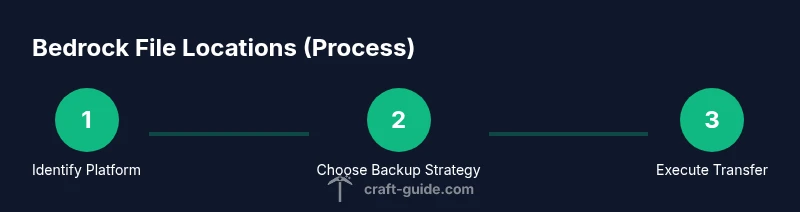
Identify your platform
Determine whether you are playing Bedrock on Windows, a console, or a mobile device. This choice determines the exact location path and the tools you’ll use. If you’re unsure, check the game’s settings or your device’s app management screen. This step reduces guessing and prevents accidental data edits.
Tip: Write down your platform in a notebook or digital note for reference during backup. - 2
Prepare a clean backup plan
Before touching any files, decide where your backups will live and how you’ll verify them. Create a dedicated folder on an external drive or cloud storage. This protects you if something goes wrong during transfer or editing.
Tip: Name backups with date and platform to keep history clear (e.g., Bedrock_World1_2026-02-18). - 3
Windows: access the Bedrock save area
On Windows, Bedrock data sits in a sandboxed Windows directory. Use a file manager to navigate to the platform-protected folders (you may need to enable hidden files). Locate the worlds or com.mojang folders, then copy the world you want to back up to your backup location.
Tip: Do not modify files inside protected system folders without a prior backup. - 4
Consoles: use official transfer tools
For Xbox, PlayStation, or Switch, access to raw world files is limited. Instead, use the console’s cloud saves or transfer utilities to move your worlds between devices. Follow the official steps step-by-step to avoid data mismatch or loss.
Tip: Ensure you’re signed in to the same account on both devices before transferring. - 5
Android & iOS: locate within the app sandbox
Mobile devices store Bedrock data inside the app’s private storage. If available, use a file manager to locate the Bedrock folder; otherwise rely on cloud saves or official backup options. Do not delete anything you don’t recognize.
Tip: If the device blocks access, skip manual copy and use the game’s built-in export features. - 6
Verify backups and perform a test load
After copying, verify the backup by loading the world in a separate test session. Confirm that all structures, inventories, and progress appear intact. A failed test means you should restore from a second backup or try a fresh copy.
Tip: Compare file sizes or run a checksum to confirm integrity. - 7
Document changes and keep copies organized
Maintain a simple changelog of where each world backup lives and when you last copied it. Use consistent naming conventions and store multiple restore points to minimize the risk of data loss.
Tip: Regularly prune obsolete backups to avoid confusion and save storage space.
People Also Ask
Where are Bedrock world saves stored on Windows 10/11?
Bedrock saves on Windows are stored in a sandboxed, platform-managed location. You may need to enable hidden files and locate the folder via the Windows search or file manager, then back up the relevant world folder before making changes.
On Windows 10 or 11, Bedrock world saves live in a sandboxed location; back them up first and use official tools when transferring.
Can I edit Bedrock world files directly?
Direct edits in the game’s Bedrock folders are risky and can corrupt saves. It’s safer to copy the world, edit edits externally if needed, and then replace the backup after testing in-game.
Editing Bedrock world files directly is risky; copy and test in-game after edits.
Are Bedrock file locations different on consoles?
Yes. Consoles hide raw world files and require using cloud saves or official transfer utilities to move worlds between devices. Always follow console-specific steps to avoid data loss.
Consoles don’t show raw files; use cloud saves or official transfers.
How do I transfer a Bedrock world between devices?
Use the platform’s official transfer or cloud save features to move worlds between devices. Ensure you’re signed in to the same account on both devices and verify the copy after transfer.
Use official transfer tools and verify the copy after moving.
What if I can’t access Bedrock files on Android?
Some Android devices restrict access to app data. If manual access isn’t possible, rely on the game’s cloud saves or backup apps that respect platform restrictions.
If you can’t access files on Android, rely on cloud saves and backup apps.
Watch Video
The Essentials
- Identify platform to locate Bedrock files
- Back up before editing or transferring worlds
- Use official transfer tools when available
- Verify data integrity after copies