PS5 Minecraft: A Practical Bedrock Edition Guide
Discover how to run and enjoy ps5 minecraft on the PS5 with Bedrock Edition. This step-by-step guide covers setup, cross‑play, settings, Realms, and safety tips for a smooth Minecraft experience on your console.


You’ll learn how to play Minecraft on PS5 using the Bedrock Edition, optimize performance, and navigate cross‑play features. This guide covers setup, controls, realms, and common troubleshooting so you can jump into adventures on your PS5 with confidence. Follow the step-by-step instructions below to start building and exploring. Whether you are new or migrating, this guide keeps instructions clear.
Getting PS5 Minecraft Ready: setup basics
Before you dive into ps5 minecraft, make sure your PS5 is prepared. A stable internet connection, an updated system, and a Minecraft Bedrock Edition copy are the foundation for smooth play. In this section, you’ll learn the prerequisites, how to sign in to PSN, and how to access the PlayStation Store to install Bedrock Edition. According to Craft Guide, starting with a clean, connected setup minimizes download issues and ensures smoother cross‑play with friends. We’ll cover linking a Microsoft account for cross‑play, enabling cloud saves, and checking storage so you’re not interrupted mid‑build. Finally, you’ll confirm your display and audio preferences are optimized for long sessions, reducing eye strain and ensuring crisp visuals on your preferred TV or monitor.
This approach helps you avoid common pitfalls and gets you into the game faster, which is especially helpful for PS5 players who want to maximize console performance and stability from day one.
Understanding Bedrock Edition on PS5 and cross-play
ps5 minecraft uses the Bedrock Edition, designed to run across multiple devices. This means you can play with friends on Windows 10/11, mobile, and other consoles that support Bedrock. Bedrock’s unified framework makes cross‑play simpler than traditional Java Edition, and it enables features like Realms and Marketplace content from a single store. For PS5 players, this translates to easier multiplayer sessions, shared worlds, and a consistent experience when switching between devices. Craft Guide notes that Bedrock’s cross‑platform consistency is a major benefit for builders who enjoy collaborating. You’ll also learn how to link your Microsoft account to enable cross‑play progression and access to Realms content.
Controls, UI, and navigating menus on PS5
PS5 Minecraft controls mirror typical console layouts, with the DualSense’ gyro and haptic features offering a tactile building experience. The main menu and inventory are navigated with the D-Pad, thumbsticks, and the options button. In this section, you’ll learn how to customize key bindings, adjust accessibility settings, and understand how to switch between Creative and Survival modes. The PS5 UI simplifies world selection and marketplace access, making it straightforward to load a new map or join a friend’s world without long loading times. Craft Guide explains the importance of setting up your profile early so you can quickly resume saved games and keep your progress synced.
Optimizing performance and graphics on PS5
Performance is central to a smooth ps5 minecraft experience. Start by ensuring the PS5 system software is up to date and that you’re using a wired internet connection for stable data transfer. In-game, adjust settings such as render distance, graphics quality, and frame rate cap to balance visuals with performance. If you notice stuttering during large builds or redstone contraptions, try lowering render distance and turning off certain post-processing effects. The PS5’s hardware handles Bedrock Edition well, but optimizing allocations can reduce heat, fan noise, and occasional frame drops. Craft Guide recommends testing different presets while you build, so your preferred balance between fidelity and smoothness becomes your standard setup.
Realms, Marketplace content, and safe downloads
Realms provide a simple way to host pre‑built worlds with friends, while the Marketplace offers skins, texture packs, and pre-made worlds. On PS5, you can browse and purchase content without leaving the console, then apply it to your worlds. When downloading Marketplace items, read user reviews and check compatibility with Bedrock Edition on PS5. This section covers safe download practices and how to manage installed add-ons, so you don’t run into compatibility or performance issues later. Craft Guide emphasizes using verified content to maintain stability across sessions.
Networking and cross-play tips
Cross‑play requires that players be connected to the same Bedrock Edition ecosystem, and that friends have valid Microsoft accounts linked to their devices. Ensure your PSN account is linked to a Microsoft account to enable cross‑play, Realms, and shared statistics. When hosting or joining a world, invite your friends via their Microsoft accounts or share a Realm invite link. If you encounter connection hiccups, verify your NAT type and router settings, then test a direct connection. Craft Guide highlights that stable networks reduce matchmaking delays and improve multiplayer reliability on PS5.
Troubleshooting common issues on PS5 Minecraft
If Minecraft on PS5 won’t launch, start with a system restart and check for software updates for both the PS5 and the game. For loading errors, verify your storage space and reinstall the Bedrock Edition if needed. Cross‑play issues typically involve Microsoft account sign‑in, so re‑authorize your account and check permissions. For performance problems, close other apps, update the game, and adjust in-game settings. If you encounter crashes during redstone builds, temporarily disable heavy resource packs and simplify complex contraptions. Craft Guide suggests keeping a small local backup of your worlds to recover quickly after a crash.
Creative builds and survival ideas on PS5
ps5 minecraft players often combine careful planning with creative experimentation. In Creative mode, try large building projects like modular bases, farms, and terraforming with a focus on efficient resource management. Survival mode challenges can become more enjoyable with practical automation and storage solutions. This block provides a few starter ideas: build a compact sky‑base with layered rooms; create automated farms that minimize resource inputs; design a safe, visually striking base that you can defend from hostile mobs. The PS5 hardware helps render larger, more detailed builds, and the tactile feedback from the DualSense can enhance your building precision. Craft Guide encourages experimentation and sharing your creations with friends to inspire collaborative builds.
Safety, parental controls, and save management
Managing safety and saves is essential, especially for younger players. Use PS5’s parental controls to limit online interactions, set screen time, and manage content access. Regularly back up World saves either to cloud saves or external storage if supported by your system. When playing with others, ensure you trust invitees and review any shared worlds for appropriate content. Craft Guide emphasizes keeping your account credentials secure and enabling two‑factor authentication for your Microsoft and PlayStation accounts.
First day plan: your starter world
To maximize your first day, plan a simple starter world with a clear goal: establish a shelter, gather essential resources, and locate a nearby water source. Start with basic mining to collect coal, wood, and stone, then expand into farming and basic crafting. Establish a small base near a natural landmark to make navigation easier. Use this plan to pace your exploration, practice inventory management, and gradually introduce automatic farms and storage systems. By day two you’ll be able to focus on aesthetic improvements and more complex projects, leveraging the PS5’s performance to sustain extended sessions.
],
toolsMaterials":{"items":[{"name":"PS5 console","required":true,"note":"Ensure the console is powered and connected to HDMI"},{"name":"HDMI cable and monitor/TV","required":true,"note":"1080p or 4K display preferred"},{"name":"Internet connection","required":true,"note":"Stable Wi‑Fi or wired Ethernet"},{"name":"Controller (DualSense or compatible)","required":true,"note":"Fully charged for long play sessions"},{"name":"Minecraft Bedrock Edition (PS5)","required":true,"note":"Digital or disc version"},{"name":"Microsoft account (for cross‑play)","required":true,"note":"Link during setup"},{"name":"External storage (optional)","required":false,"note":"If you need extra space for worlds"}]},
stepByStep":{"steps":[{"number":1,"title":"Sign into PSN","description":"Power on your PS5 and sign into PlayStation Network to access the Minecraft store and cloud saves. Why: to access the store and cloud saves.","tip":"If you share a console, set the primary account to your profile to access purchases."},{"number":2,"title":"Update the PS5 system","description":"Navigate to Settings > System > System Software Update and install any available updates. Why: ensures compatibility and stability with Minecraft.","tip":"Keep a stable internet connection during updates."},{"number":3,"title":"Download Minecraft Bedrock Edition","description":"From the PlayStation Store, locate Minecraft Bedrock Edition and install. Why: this version supports cross‑play and Realms.","tip":"If you have a disc, install from the disc version."},{"number":4,"title":"Launch and sign in to Microsoft account","description":"Open Minecraft and sign in with a Microsoft account to enable cross‑platform features and Realms.","tip":"Use a strong Microsoft account and enable 2FA."},{"number":5,"title":"Join a world or Realms","description":"In the main menu, choose Play, then join a friend’s world or Realms. This connects you to others and shows how to collaborate.","tip":"Ask friends for a Realm invite or join a public world with a good community."},{"number":6,"title":"Configure game settings","description":"In Settings, adjust video and controls to suit your display and comfort. Why: optimized visuals and controls improve your experience.","tip":"Enable performance mode if your display supports it and reduce render distance if needed."},{"number":7,"title":"Explore add-ons and Marketplace content","description":"Browse the Marketplace for skins, texture packs, and worlds compatible with Bedrock on PS5.","tip":"Read ratings and reviews before downloading to avoid low‑quality content."}],"estimatedTime":"60-90 minutes"},
tipsList":{"tips":[{"type":"pro_tip","text":"Use a wired internet connection for stability."},{"type":"warning","text":"Avoid unofficial add-ons that could degrade performance or security."},{"type":"note","text":"Cross‑play works with other Bedrock platforms."},{"type":"pro_tip","text":"Set up a Microsoft account early to enable cross‑play."},{"type":"warning","text":"Protect your Microsoft account with two‑factor authentication."}]},
keyTakeaways":["Power PS5 and sign in to PSN", "Choose Bedrock Edition for cross‑play", "Use Marketplace content wisely", "Manage Realms and backups"],
videoEmbed":{"videoQuery":"ps5 minecraft tutorial Bedrock edition setup"},
faqSection":{"items":[{"question":"Is Minecraft on PS5 Bedrock Edition?","questionShort":"PS5 Bedrock Edition?","answer":"Yes, PS5 uses the Bedrock Edition. It supports cross‑play with other Bedrock platforms and Realms content. Access via the PlayStation Store or bundled disc depending on your setup.","voiceAnswer":"Yes. On PS5, Minecraft uses Bedrock Edition with cross-play and Realms support.","priority":"high"},{"question":"How do I link my Microsoft account to PS5 Minecraft?","questionShort":"Link Microsoft account","answer":"From the main menu, select Sign in with Microsoft, then follow prompts to link your account.","voiceAnswer":"Open Minecraft, choose Sign in with Microsoft, and scan the QR code to link.","priority":"high"},{"question":"Can I play Realms on PS5?","questionShort":"Play Realms on PS5?","answer":"Realms are available in Bedrock Edition; you can join or host Realms if you have access.","voiceAnswer":"Yes, Realms work with Bedrock on PS5.","priority":"medium"},{"question":"What if I can’t connect to PSN?","questionShort":"PSN connection issue","answer":"Check your internet connection, PSN status, and router settings; try restarting your PS5.","voiceAnswer":"Make sure PSN is online and your connection is stable; restart if needed.","priority":"medium"},{"question":"Are there mods for PS5 Minecraft?","questionShort":"Mods on PS5?","answer":"Mods are not supported on PS5 Bedrock; you can use Marketplace add-ons and skins.","voiceAnswer":"PC mods aren’t available on PS5, but you can use Bedrock Marketplace content.","priority":"medium"},{"question":"How can I improve performance on PS5 Minecraft?","questionShort":"Improve PS5 performance","answer":"Update your system, close background apps, and adjust in‑game settings like render distance and graphics to balance fidelity and speed.","voiceAnswer":"Keep system and game updated, and tweak settings for smoother play.","priority":"low"}]},
mainTopicQuery":"ps5 minecraft"},
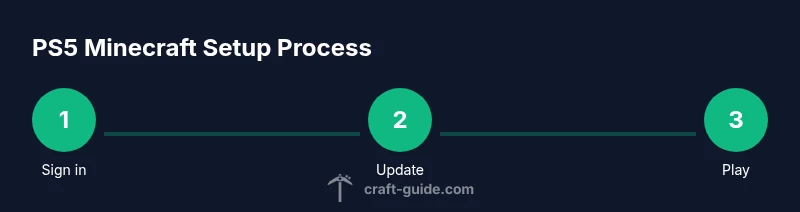
mediaPipeline":{"heroTask":{"stockQuery":"ps5 minecraft on console setup","overlayTitle":"PS5 Minecraft Setup","badgeText":"2026 Guide","overlayTheme":"dark"},"infographicTask":{"type":"process","htmlContent":"<div class="w-[800px] p-8 bg-slate-900 text-white"><h3 class="text-2xl font-bold mb-4">PS5 Minecraft Setup Process</h3><div class="flex items-center justify-between"><div class="flex flex-col items-center"><div class="w-16 h-16 rounded-full bg-emerald-500 flex items-center justify-center text-2xl font-bold text-white">1</div><div class="mt-2 text-center text-white text-sm">Sign in</div></div><div class="flex-1 h-1 bg-emerald-500/30 mx-2"></div><div class="flex flex-col items-center"><div class="w-16 h-16 rounded-full bg-emerald-500 flex items-center justify-center text-2xl font-bold text-white">2</div><div class="mt-2 text-center text-white text-sm">Update</div></div><div class="flex-1 h-1 bg-emerald-500/30 mx-2"></div><div class="flex flex-col items-center"><div class="w-16 h-16 rounded-full bg-emerald-500 flex items-center justify-center text-2xl font-bold text-white">3</div><div class="mt-2 text-center text-white text-sm">Play</div></div></div></div>","altText":"Process: Setting up PS5 Minecraft Bedrock Edition","caption":"How to set up PS5 Minecraft Bedrock Edition on PS5"}},
taxonomy":{"categorySlug":"getting-started","tagSlugs":["minecraft","bedrock-edition","cross-platform","tips-tricks"]}}} {
Tools & Materials
- PS5 console(Ensure the console is powered and connected to HDMI)
- HDMI cable and monitor/TV(1080p or 4K display preferred)
- Internet connection(Stable Wi‑Fi or wired Ethernet)
- Controller (DualSense or compatible)(Fully charged for long play sessions)
- Minecraft Bedrock Edition (PS5)(Digital or disc version)
- Microsoft account (for cross‑play)(Link during setup)
- External storage (optional)(If you need extra space for worlds)
Steps
Estimated time: 60-90 minutes
- 1
Sign into PSN
Power on your PS5 and sign into PlayStation Network to access the Minecraft store and cloud saves. Why: to access the store and cloud saves.
Tip: If you share a console, set the primary account to your profile to access purchases. - 2
Update the PS5 system
Navigate to Settings > System > System Software Update and install any available updates. Why: ensures compatibility and stability with Minecraft.
Tip: Keep a stable internet connection during updates. - 3
Download Minecraft Bedrock Edition
From the PlayStation Store, locate Minecraft Bedrock Edition and install. Why: this version supports cross‑play and Realms.
Tip: If you have a disc, install from the disc version. - 4
Launch and sign in to Microsoft account
Open Minecraft and sign in with a Microsoft account to enable cross‑platform features and Realms.
Tip: Use a strong Microsoft account and enable 2FA. - 5
Join a world or Realms
In the main menu, choose Play, then join a friend’s world or Realms. This connects you to others and shows how to collaborate.
Tip: Ask friends for a Realm invite or join a public world with a good community. - 6
Configure game settings
In Settings, adjust video and controls to suit your display and comfort. Why: optimized visuals and controls improve your experience.
Tip: Enable performance mode if your display supports it and reduce render distance if needed. - 7
Explore add-ons and Marketplace content
Browse the Marketplace for skins, texture packs, and worlds compatible with Bedrock on PS5.
Tip: Read ratings and reviews before downloading to avoid low‑quality content.
People Also Ask
Is Minecraft on PS5 Bedrock Edition?
Yes, PS5 uses the Bedrock Edition. It supports cross‑play with other Bedrock platforms and Realms content. Access via the PlayStation Store or bundled disc depending on your setup.
Yes. On PS5, Minecraft uses Bedrock Edition with cross-play and Realms support.
How do I link my Microsoft account to PS5 Minecraft?
From the main menu, select Sign in with Microsoft, then follow prompts to link your account.
Open Minecraft, choose Sign in with Microsoft, and scan the QR code to link.
Can I play Realms on PS5?
Realms are available in Bedrock Edition; you can join or host Realms if you have access.
Yes, Realms work with Bedrock on PS5.
What if I can’t connect to PSN?
Check your internet connection, PSN status, and router settings; try restarting your PS5.
Make sure PSN is online and your connection is stable; restart if needed.
Are there mods for PS5 Minecraft?
Mods are not supported on PS5 Bedrock; you can use Marketplace add-ons and skins.
Mods are not available on PS5, but Marketplace content is.
How can I improve performance on PS5 Minecraft?
Update your system, close background apps, and adjust in‑game settings like render distance and graphics to balance fidelity and speed.
Keep system and game updated, and tweak settings for smoother play.
Watch Video
The Essentials
- Power PS5 and sign in to PSN
- Choose Bedrock Edition for cross‑play
- Use Marketplace content wisely
- Manage Realms and backups