How to Leave Minecraft Beta: A Clear Step-by-Step Guide
Learn how to exit Minecraft beta on Android and Windows, return to the stable release, and protect your worlds with practical backups and verification steps. A thorough, educator-friendly guide by Craft Guide.


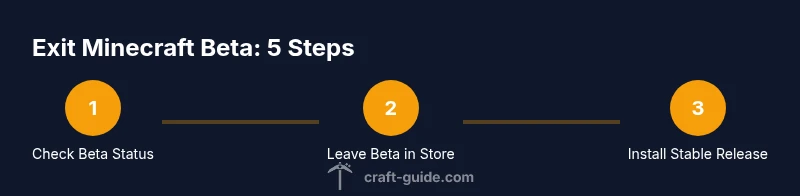
If you're wondering how to get out minecraft beta, this quick answer outlines the main steps to leave the beta on Android and Windows. You’ll exit the beta program, reinstall the standard Minecraft app, and verify you’re on the stable release. The process includes backups and quick checks to minimize world risk.
What exiting Minecraft Beta means
If you’re wondering how to get out minecraft beta, leaving the beta program returns you to the stable release track, meaning you’ll receive official builds that have finished testing and general release stability. For many players, this simplifies updates and ensures compatibility with standard worlds. However, some beta-only features or bug fixes may no longer be accessible. If you were testing experimental features, those may be disabled or require re-enabling after updating. In short, you trade early access for reliability, community support, and predictable performance. According to Craft Guide analysis, most players who complete this transition report a smoother gameplay experience and fewer crash events after switching back to the stable version.
Quick path for Android users: leave the beta via Google Play
On Android devices, the simplest route is through the Google Play beta program. Open the Play Store, go to your profile, find 'My apps & games', switch to the Beta tab, and locate Minecraft. If you see an option to 'Leave' the beta, select it and confirm. Once the change propagates, install the stable release from the store and launch. Before launching, ensure your worlds are backed up and synced with your Google account so you can recover them if needed. Craft Guide’s research indicates this method minimizes post-exit issues when moving from beta to the official release.
Windows/PC users: leaving Minecraft Preview Beta
For Windows players, exiting beta typically means moving from the Minecraft Preview app to the standard Minecraft app from the Microsoft Store. Start by backing up your saves (and any mods or resource packs you use), then uninstall the Preview build. Next, install the regular Minecraft app from the Store, sign in with your Microsoft/Mojang account, and launch. When you load worlds, verify they appear and behave as they did in the beta. If you encounter any discrepancies, restore from your backups and re-check mod configurations.
Common issues when exiting beta and how to fix
Transitioning from beta can surface a few hiccups. Your world might load slower, or some beta-only blocks and features may disappear. Community-driven packs or mods that worked in beta can become incompatible with the stable release. If you notice crashes, perform a clean reinstall of the stable client and verify the integrity of your world files. Always keep backups before updating, as a precaution against data loss. Craft Guide notes that most users resolve issues by reinstalling the stable build and restoring worlds from backups.
What happens to your saved worlds after leaving beta
Most saves created in beta remain usable in the stable release, but certain beta features may not be available after exiting. If you used experimental blocks or beta-only settings, those won’t appear in the stable version unless re-enabled. Backup copies are vital: copy your worlds to a separate folder or cloud backup before updating. If you experience any world corruption, restore from your pre-exit backup to minimize loss. Craft Guide’s findings suggest that proactive backups significantly reduce frustration during the transition.
How to verify you are on the stable release
After reinstalling, confirm you’re on the stable build by checking the version string in the main menu or settings. On Android, this appears in the launcher or Play Store update notes; on Windows, open the Microsoft Store app page for Minecraft and verify the 'Version' tag matches the latest stable release. You should also notice fewer crash reports and fewer experimental banners. If the version matches the latest stable build and you see no beta flags, you’re effectively on the correct release.
Tips for a smooth transition and backups
Backups are your safety net. Always back up worlds before leaving beta, and keep a separate archive of resource packs and mods you use. Consider testing a single world update first before migrating all saves. If you rely on cross-platform saves, verify they load consistently across devices after the switch. Proactively clearing old beta data helps avoid conflicts with new files. A well-planned backup strategy reduces downtime and restores confidence.
Alternatives and considerations
If you’re curious about continuing beta testing for early access features, you can rejoin the beta program later, but understand there may be data churn and stability trade-offs. For casual players, staying on the stable release is usually best for predictable performance. If you’re unsure, start with a backup-only trial: leave beta on one device first, verify stability, then decide whether to transition other devices.
Next steps after exiting beta
Once you’re on the stable release, keep your game updated to the latest official build, and monitor for any new patches. If you use mods or add-ons, re-check compatibility with the current version and reapply as needed. Establish a routine backup cadence to prevent future data loss. Finally, join Craft Guide’s community updates to stay informed about future beta programs and official releases.
Tools & Materials
- Android device with internet(Google account active; check Play Store access)
- Stable Minecraft app (from Google Play)(Do not rely on beta builds after opting out)
- Windows PC with Microsoft Store access(Only if you use Minecraft Preview on Windows)
- Backup storage for saves(Google Drive, external drive, or local PC backup)
- Internet connection(Needed to download stable release and re-sync saves)
Steps
Estimated time: 30-60 minutes
- 1
Verify current beta status
Check which device is running the beta and confirm you want to exit. Confirm you’re using the intended platform (Android or Windows). This helps avoid leaving the wrong build and causing confusion later.
Tip: Document the current version number for reference. - 2
Back up your worlds and data
Create a full backup of all active worlds, resource packs, and mods. Save copies to a safe location before making changes. Backups protect you if anything goes wrong during the transition.
Tip: Use cloud backups in addition to local copies for redundancy. - 3
Exit Android Minecraft Beta
Open Google Play, navigate to My apps & games, switch to the Beta tab, and select 'Leave' for Minecraft. Confirm the prompt and allow the stable update to download. You may need to reinstall the stable APK after the change.
Tip: If you don’t see a Leave option, ensure you’re viewing the Minecraft entry and not another app. - 4
Install and verify the stable release on Android
After leaving beta, install the current stable release from the Play Store. Launch the game, sign in, and verify you’re on the official version. Check that your most important worlds load without issues.
Tip: If you encounter a mismatch, restart the device and re-check for updates. - 5
Exit Minecraft Preview on Windows (if applicable)
On Windows, uninstall the Minecraft Preview app and install the standard Minecraft app from the Microsoft Store. Ensure you’re signed in with the correct account. Launch and verify that saves appear on the stable channel.
Tip: Keep a note of any mods’ versions you used in beta for later reconfiguration. - 6
Restore worlds from backup
If worlds don’t load correctly, replace the current saves with your backup copies. This ensures you’re running clean data from the stable release rather than beta-era files.
Tip: Test the restore with one world first before applying to all saves. - 7
Verify cross-platform saves (if used)
If you use saves across devices, verify that cloud sync or manual transfers work as expected. Load a world on each device to confirm consistency and revert if needed.
Tip: Sync times may vary; allow several minutes for large worlds to appear across devices. - 8
Confirm stability and performance
Play for a while to confirm there are no crashes or missing beta features. Note any issues and compare with prior beta behavior. This helps you judge if the transition was successful.
Tip: Keep a log of any anomalies and revisit if problems persist. - 9
Seek help if problems persist
If you still encounter major issues after exiting beta, consult official support channels or community guides from Craft Guide. Sometimes re-installing the stable client or contacting support resolves lingering problems.
Tip: Exchange issues on community forums for practical, platform-specific fixes. - 10
Plan for future beta participation (optional)
If you decide to rejoin a beta later, prepare by keeping separate backups and clearly labeling beta saves. Consider testing beta builds on a specific test world to isolate issues.
Tip: Only rejoin betas when you’re comfortable with potential data churn.
People Also Ask
Can I revert to the beta after leaving?
Yes, you can rejoin a beta program later if the option is available for your platform. You may need to re-download the beta build and reconfigure any beta-specific settings.
You can rejoin the beta later if the option exists; you’ll likely need to re-download the beta app.
Will my worlds be affected when I exit beta?
Most worlds load normally in the stable release, but some beta-only features won't appear. Always back up before exiting to minimize risk of data loss.
Most worlds will load after exiting beta, but some beta features may disappear; backups help.
Do I need to pay again to use the stable release?
You won’t be charged again for simply moving to the stable release if you already own the game. You’ll access the standard version through your existing license.
No extra payment is required to switch to the stable release if you already own Minecraft.
What about mods or experimental add-ons?
Mods and experimentals from the beta may be incompatible with the stable release. Reinstall or update mods as needed after exiting.
Mods from beta can break on the stable release; reinstall or update them after exiting.
Is cross-platform save transfer affected by leaving beta?
Cross-platform saves should work after leaving beta, but verify cloud sync if you use multiple devices. If issues occur, restore from backups.
Cross-platform saves usually stay intact; re-check cloud sync and backups.
What if I don’t see the option to leave beta?
If the option isn’t visible, you may need to wait for the beta switch to propagate or check that you’re on the correct platform and account. Contact support if it persists.
If you don’t see the leave option, wait a bit or contact support if it continues.
Watch Video
The Essentials
- Exit beta when ready, not in the middle of a world load.
- Backups are essential to prevent data loss.
- Stable releases offer reliability and consistent performance.
- Check version numbers to confirm the stable build.
- Mods and beta features may require reconfiguration after the switch.