How to Get in Minecraft Bedrock Edition: A Practical Guide
Learn how to access and start playing Minecraft Bedrock Edition across Windows, consoles, and mobile. This step-by-step guide covers setup, cross‑play tips, and troubleshooting for a smooth onboarding.


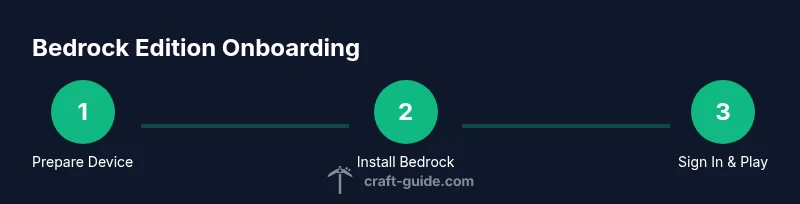
You can get into Minecraft Bedrock Edition by installing the Bedrock client on your device, signing in with a Microsoft account, and launching the game. Bedrock supports cross‑play across Windows, consoles, and mobile, so you can join friends on different platforms with a single account. This guide walks you through setup, cross‑play considerations, and common onboarding steps.
Understanding Bedrock Edition and Why It Matters
Minecraft Bedrock Edition is the cross‑platform version designed to run on Windows 10/11, consoles, and mobile devices. If you’re asking how to get in minecraft bedrock edition, the key point is that Bedrock is built for performance and consistent updates across devices. This unified codebase enables cross‑play across many platforms, which means you can start a world on PC and continue it on a tablet, or play with friends on a phone while keeping the same features and movement. For new players, the onboarding path is straightforward: choose the Bedrock edition for your device, make sure you have a compatible account, and install or download the client. From there, you’ll sign in, select a world or server, and begin your first adventure. The Craft Guide team notes that understanding platform differences helps you avoid installation mistakes and ensures you’re using the edition that matches your play style, whether you want big builds, quick sessions, or creative experiments.
Getting Set Up: Devices and Accounts and Licenses
To get in minecraft bedrock edition, first identify the platforms you’ll play on: Windows 10/11, Xbox One/Series X|S, PlayStation 4/5, Nintendo Switch, iOS, and Android. Bedrock Edition is available through each platform’s store, so you don’t need a separate Java launcher. Next, sign in with the appropriate Microsoft account that is linked to that platform. On Windows, this is typically your Microsoft account; on consoles, it follows your console profile. You’ll also want to confirm you actually own or have access to the Bedrock Edition license for your device. Optional accessories like a compatible controller or a headset can improve your experience, but they aren’t required. With these basics in place, you’re ready to proceed to downloading and launching the game. The Craft Guide team suggests keeping payment methods or gift cards ready in your platform store to speed up purchases if you need to upgrade from a trial or demo.
Accessing Bedrock Edition Across Platforms
Across platforms, the Bedrock Edition uses the same core gameplay and supports cross‑play with other Bedrock players. On Windows and Xbox, you obtain Bedrock through the Microsoft Store or console store; on Nintendo Switch and PlayStation, use the respective digital storefronts; and on mobile devices, download from Google Play or the Apple App Store. After installation, you’ll sign in with the same Microsoft account across devices, enabling cross‑platform friends and shared worlds. It’s important to verify that you’re launching the Bedrock Edition, not the legacy or Java edition, on all devices. If you plan to play with someone on iOS and someone on Windows, you’ll need to ensure both devices have the most recent Bedrock build. The Craft Guide team emphasizes testing connectivity by joining a friend’s world before investing time in a long project.
First Run: Signing In, Creating Profiles, and Loading Your World
Once Bedrock Edition is installed on your device, start the game and sign in with your Microsoft account. If you don’t have one, you’ll be guided to create it during setup. Create a player profile or select your existing one, then choose to load a world you’ve created previously or start a new world. For new players, consider a small survival world to learn controls, inventory, and basic crafting. Allocation of world seed, difficulty, and game mode can be adjusted in world settings before you enter. A successful first run also means turning on multiplayer options and privacy settings so you control who can join your worlds. The Craft Guide team notes that a clean first run minimizes confusion later on.
Troubleshooting Common Hurdles
Many beginners run into a few common snags when getting into Bedrock Edition. If you can’t sign in, double‑check that you used the correct Microsoft account and that you’re connected to the internet. If you see a message about an out‑of‑date client, return to the store and update to the latest build. Connectivity issues when joining friends or servers are often caused by mismatched versions or strict firewall rules; temporarily disabling strict firewall or enabling required ports can help. If a world or server won’t load, verify that the world seed is valid and that you’re using the correct edition for that server. Finally, if your device struggles to run the game, lower the graphics settings and reduce render distance to improve frame rate.
Optimizing Performance and Cross‑Play Safety
To keep Bedrock Edition running smoothly across devices, tune a few key settings. Start with graphics: reduce render distance, disable fancy lighting, and ensure V-Sync is enabled if you notice tearing. In the multiplayer menu, enable filtering to avoid unwanted servers and set up friends lists for quick access. For cross‑play safety, use the built‑in privacy options to limit who can join your worlds, and consider enabling chat filters. Regularly back up saves if your device supports cloud save or local backups. The Craft Guide team suggests testing performance after every major update to catch new issues early and adapt settings accordingly.
Tools & Materials
- Device with Bedrock Edition installed(Choose the correct edition for your platform (Windows, console, or mobile).)
- Microsoft account(Needed to sign in and access cross‑play features.)
- Stable internet connection(Wired or strong Wi‑Fi preferred for updates and multiplayer.)
- Platform store access(Microsoft Store, App Store, Google Play, Nintendo eShop, or PlayStation Store.)
- Sufficient storage space(Free space recommended to accommodate updates and worlds.)
- Optional peripherals(Controller, keyboard/mouse, or headset for chat.)
Steps
Estimated time: 30-60 minutes
- 1
Check device compatibility
Verify your device supports Bedrock Edition and that you’re aiming for the Bedrock build, not Java. Confirm OS version requirements and that there is enough storage space for downloads. This step prevents installation errors and cross‑play issues later.
Tip: Consult the official store listing to confirm Bedrock compatibility for your exact model. - 2
Confirm Bedrock Edition is installed
Open the appropriate store on your device and locate Bedrock Edition. If you see a button labeled Install or Get, proceed to download. Ensure the installation completes before starting the game.
Tip: Use a fast network to reduce download time and avoid corrupted files. - 3
Sign in with your Microsoft account
Launch the game and sign in with the Microsoft account that corresponds to your device. This enables cross‑play and access to your saved worlds. If you don’t have an account, set one up during this step.
Tip: Keep your login credentials secure and consider enabling two‑factor authentication. - 4
Purchase or activate the license
If your device requires a license, complete the purchase or activate it through the platform store. This ensures you can access all features and connect with friends.
Tip: Some platforms bundle Bedrock with other services; verify you’re selecting the Bedrock edition only. - 5
Update to the latest Bedrock build
Check for updates and install the latest version. Updates fix bugs, improve performance, and ensure cross‑play compatibility with friends.
Tip: Turn on automatic updates if you plan to play regularly. - 6
Launch the game and create your profile
Open Minecraft Bedrock Edition and sign in again if prompted. Create a player profile or select an existing one to begin. Set your preferred difficulty and game mode for first play.
Tip: For new players, start with a small survival world to learn basics without overwhelming complexity. - 7
Enable cross‑play and privacy settings
Navigate to multiplayer or privacy settings and adjust who can join your worlds. Enabling cross‑play lets friends on other devices join your games where supported.
Tip: Regularly review who can join and mute or block offenders as needed. - 8
Add friends and connect to a server or world
From the Friends tab or server browser, add trusted friends and join their worlds. Alternatively, type the server address to connect to specific communities.
Tip: Test with a quick, short world to ensure latency is acceptable before starting a large build. - 9
Choose a world seed or create anew
Decide whether to seed a world for unique terrain or create a fresh world to tailor your experience. Adjust world settings before you travel far from spawn.
Tip: If you’re learning, start with a Creative world to experiment with builds without resource constraints. - 10
Tune controls and accessibility
Adjust controls, enable accessibility options, and personalize sensitivity to improve your comfort level. Create a comfortable setup for long play sessions.
Tip: Consider hotkeys or quick‑access slots for inventory and building blocks. - 11
Back up your saves and keep safety in mind
Enable cloud saves if available or regularly back up local worlds. Review privacy settings and parental controls if younger players are involved.
Tip: Create a recurring backup routine to prevent loss from crashes or device resets. - 12
Explore tutorials and community resources
After you’re set up, seek beginner tutorials, seed lists, and community guides to accelerate learning and inspire builds. The community often shares tips for efficient resource gathering and creative techniques.
Tip: Bookmark official guides and reputable communities for ongoing learning.
People Also Ask
Which platforms support Minecraft Bedrock Edition?
Bedrock Edition runs on Windows 10/11, Xbox One/Series, PlayStation 4/5, Nintendo Switch, iOS, and Android. Availability may vary by region and store.
Bedrock Edition is available on Windows, consoles, and mobile, with cross‑play across supported devices.
Can I play with Java Edition players?
No. Bedrock Edition players can only play with other Bedrock Edition players. Java Edition has its own separate ecosystem and servers.
Bedrock doesn’t support cross‑play with Java Edition players.
Do I need a separate license for Bedrock?
Yes, the Bedrock Edition license is tied to the platform store. Ensure you’ve acquired the Bedrock edition for your device before playing online.
You’ll need the Bedrock license for your device, obtained via your platform’s store.
Is cross‑play available on all servers?
Cross‑play depends on server support. Many servers are Bedrock compatible and allow cross‑platform play, but some may restrict to specific editions or platforms.
Cross‑play depends on the server; check server rules before joining.
What if I can't sign in due to account issues?
Verify you’re using the correct Microsoft account, confirm internet access, and check for any platform‑specific sign‑in prompts. If problems persist, contact platform support.
Make sure you’re signed in with the right Microsoft account and try again with a stable connection.
Where can I find beginner tutorials for Bedrock?
Start with official guides and trusted community resources. Look for beginner walkthroughs on major gaming outlets and the Minecraft support pages.
Check out beginner tutorials from reputable gaming sites and the official Minecraft help pages.
Watch Video
The Essentials
- Install Bedrock Edition on the intended device and sign in with a Microsoft account.
- Use the correct platform store and license to enable cross‑play.
- Configure privacy and multiplayer settings before inviting friends.
- Regularly update and back up saves for a smooth, long‑term experience.