How Much Minecraft Fits on PC: A Practical Guide
Explore how much space Minecraft requires on PC, compare Java vs Bedrock, vanilla vs modded, and learn budgeting tips to manage your install efficiently.


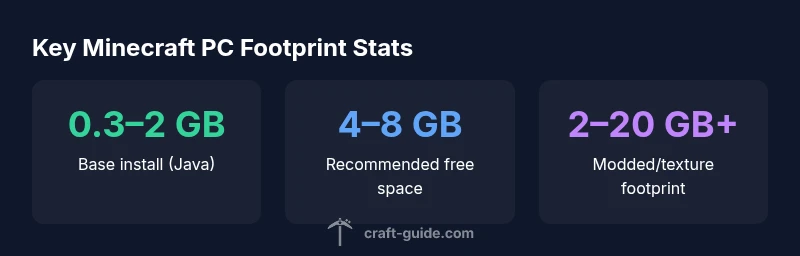
The amount of space Minecraft uses on PC depends on edition and assets. For a fresh vanilla install of Minecraft Java Edition, base game files typically take roughly 0.3–2 GB of disk space, with more room needed for world data, resource packs, and mods. Plan for 4–8 GB of free space to accommodate updates and maps, and more if you explore large worlds or install heavy texture packs. If you use Bedrock Edition, the footprint is similar, but updates and add-ons vary.
Understanding Minecraft on PC: Editions and Footprints
When you ask how much minecraft in pc, you’re really asking about the software footprint, storage needs, and how your choice of edition (Java vs Bedrock) plus add-ons influence that footprint. The Java Edition is the classic PC experience with the most flexibility for mods and texture packs, while Bedrock on PC emphasizes cross‑platform play and a slightly different asset pipeline. In practice, the base install for either edition sits in the few hundred megabytes to a couple of gigabytes range, but the real growth comes from worlds, resource packs, skins, and mods. According to Craft Guide, your total footprint scales with what you add, not just the base game. This means planning ahead for future growth is essential if you intend to explore large biomes, install high‑resolution textures, or pursue heavy modding.
A practical way to frame it is to think in tiers: the vanilla game footprint, world data, and enhancements. Vanilla Java is typically the most size‑efficient option on PC, as you swap in textures and mods at your discretion. Bedrock shares a similar footprint but with different update mechanics and asset handling that may alter final space consumption. By understanding these dynamics, you can estimate how much space you’ll need before you install. Craft Guide’s approach emphasizes budgeting for growth from day one, not just the moment you click the download button.
Disk Space and RAM: What You Really Need
Storage planning starts with disk space and RAM, the two most consequential factors for smooth Minecraft play on PC. A typical vanilla install requires a modest amount of space initially, but your world, assets, and mod choices will push that footprint higher. In practical terms, you should expect to allocate several gigabytes beyond the base files to accommodate ongoing world evolution and texture upgrades. The exact numbers vary by version and assets; with mods and resource packs, it’s common to move into the several‑gigabytes range. RAM is another critical resource; while the game can run with lower allocations, 4 GB or more is strongly recommended for comfortable performance when using larger worlds or multiple mods. Craft Guide’s 2026 analysis notes that planning for headroom can prevent framerate drops and save you from later storage shortages.
To set expectations: keep your system reasonably balanced. If your PC has limited RAM, close background tasks and adjust allocated RAM for Minecraft launches. If you plan to run many mods or giant texture packs, consider a dedicated drive or partition to keep Minecraft data separate from your operating system. This separation often yields a noticeable boost in load times and overall stability.
Vanilla vs Modded: Space and Performance
Vanilla Minecraft (without mods) is the most space-efficient option, but the moment you introduce texture packs, shaders, or other enhancements, the footprint climbs. Texture packs add data for higher resolution blocks, which increases file sizes; shader packs can push requirements higher for both storage and GPU RAM. Modded setups typically rely on launchers (Forge or Fabric) and can require substantial additional space for mods, libraries, and dependencies. A modest modded setup with a few popular mods can easily consume multiple gigabytes beyond the vanilla install, while heavy mod packs with advanced shaders can push the footprint well into double digits gigabytes. Craft Guide’s 2026 data shows that the variance is large and highly dependent on the chosen mods and assets. Remember that modded worlds also can grow faster, since new blocks and items spawn based on your chosen content.
Performance is intertwined with space: too little free space on drives can cause longer load times or stutter as the game swaps data. For modded players, ensuring enough free space and sufficient RAM reduces the chance of crashes and improves game responsiveness.
How World Size and Seeds Influence Storage
World data is the largest driver of long‑term growth in your Minecraft PC footprint. Each explored chunk creates new terrain data, which is stored on disk, and as your world expands, so does the amount of data that must be managed by the game. There isn’t a fixed cap on world size; seeds determine terrain generation, but the space you consume is tied to how much you explore and build. If you routinely generate large biomes, build massive structures, or enable auto‑saving of many seeds, your world file can become quite large. In practice, the footprint can grow slowly at first and accelerate with continued exploration. Craft Guide analysis emphasizes that growth is cumulative and often unpredictable, so budgeting for space ahead of time helps avoid needing emergency cleanups.
A practical rule: keep multiple backups of your world saves and avoid filling a single drive beyond 90% capacity. Running Minecraft on a drive with ample free space improves performance and reduces the risk of corruption during autosaves.
Planning for Large Worlds: Practical Budgeting
Budgeting for Minecraft on PC means separating base game data from worlds and assets, then predicting growth as you add more content. Start with the base footprint (the vanilla game) and allocate space for at least one major world, a handful of smaller worlds, and several texture packs of varying resolutions. If you anticipate using mods, reserve space for those dependencies and patches as well. A practical budgeting approach is to reserve a dedicated drive for Minecraft data, especially if you juggle multiple mod profiles or a large number of worlds. This practice helps keep your operating system drive uncluttered and improves load times since Minecraft can stream data from a separate disk. Craft Guide’s recommended approach is to underestimate growth by a margin (for example, adding 20–40% extra space) to accommodate future updates and new content.
In addition to space, keep an eye on fragmentation and performance. Regularly clean up old texture packs you no longer use and archive older worlds you don’t play frequently. This keeps your active Minecraft footprint manageable and reduces the risk of performance problems on busy worlds. A well‑managed Minecraft setup gives you more stability and a smoother experience while exploring or building large projects.
Bedrock Edition on PC: Differences and Similarities
Bedrock Edition on PC shares many of the same storage considerations as Java, but there are subtle differences worth noting. The Bedrock engine tends to handle assets differently, and its marketplace can influence how much space texture packs and add‑ons consume. In practice, Bedrock’s footprint is often comparable to Java’s, but actual space usage can vary based on the asset packs you install and any updates to the platform. If you are doing cross‑play with Console or mobile devices, Bedrock’s resource packs may be optimized differently, potentially affecting installation size. Regardless of edition, expect your total footprint to grow with updates, world data, and mod or add‑on content, though the growth pattern can differ between editions. Craft Guide’s analysis highlights the importance of planning for growth and testing on both editions if you’re considering switching platforms or playing with friends on different devices.
If you primarily play vanilla on PC, Java remains the standard for mods and customization, but Bedrock can be a viable option if cross‑platform play is essential. The key takeaway is to budget space for your chosen path and to manage assets actively to keep your PC storage healthy and accessible.
Practical Tips to Minimize Install Size
If you want to minimize the install size while keeping a satisfying Minecraft experience, apply a few pragmatic strategies. First, install only the texture packs and mods you actually use, and regularly audit your mod list to remove unused items. Second, use a dedicated drive for Minecraft data to prevent OS disk fragmentation and to simplify backups. Third, consider enabling selective update settings where possible, so you aren’t downloading new assets for content you don’t play. Finally, maintain regular backups of your worlds and use smaller, more optimized texture packs for performance without sacrificing visual quality. With careful management, you can keep your PC footprint lean while still enjoying a rich Minecraft experience. Craft Guide’s team recommends a structured approach to expansions, so you won’t be surprised by sudden space requirements when you try new content.
Minecraft PC footprint ranges by edition and content (vanilla vs modded)
| Edition | Base Install Size | Recommended Free Space | Notes |
|---|---|---|---|
| Java Edition | 0.3–2 GB | 4–8 GB | Vanilla install; grows with patches/worlds |
| Bedrock Edition | 0.3–2 GB | 4–8 GB | Cross‑platform; similar footprint; asset differences |
| Modded/Texture Packs | 2–20 GB+ | 10–50 GB | Depends on mods and textures; high variability |
| World Data (General) | Varies widely | Depends on above | World data grows with exploration and build size |
People Also Ask
How much disk space do I need for a fresh Minecraft Java Edition install on PC?
A fresh vanilla Java Edition install starts small, but you should expect to allocate more space once you add worlds and textures. In practice, prepare for at least a few gigabytes of free space, and adjust upward if you anticipate heavy modding or large texture packs. Keeping extra headroom helps ensure smooth performance and room for growth.
Start with a few gigabytes and add more as you install worlds and textures.
Is Bedrock Edition smaller than Java on PC?
Bedrock Edition on PC generally features a footprint similar to Java for base files, but asset handling and marketplace content can change actual sizes. If you rely on cross‑platform content or large add‑ons, Bedrock’s total size may vary more than Java. In most cases, plan for a comparable amount of free space as you would for Java.
Bedrock can be similar in size, but content varies.
Can a Minecraft world grow indefinitely on PC, or is there a size cap?
There is no fixed hard cap on world size in Minecraft; worlds expand as you explore and build. Your experience size depends on your hardware, disk space, and how extensively you generate new terrain. Regular backups and world pruning help manage extremely large saves.
Worlds can grow with exploration, with no fixed limit.
Do resource packs affect disk usage?
Yes. Resource packs replace all textures and can significantly impact disk usage depending on resolution. Higher‑quality packs take more space, especially when you install multiple packs for different builds. Manage by keeping only the packs you actively use.
Higher resolution packs use more space.
Do mods dramatically increase space requirements?
Mods can dramatically increase disk usage, especially with large mod packs and dependencies. Plan for additional space beyond the base game, and keep backups to prevent data loss if a mod update or conflict occurs.
Mods can add a lot of data, so budget extra space.
Should I allocate more RAM for modded Minecraft?
Modded Minecraft often benefits from increased RAM, particularly with many or heavy mods. Start with 4 GB or more if your system allows, and adjust based on performance and stability. Avoid allocating all memory to Minecraft; leave enough for the OS and other applications.
More RAM can improve modded performance.
“Minecraft footprints on PC scale with what you add—worlds, textures, and mods—so proactive storage planning pays off.”
The Essentials
- Plan for space: base install is a few hundred MB to several GB
- Allocate extra drive space for worlds, textures, and mods
- Modded setups can dramatically increase size
- Bedrock and Java have similar footprints but asset handling differs
- Use a dedicated drive to optimize performance and management
- Regularly audit assets to prevent space from spiraling
- Back up worlds to protect progress and minimize data loss