Can You Put Minecraft on an Amazon Fire Tablet? A Step-by-Step Guide
Learn whether you can run Minecraft on an Amazon Fire tablet, which edition works, how to install, and tips to optimize performance on Fire OS. A clear, step-by-step guide for beginners and beyond.


Yes, you can play Minecraft on an Amazon Fire tablet, but you’ll use the Bedrock Edition designed for Android rather than Java. Availability varies by region and model, and performance depends on your tablet’s specs. In practice, access Minecraft on Fire OS by downloading the Bedrock edition from the Amazon Appstore (or another supported Android store where available) and keeping the app updated.
Can you run Minecraft on an Amazon Fire tablet?
Answering the question can you put minecraft on amazon fire tablet requires understanding that Fire tablets run Fire OS, which is Android-based. The Bedrock Edition is the official cross‑platform version designed for mobile and desktop, while the Java Edition targets Windows, macOS, and Linux. According to Craft Guide, most Fire tablets can access Bedrock through the Android ecosystem adapted for Fire OS, but availability and performance depend on the device’s hardware and regional app store support. If your goal is consistent cross‑play, Bedrock is the practical path because it supports cross‑platform multiplayer where supported. Always check your specific model’s app availability in the Amazon Appstore before attempting installation.
Editions and compatibility: Bedrock vs Java on Fire OS
The core distinction for Fire OS users is that Java Edition does not natively run on Android-based devices. Bedrock Edition, however, is designed to work across mobile, console, and Windows platforms. On a Fire tablet, you’ll typically access Bedrock through the Android app experience offered by the Amazon Appstore. If you have the Google Play ecosystem installed by your device vendor, you may find Bedrock there too, but this is not guaranteed on every Fire tablet. Craft Guide analysis notes that Bedrock’s cross‑play features make it the preferable option for Fire tablets, while Java remains inaccessible on standard Fire OS builds.
Verifying readiness: what to check before you install
Before you install, confirm your Fire tablet is up to date and that you can access the Amazon Appstore. Ensure you have enough storage space for the game and any world data you plan to create. A stable Wi‑Fi connection will help during download and initial setup. The Craft Guide Team emphasizes that regional restrictions may influence availability; if you don’t see Minecraft in the Appstore, verify your region settings and device compatibility. Keeping your tablet within the supported OS range will improve install success and performance.
How to install Minecraft Bedrock Edition on Fire tablet
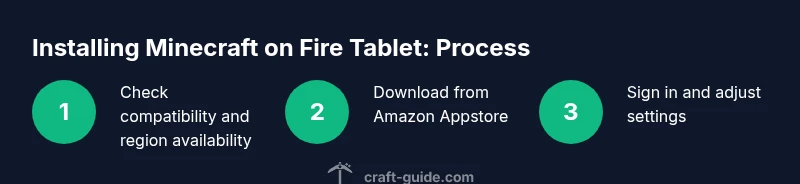
To install Bedrock Edition, open the Amazon Appstore on your Fire tablet, search for Minecraft, and follow the on‑screen prompts to download and install. If you already own a license, sign in with your Microsoft account to unlock features like cross‑play and cloud saves. If you don’t see the title in the store, consult your device’s support resources or consider regional alternatives. After installation, launch Minecraft to apply any first‑run updates and configure basic settings.
First launch: sign‑in and initial setup
On first launch, you’ll be prompted to sign in with a Microsoft account. This step unlocks access to your existing worlds and cross‑platform progress. If you don’t have an account, create one; it’s free and provides cloud saves and multiplayer access. Craft Guide notes that keeping your account secure is important, so enable two‑factor authentication where possible and review privacy settings within your Microsoft account.
Performance tips: getting the best experience
Fire tablets vary in performance, so optimize settings to maximize frame rate and responsiveness. Lower render distance, disable fancy graphics, and reduce texture pack quality if you experience lag. Close background apps when playing, and make sure the tablet isn’t thermally throttling due to long sessions. A stable Wi‑Fi connection and adequate storage will also reduce stutter and loading times, improving overall gameplay.
Cross‑play and multiplayer considerations
Bedrock Edition supports cross‑play across Windows 10/11, mobile, and consoles where the edition is available. On a Fire tablet, you’ll be able to join realms and multiplayer worlds that are also Bedrock‑compatible, provided you are signed in with the same Microsoft account and the world’s version matches. If you’re planning on joining friends, confirm they’re using Bedrock as well and that your server settings permit cross‑play. Craft Guide’s guidance emphasizes checking compatibility before starting to play with others.
Troubleshooting common issues and quick fixes
If Minecraft doesn’t appear in the Appstore, try refreshing the store, restarting the tablet, or checking regional availability. If the game downloads but won’t launch, clear the Appstore cache and verify you have enough storage. For performance issues, adjust in‑game settings and ensure the device isn’t overheating. If you encounter login problems, reset your Microsoft account sign‑in and re‑authenticate within the game.
Alternatives if Minecraft isn’t available or suitable
If Bedrock isn’t accessible or runs poorly on your Fire tablet, consider lightweight Minecraft-like options or other sandbox games available on Android. These can provide similar creative experiences while you resolve installation constraints. The Craft Guide team notes that trying a related title can be a good interim solution while you verify official support and performance on your specific device.
Tools & Materials
- Amazon Fire tablet (HD 8/10 or similar)(Ensure device is up to date and has enough storage for game data.)
- Stable internet connection(Wi‑Fi recommended during download and updates.)
- Amazon account(Needed to access the Appstore and install Minecraft Bedrock Edition.)
- Minecraft Bedrock Edition license(Acquire from the Amazon Appstore or an approved Android store where available.)
- Microsoft account(Used for sign‑in to enable cloud saves and cross‑play features.)
- Storage space(At least a few gigabytes free for the game and world data.)
Steps
Estimated time: 15-40 minutes
- 1
Check device compatibility and availability
Verify your Fire tablet model and OS version are compatible with the Bedrock Edition and that Minecraft is available in your region's Amazon Appstore. This avoids wasted time on downloads that won’t install. Craft Guide recommends starting with a quick check of store availability before proceeding.
Tip: If you don’t see Minecraft in the Appstore, confirm your region settings or contact Amazon support for guidance. - 2
Prepare your account and license
Sign in to your Amazon account and ensure you have a Microsoft account ready for sign‑in in the game. If you already own Bedrock Edition, you may need to verify your license in the app store. This step ensures you can unlock features and cloud saves later.
Tip: Use a strong password and enable two‑factor authentication for your Microsoft account. - 3
Download and install Minecraft Bedrock Edition
Open the Amazon Appstore on the Fire tablet, search for Minecraft Bedrock Edition, and follow the prompts to install. Ensure you have a stable connection and enough storage. The installation process should complete without requiring sideloading or alternate stores.
Tip: Avoid interrupted downloads by staying connected to Wi‑Fi during the install. - 4
Launch and sign in
Open Minecraft and sign in with your Microsoft account to access your worlds and cross‑play features. If you encounter login issues, verify your credentials and ensure you’re on the correct edition (Bedrock).
Tip: Keep your login details handy and consider using app‑specific passwords if 2FA is enabled. - 5
Configure basic settings
Navigate to Settings to adjust graphics, controls, and sound. Reduce render distance, disable resource packs if you’re temporarily lagging, and tailor touch controls to your comfort. These tweaks help on devices with moderate performance.
Tip: Test with a small world to gauge performance before investing time in growth. - 6
Create or join a world
Create a new world or join a Bedrock world shared by friends. Make sure your world version matches the version on their devices to prevent compatibility issues. Cloud saves will sync across Bedrock platforms when signed in.
Tip: If joining a server, check the server’s Bedrock version and access permissions before connecting. - 7
Test cross‑play
If you plan to play with friends on other devices, verify cross‑play works with your Microsoft account and ensure everyone is on Bedrock. This ensures you can join sessions together and share progress.
Tip: Test with a short session first to confirm connectivity and avoid longer gameplay interruptions. - 8
Keep software up to date
Check for updates to Minecraft and to Fire OS. Regular updates fix bugs and improve performance, and they’re essential for cross‑platform features to work smoothly.
Tip: Enable auto‑update where available to reduce manual maintenance.
People Also Ask
Can you run the Java Edition on an Amazon Fire tablet?
No. The Java Edition is not supported on Fire OS devices. Fire tablets typically use Bedrock Edition, which is designed for Android‑based devices and cross‑platform play where available.
Java Edition isn’t supported on Fire tablets; you’ll use Bedrock Edition instead for cross‑play.
Which edition should I choose for Fire tablet play?
Bedrock Edition is the supported option for Fire tablets, offering cross‑platform play with other Bedrock‑based devices. Java Edition is not compatible with Fire OS.
Choose Bedrock Edition for Fire tablets to access cross‑play and mobile compatibility.
Do I need Google Play to install Minecraft on Fire tablet?
Not always. Some Fire tablets ship without Google Play, relying on the Amazon Appstore. If Bedrock Edition is available there, you can install it without Google Play.
Google Play isn’t always required; use the Amazon Appstore if Bedrock Edition is available.
Will Bedrock support cross‑play with my friends on PC or consoles?
Bedrock Edition supports cross‑play across Windows, consoles, and mobile devices where available. Ensure everyone is on Bedrock and using compatible versions.
Yes, Bedrock supports cross‑play across platforms, as long as versions match.
What should I do if the game won’t install or launch?
Check regional availability, ensure sufficient storage, and verify your OS and app store permissions. If problems persist, restart the device and re‑attempt the install.
If it won’t install, check region and storage, then retry the download.
Are there performance tips specific to Fire tablets?
Yes—lower render distance, reduce graphics, close background apps, and ensure a stable Wi‑Fi connection to minimize lag and improve responsiveness.
Lower graphics and keep a steady connection for smoother gameplay.
Watch Video
The Essentials
- Minecraft on Fire Tablet uses Bedrock Edition
- Java Edition does not run on Fire OS
- Bedrock supports cross‑play where available
- Use the Amazon Appstore to install Minecraft Bedrock Edition
- Sign in with a Microsoft account for cloud saves and cross‑play
- Optimize settings for better performance on mid‑range devices