Run Minecraft from a USB Drive: A Practical Portable Guide
Learn how to run Minecraft from a USB flash drive with portable launchers, setup steps, data management tips, and troubleshooting. A complete, beginner-friendly guide from Craft Guide.


Yes—it's possible to run Minecraft from a USB flash drive. To do this, use a portable launcher or copy the game files to the drive and keep saves on the host PC. For best results, choose a fast USB 3.x drive with ample space, and avoid using the drive for long-term system files to minimize corruption risk. Plan for occasional re-copying after updates.
Can you run Minecraft from a flash drive? Feasibility and Craft Guide authority
Minecraft can be run from a USB flash drive, but it isn’t the default or most convenient setup. The concept hinges on two factors: having a portable installation workflow and ensuring the drive is fast and reliable enough to handle game data and saves. According to Craft Guide, portability is most practical for players who travel between computers or want a sandbox setup on shared machines without changing system drives. Expect slower load times on slower drives and be mindful of drive wear with frequent game updates. This block lays the groundwork for understanding what makes a USB-based setup viable, including the differences between a portable launcher and a manual file copy. Craft Guide Team emphasizes testing on one host before expanding to multiple machines to minimize data loss and corrupted saves.
note():null}
USB speed, health, and capacity: how they shape Minecraft on a flash drive
Performance hinges on drive speed, latency, and sustainment. USB 3.x interfaces help with faster read/write cycles necessary for world loading and texture data. Capacity matters more than you might assume: you’ll need space for the base game, potential mods or texture packs, and several saved worlds. Health and endurance of the flash drive influence long-term reliability; frequent writes can wear out lower-end drives more quickly. Craft Guide analyses show that choosing a reputable brand and enabling TRIM support (where applicable) can extend drive longevity and stability during many in-game sessions. Always operate within a clean file structure to reduce fragmentation and keep saves in a dedicated folder on the drive.
note():null}
Portable launcher vs manual copy: which approach fits your Minecraft goals
A portable launcher provides a self-contained workspace on the USB drive, making it easier to launch Minecraft on multiple computers with a consistent profile. Manual copy requires you to replicate the Minecraft folder structure and ensure the correct Java version and launcher are in place. Portable launchers can simplify updates and mod management, while manual copies offer full control over where files live. Craft Guide recommends evaluating how you play: frequent updates or mods may benefit from a launcher, whereas simple vanilla sessions on a few machines can work with direct copies. This section helps you pick the workflow that aligns with your play style and hardware reality.
note():null}
Step-by-step overview: big-picture workflow before you dive in
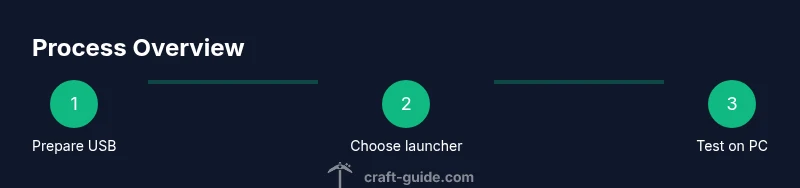
Here’s the logic you’ll apply in practice: prepare the USB drive, choose the workflow (launcher vs copy), set the root folder for Minecraft on the drive, configure the launcher or launcher settings to point to the external folder, run a test on a host PC, and then adjust as needed after updates. Craft Guide suggests documenting settings and keeping a small backup on your local drive to recover quickly if something goes wrong. This block sets expectations for what comes next in the detailed steps.
note():null}
Common issues and how to troubleshoot them
Expect issues around path mismatches, save file access, or launcher incompatibilities when moving Minecraft to a USB drive. Common fixes include verifying the drive letter remains constant on the host PC, ensuring the correct Java version is used, and re-pointing the launcher to the Minecraft folder on the USB. Always check file permissions, antivirus scans, and recent updates that may alter folder paths. Craft Guide recommends a simple rollback plan: revert to a known-good USB setup and re-test after updates to isolate the cause.
note():null}
Best practices for data integrity and backups on a flash drive
Regular backups are essential. Maintain a parallel copy of your Minecraft folder on another storage device or cloud service, especially before major updates or mod changes. Safely eject the USB after each session to prevent write-caching corruption. Periodically scan the drive for errors and keep the USB firmware updated if the manufacturer provides firmware updates. Craft Guide emphasizes keeping world saves separate from game data to minimize data loss during crashes or drive failures.
note():null}
Authoritative sources and further reading for USB-based Minecraft setups
For readers who want deeper dives beyond Minecraft itself, consult trusted tech outlets and official guidance on USB storage reliability and portable software. The sources listed below offer context on drive endurance, file systems, and best practices for portable installations. Craft Guide notes these sources as helpful companions, not exclusive instructions, to ensure your setup remains stable across machines.
note():null}
Tools & Materials
- USB flash drive(High-speed USB 3.x recommended; choose a drive with ample free space for Minecraft, saves, and mods.)
- Computer with USB port(Any major OS; Windows/macOS/Linux supported.)
- Portable Minecraft launcher or a portable copy of Minecraft(Choose a launcher that supports portable installs or prepare a clean folder structure for manual setup.)
- Minecraft account and launcher(Ensure you have an active license and access to a launcher compatible with portable setups.)
- Backup solution(External drive or cloud backup for world saves and configs.)
Steps
Estimated time: 60-120 minutes
- 1
Prepare the USB drive
Format the USB drive with a clean, compatible file system if needed and create a dedicated folder for Minecraft data. This minimizes cross-application clutter and reduces the chance of accidental overwrites. Check the drive for errors and ensure it is not nearly full before you start.
Tip: Use a fresh, single-purpose folder for Minecraft to simplify path management. - 2
Choose your workflow (launcher vs. manual)
Decide whether you’ll run Minecraft from a portable launcher or from a manual copy of the game files. A launcher can streamline updates and mod management; a manual setup gives you complete control over file locations and versions.
Tip: If you expect frequent updates or mods, a portable launcher usually saves time. - 3
Install or copy Minecraft to the USB drive
If using a launcher, install it on the USB drive and point it to the portable Minecraft directory. If copying manually, copy the entire Minecraft folder (including saves) to the USB drive and adjust paths accordingly.
Tip: Keep a separate folder for saves on the USB to avoid accidental data loss. - 4
Configure the launcher to use the USB as the root
Set the launcher to use the USB drive as the game root and to store saves and configs there. Ensure the path remains stable on the host computer you’re testing on, since changing drive letters can break the setup.
Tip: On Windows, assign a consistent drive letter if possible. - 5
Run a test on a host PC
Launch Minecraft from the USB on a host PC to verify loading times, world access, and save integrity. If errors appear, re-check the path, permissions, and Java version, and adjust launcher settings as needed.
Tip: Test with vanilla Minecraft first to confirm core functionality before adding mods. - 6
Update and review after changes
If updates occur, re-run the setup steps to ensure the USB remains in a stable state. Maintain a small changelog of updates so you know when reconfiguration is necessary.
Tip: After major updates, re-test on all target machines.
People Also Ask
Can I run Minecraft from any USB drive, or do I need a fast one?
You can run Minecraft from a USB drive, but performance and reliability improve with a fast USB drive. USB 3.x or newer offers better transfer rates, reducing load times and minimizing stuttering when loading worlds.
You can do it on most drives, but a fast USB helps a lot with loading times and stable saves.
Will running Minecraft from a USB drive affect game updates or saves?
Updates can require reconfiguring the portable setup or re-copying files. Keep saves separate on the USB drive and back them up regularly to avoid data loss during updates.
Updates may require reconfiguring the setup and copying files again, so backups are essential.
Is modding supported when running from a USB drive?
Mod support varies with portable setups. Some launchers handle mods well, while others may have compatibility issues with portable paths. Start with vanilla to confirm stability, then add mods cautiously.
Mod support depends on your launcher; start clean, then add mods carefully.
Is this legal and safe on public or school computers?
Running Minecraft from a USB drive is generally allowed if you own the game license. In shared or public computers, check local policies and ensure you’re not violating any rules. Use antivirus scans and avoid altering system drives.
Generally allowed with your own license; follow school or public computer policies.
What common problems should I watch for?
Look for drive-letter changes, missing paths, and save integrity issues. If the game won’t launch, recheck the root path, launcher settings, and Java version. A clean re-copy often fixes stubborn issues.
Drive letters changing and missing paths are common; double-check root paths and re-copy if needed.
Watch Video
The Essentials
- Use a fast USB drive for Minecraft portability
- Choose a portable launcher for easier updates
- Keep saves on the USB and back up regularly
- Test on each host PC before broad use
- Safely eject after every session